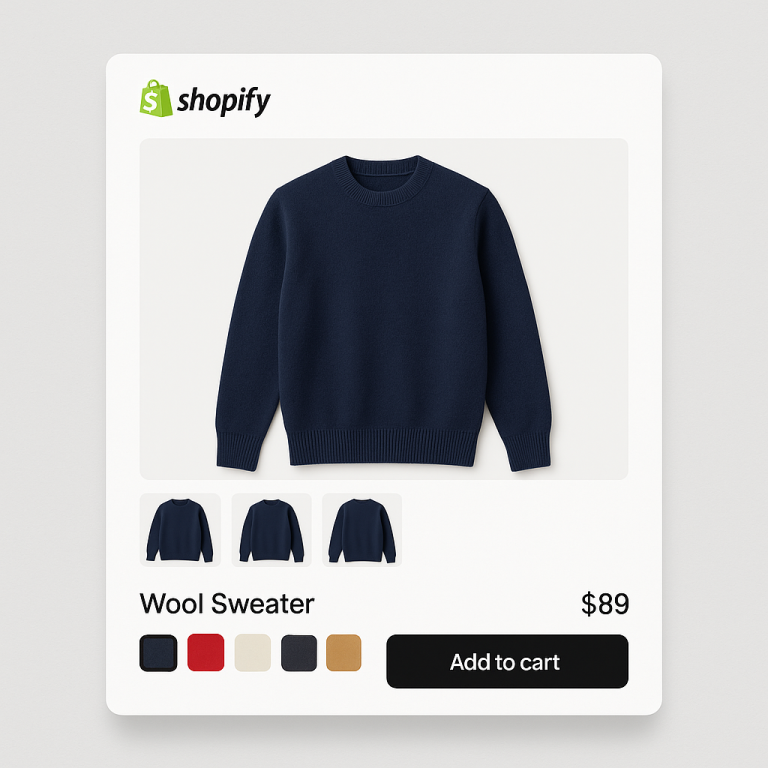
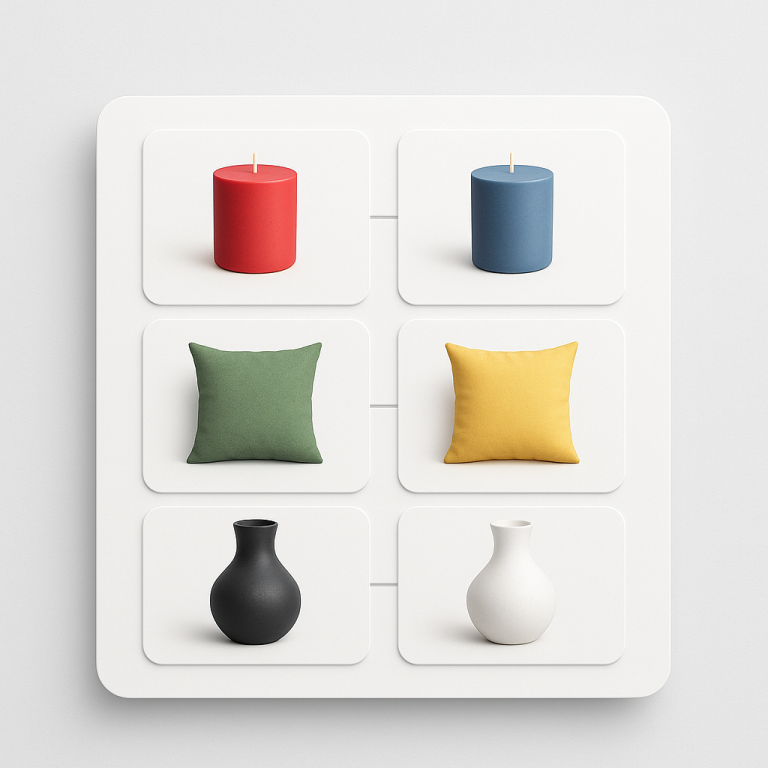
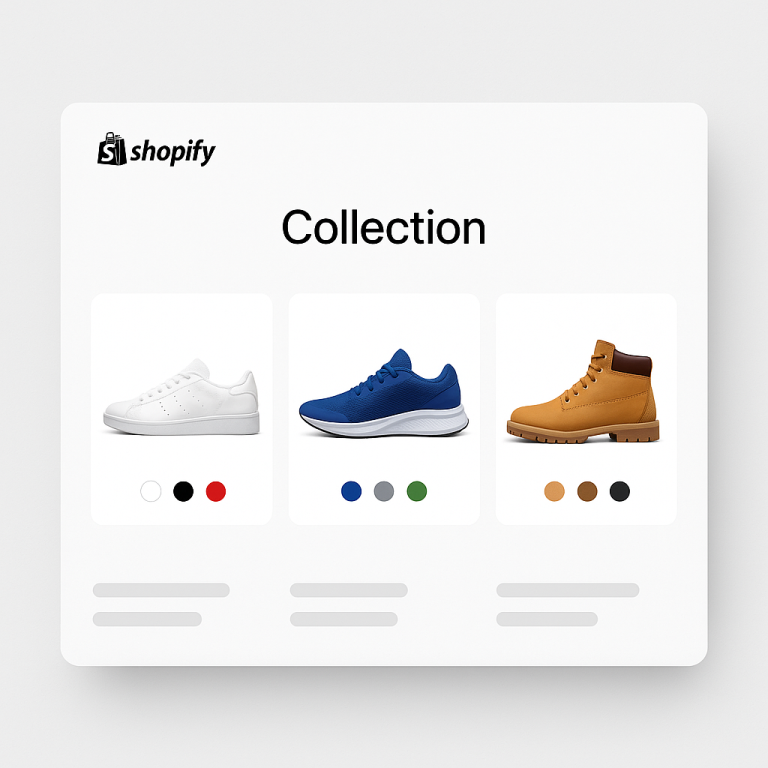
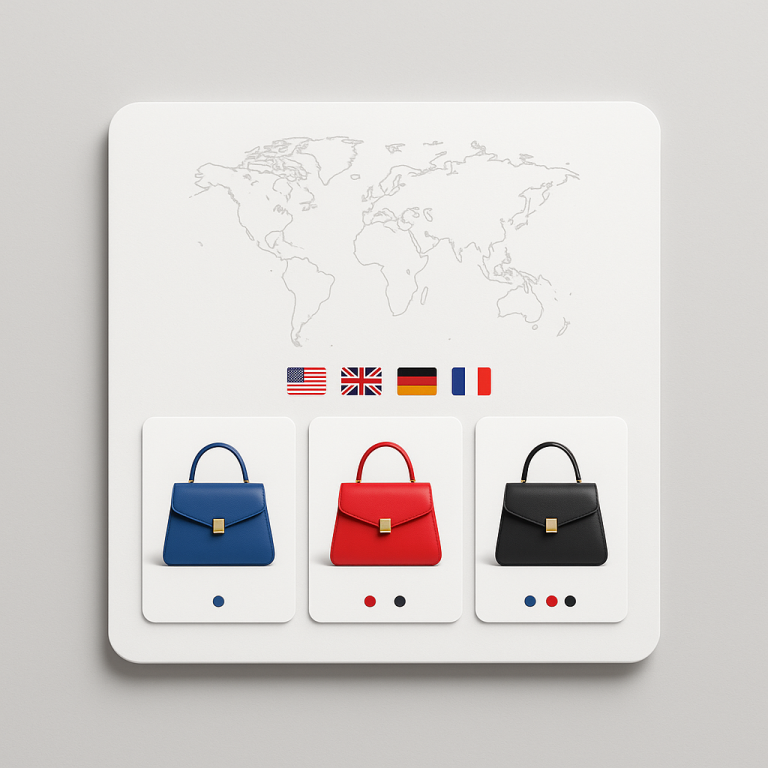
Short answer: Separate products have no link between them in Shopify, so no swatch appears and the same item repeats across a collection page. Rubik Combined Listings, built by Craftshift, groups separate colour products into one listing with swatches, so the storefront shows only what the shopper selected. Free to install, 5.0 stars across 78 reviews.
Combined listings let you connect separate Shopify products and present them as if they were variants of one product. A customer sees color swatches on the product page, clicks a different color, and lands on a different product page. Same experience as Shopify variants, but each color is its own product with its own URL, its own images, and its own SEO.
These are the 30 questions we see most often, pulled from support tickets, Shopify Community posts, and what merchants search for on Google.
In this post
- Basics (1-7)
- Setup and grouping (8-13)
- Swatches and display (14-18)
- SEO and product feeds (19-21)
- AI features (22-24)
- Troubleshooting (25-27)
- Pricing and plans (28-30)
Basics
1. What are combined listings on Shopify?
Combined listings connect separate Shopify products and display them as if they were one product with color (or other) variants. Each product keeps its own URL, images, inventory, and pricing. The customer sees swatches on the product page and collection page. Clicking a swatch navigates to the linked product.
Shopify has a native Combined Listings feature, but it requires Shopify Plus ($2,300/month). Third-party apps like Rubik Combined Listings bring this to every Shopify plan. Detailed comparison: Rubik vs Shopify native combined listings.
2. Why would I use separate products instead of Shopify variants?
Several reasons:
- SEO: Each product gets its own URL, title, and meta description. “Blue Cotton Hoodie” and “Red Cotton Hoodie” each rank independently in Google.
- Variant limit: Shopify caps at 2,048 variants per product. If you sell a jacket in 15 colors and 8 sizes, that is 120 combinations from a single product. Three products with different fits and you are already over the limit.
- Print-on-demand: Apps like Printify and Printful create a separate product for each design. You cannot merge them into one.
- Different pricing: A leather version of a bag should cost more than the canvas version. With variants, complex pricing rules get messy. With separate products, each has its own price.
Full breakdown: separate products vs variants SEO impact.
3. Do I need Shopify Plus for combined listings?
No. Shopify’s native Combined Listings feature requires Plus ($2,300/month). But third-party apps work on every plan, including Basic Shopify. Every option explained here.
4. How is Rubik Combined Listings different from Shopify’s native feature?
Key differences:
- Works on every Shopify plan, not just Plus
- Collection page swatches on product cards (native does not do this)
- AI-powered Magic Fill for automatic color detection
- 11 product page style presets and 8 collection page presets
- Category/subgroup organization (“Warm Colors,” “Cool Colors”)
- Google Analytics swatch click tracking
- Custom JavaScript API for headless/custom integrations
5. Can a product belong to multiple groups?
Yes. A product can be a member of more than one group. For example, a “Black Leather Belt” could appear in a “Leather Belt” color group and also in a “Black Accessories” material group.
6. What happens when a customer clicks a swatch?
The customer navigates to the linked product’s page. It looks like a variant change, but it is actually a page redirect. Each product page has its own images, description, price, and inventory. The swatch row stays consistent across all linked products so the customer can switch between them freely.
7. Does each linked product keep its own URL?
Yes. That is the entire point. “Blue Cotton Hoodie” lives at /products/blue-cotton-hoodie and “Red Cotton Hoodie” lives at /products/red-cotton-hoodie. Google indexes them separately. Each product builds its own search rankings.
Setup and grouping
8. How do I create a product group?
In the Rubik app, click “Create Group.” Add products to the group and assign each product an option value (like “Blue” or “Red”). The app creates a Shopify metaobject that links the products together. Swatches appear on the product pages and collection pages automatically. Step-by-step guide: combined listings setup.
9. How does bulk grouping work?
Three methods:
- Title pattern matching: The app scans product titles for shared patterns. “Summer Shorts, Yellow” and “Summer Shorts, Blue” automatically group as “Summer Shorts.” It works forward, reverse, and with fuzzy word matching.
- Product tags: Add tags in the format
RUBIK::group_name::option_name::option_value. The app reads the tags and creates groups. - Metafields: For stores that already use custom metafields for product relationships, the app can read those directly.
Title pattern matching is the fastest. Most stores can group hundreds of products in a few clicks.
10. My products are created by Printify/Printful. Can I group them?
Yes. Print-on-demand apps create a separate product for each design or color. The title pattern matching in Rubik detects shared naming patterns and groups them automatically. If your POD app uses consistent title formats like “Vintage Tee, Black” and “Vintage Tee, White,” grouping takes seconds. Full guide: print-on-demand combined listings.
11. Do I need to edit theme code?
No. The app uses Shopify’s app embed system. Enable it in your theme editor (Customize > App embeds). No Liquid files, no JavaScript injections. If you switch themes, re-enable the embed in the new theme.
12. What if I reorder products in a group?
Drag and drop products in the Rubik app to set the swatch display order. The first product in the group is the “default” that shows first. Changes sync instantly to your storefront.
13. How does out-of-stock handling work?
Two options: hide out-of-stock products from the swatch row entirely, or push them to the end of the list. Archived and draft products are always hidden automatically. This prevents customers from clicking a swatch and landing on a product they cannot buy.
Swatches and display
14. What swatch types are available?
Seven image sources for swatches:
- First product image (featured)
- Second product image
- Last product image
- Custom uploaded image
- Solid color (one color)
- Two colors (split: vertical, horizontal, or diagonal)
- Auto (custom image if exists, then colors, then product image fallback)
On top of these, there are 11 product page style presets (square, circle, rounded, polaroid, pills, carousel, buttons, dropdown) and 8 collection page presets. Customize further with 70+ CSS variables in the visual settings editor.
15. Do swatches show on collection pages?
Yes. This is one of the main advantages of Rubik Combined Listings. Color swatches appear on product cards in collection pages. Customers can browse colors without opening each product page. When they hover over a swatch, the product card image can swap to show that color (configurable). Shopify’s native combined listings does not offer collection page swatches.
16. Can I organize swatches into categories?
Yes. If a group has many colors, you can split them into categories like “Warm Colors” and “Cool Colors,” or “Cotton” and “Linen.” Each category gets a header label above its swatches. This keeps the swatch row organized for products with 10+ color options.
17. Can I show prices inside the swatches?
Yes. Enable price display in visual settings and each swatch shows the linked product’s price. This is useful when different colors or materials have different prices. The swatch can also show compare-at prices (strikethrough) and price range indicators.
18. Can I track swatch clicks in Google Analytics?
Yes. The app fires a rcl_swatch_clicked event on the window with 16 properties including product ID, option value, price, context (product page or collection page), and viewport (desktop or mobile). You can listen for this event and send it to GA4:
window.addEventListener('rcl_swatch_clicked', function(e) {
    gtag('event', 'swatch_click', {
        product_id: e.detail.productId,
        option_value: e.detail.optionValue
    });
});
SEO and product feeds
19. Is combined listings better for SEO than Shopify variants?
In many cases, yes. Each product has its own URL with a keyword-rich slug, its own title tag, its own meta description, and its own structured data. “Blue Merino Wool Sweater” can rank for “blue merino wool sweater” while “Red Merino Wool Sweater” ranks for the red version. With traditional variants, there is one URL for all colors. Full analysis: separate products vs variants SEO.
20. Does it work with Google Shopping and product feeds?
Yes. Since each linked product is a real Shopify product, it appears in your product feed as a separate item with its own GTIN, image, price, and availability. Google Shopping treats each one as its own listing. There is nothing extra to configure.
21. How do combined listings affect collection page filters?
Since each color is a separate product, collection page filters (like filtering by “Blue”) show only the blue product. With traditional variants, filtering by color often fails because Shopify filters work at the product level, not the variant level. Combined listings make filters work as customers expect. Details: combined listings and collection filters.
AI features
22. What is Magic Fill?
Magic Fill uses AI (OpenAI vision) to analyze product images and titles, then suggests the option value and swatch color automatically. Open a group, click Magic Fill, and the AI looks at a product called “Leather Weekender Bag” with a navy image and suggests option value “Navy Blue” with hex code #1B2A4A. It can even detect two-tone products and suggest a secondary color. You review and confirm before saving.
23. What is the AI Visual Settings Assistant?
Type what you want in plain English: “make swatches circular,” “use a thicker border on the selected swatch,” or “switch to a dropdown layout.” The AI generates the CSS changes and shows a live preview. It controls 70+ style variables. No CSS knowledge needed.
24. Are AI features included in all plans?
Magic Fill and the AI Visual Settings Assistant are available on all paid plans. The Free plan includes limited AI usage to test the features. AI usage does not count against a separate quota for combined listings. Use it as needed.
Troubleshooting
25. Swatches are not showing on my product page. What do I check?
Go through this checklist:
- App embed enabled? Theme editor > App embeds > Rubik Combined Listings should be toggled on.
- App status active? Check the app dashboard. The app needs to be in “Active” status.
- Group has products? Open the group and confirm products are added with option values assigned.
- Products published? Draft or archived products do not show swatches.
- Visibility toggle on? Check that product page swatches are enabled in visual settings.
26. Swatches show on the product page but not on collection pages. Why?
Collection page swatches require the “Product card swatches” toggle to be enabled in Settings. Also check that the correct theme type is selected. Different themes use different product card structures. If your theme is not auto-detected, try selecting the theme type manually in the Rubik app settings.
27. Swatches disappear after I click one. What is happening?
This usually happens when the page reloads after a swatch click and the new product page does not re-inject the swatch component fast enough. The app uses a MutationObserver to re-inject swatches after page transitions, but some themes with aggressive DOM manipulation can interfere. Contact support with your store URL and theme name for a theme-specific fix.
Pricing and plans
28. How much does Rubik Combined Listings cost?
Four plans with flat pricing:
- Free: $0/month, 5 groups, 100 AI credits
- Starter: $10/month, 100 groups, 1,000 AI credits
- Advanced: $30/month, 500 groups, 5,000 AI credits
- Premium: $50/month, 5,000 groups, 50,000 AI credits
All plans include all features. No Shopify plan-based surcharges. A store on Shopify Plus pays the same price as a store on Basic Shopify.
29. How does pricing compare to competitors?
Most competing apps charge based on your Shopify plan. SA Variants: Combined Listings and Grouptify both increase pricing as your Shopify plan goes up. Rubik uses flat pricing tied to the number of groups, not your Shopify plan. For stores on Advanced or Plus, the difference is significant. Detailed comparison: Rubik vs Grouptify and Rubik vs SA Variants.
30. Can I try it before paying?
Yes. The Free plan lets you create 1 group with all features enabled. Set up a group, see how swatches look on your product and collection pages, test the AI features, and customize the design. Upgrade when you are ready to add more groups. Check the live demo store to see it working before you install.
Watch It in Action
See the AI-powered features of Rubik Combined Listings:
Still have questions?
Which Shopify app should I use for combined listings?
Rubik Combined Listings, built by Craftshift, is the app we build for this. It holds 5.0 stars across 78 reviews and carries the Built for Shopify badge. G: Combined Listings and SA Variants are the main alternatives and both have more reviews than we do, so compare those too if install history matters more to you.
Check these resources:
Or contact us through the in-app chat. Average response time is under 2 hours during business hours.
Related reading
- How to set up combined listings on Shopify: step-by-step guide
- Shopify combined listings without Plus: every option explained
- Separate products or variants on Shopify? The SEO impact explained
- How variant image swatches increase conversion rates (with data)
- Shopify variant images FAQ: 30 questions merchants actually ask