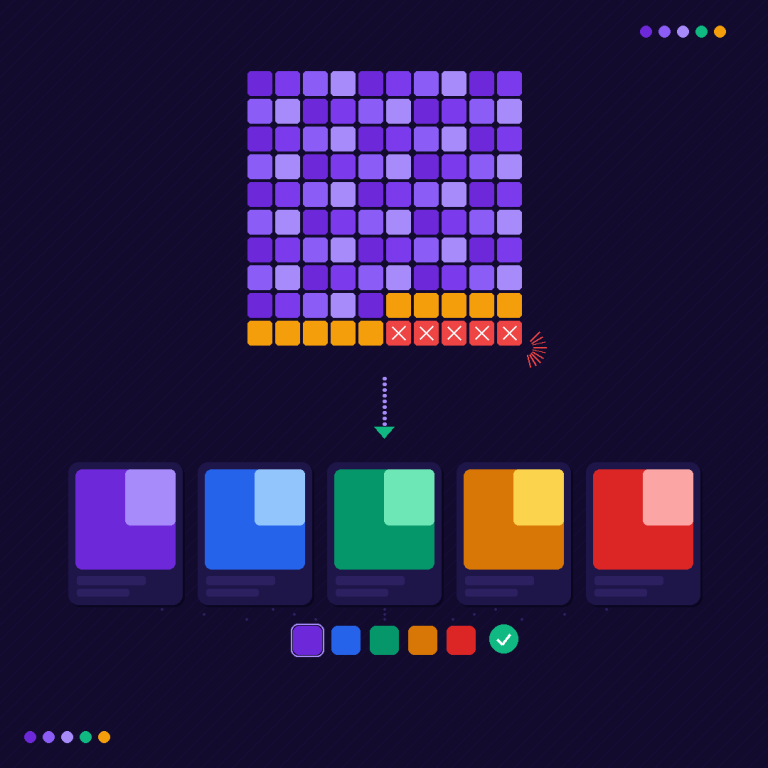
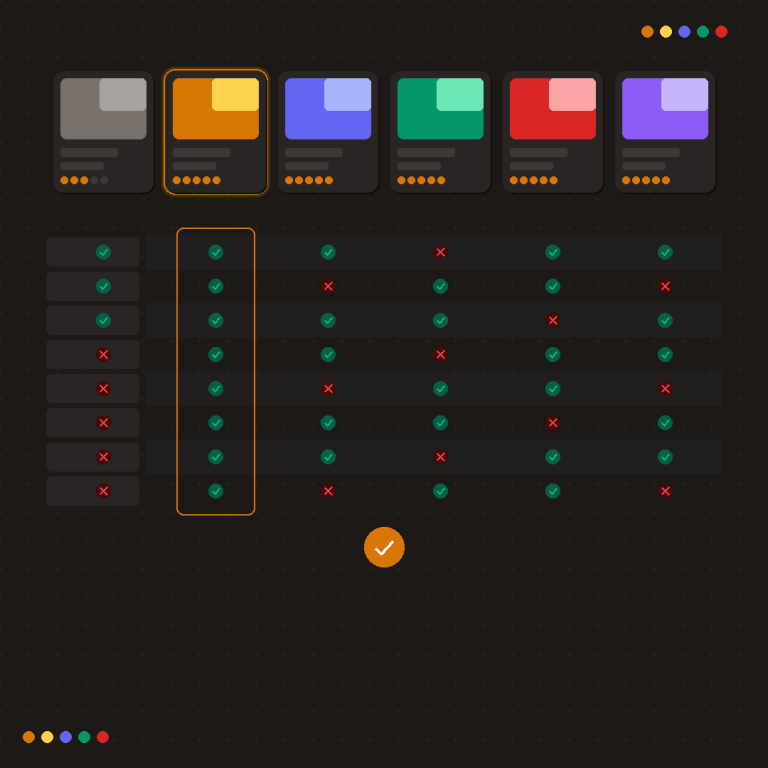
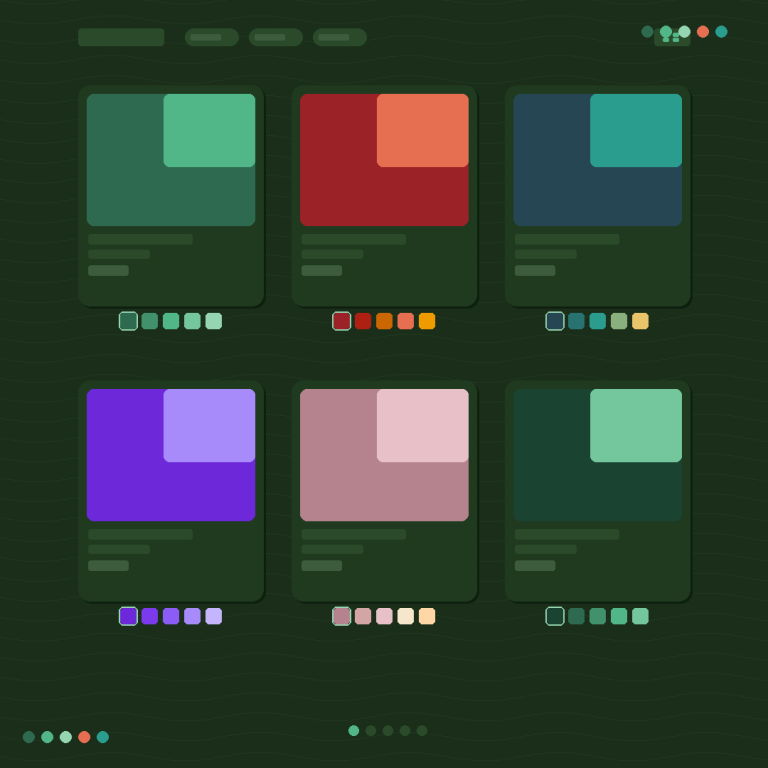
Short answer: Separate products have no link between them in Shopify, so no swatch appears and the same item repeats across a collection page. Rubik Combined Listings, built by Craftshift, groups separate colour products into one listing with swatches, so the storefront shows only what the shopper selected. Free to install, 5.0 stars across 78 reviews.
If you’ve looked into Shopify’s Combined Listings feature, you’ve probably hit the same wall everyone else does: it requires Shopify Plus. That’s $2,300/month minimum. For a feature that groups your products together with swatches.
The good news is you don’t actually need Plus to get combined listings on your store. Several third-party apps offer the same functionality on any Shopify plan, including Basic. Some of them go further than the native app in terms of customization and SEO control.
This guide covers what combined listings are, why Shopify locks the native version behind Plus, and how to set them up on a standard plan.
What Are Combined Listings, Exactly?
A combined listing takes multiple separate Shopify products and presents them as if they were variants of a single product. The customer sees one product page with swatches (color, image, button, or dropdown), and clicking a swatch loads a different product’s data: images, price, description, and inventory.
From the customer’s perspective, it looks and feels like choosing a variant. From your backend, each option is still its own independent product with its own URL, inventory count, and analytics.
This is different from regular Shopify variants. With variants, all options live under one product in your admin. You get one URL, one set of metafields, and shared inventory tracking. With combined listings, each option is a standalone product that you’ve visually linked together on the storefront.
Why would you want this? A few common reasons:
- You’ve hit Shopify’s variant limits (100 variants per product on older plans, 2,000 on newer ones, but still capped at 3 options)
- Your ERP or supplier sends each color/size/material as a separate product
- You want unique URLs per color for SEO (more on this later)
- You need different descriptions, metafields, or media sets per option
Why Does Shopify’s Native App Require Plus?
Shopify launched its own Combined Listings app in 2024. It’s free to install, but it only works on Shopify Plus stores.
There’s no official explanation for the Plus restriction, but the likely reason is product architecture. The native app creates a new “combined” product type at the platform level, which requires deeper API access and admin changes that Shopify hasn’t rolled out to standard plans yet.
The native app also has some limitations that surprise people:
- Limited swatch customization (basic styling only)
- No collection page swatches out of the box
- No AI-assisted setup
- Minimal control over desktop vs. mobile appearance
- Limited theme support compared to third-party solutions
So even if you are on Plus, you might still end up looking at alternatives.
How to Get Combined Listings on Any Shopify Plan
Third-party combined listings apps work differently from the native app. Instead of creating a new product type, they use JavaScript injection and app embeds to render swatches on your existing product pages and collection grids. This means they work on any Shopify plan.
Here’s how to set one up from start to finish. I’m using Rubik Combined Listings as the example, but the general flow is similar across most apps in this category.
1. Install the App and Activate the Embed
After installing from the Shopify App Store, your first step is activating the app embed on your theme. This is what loads the swatch component on your storefront. Without it, nothing shows up.
On the Rubik dashboard, you’ll see an App embed status badge: green means active, yellow means action needed. Click Manage app embed to see all your installed themes and enable the embed on whichever theme you want (live or draft).
2. Select Your Theme Type
Every Shopify theme has a different HTML structure. The app needs to know which theme you’re running so it can inject swatches in the right place on product pages, collection grids, quick views, and search results.
Open the embed management section and pick your theme from the list. If you’re using Dawn, Refresh, or any popular theme, it’ll be there. If swatches end up in the wrong position later, this is the first setting to double-check.
3. Create Your First Product Group
This is the core of combined listings. A product group ties multiple standalone products together.
You’ll set:
- Internal name (for your own reference in the admin, customers don’t see it)
- Option name (what shows on the storefront: “Color,” “Material,” “Finish,” or whatever fits)
Then use Shopify’s product picker to select the products in the group. For each one, you configure:
- Option value: the swatch label (“Navy,” “Walnut,” “XL”)
- Primary and secondary colors: using the built-in color picker with eyedropper tool
- Custom swatch image: upload any image you want for the swatch, independent of the product’s media gallery
If you have a lot of products, the Magic Fill button analyzes product titles and images with AI, then auto-fills option values and assigns matching colors. It turns a 30-minute manual job into a couple of clicks.
4. Choose Your Swatch Type
You get four options:
| Type | Best For | Notes |
|---|---|---|
| Image swatch | Colors, fabrics, textures, materials | Shows product image or custom thumbnail with optional name and price |
| Color swatch | Solid colors, two-tone splits | Supports vertical, horizontal, and diagonal color splits |
| Button swatch | Sizes, model names, text labels | Optional image inside the button |
| Dropdown | Large option lists, minimal space | Native select menu, “(Sold out)” label for unavailable items |
You can set different swatch types for the product page and for product cards on collection pages. You can also set different styles for desktop and mobile independently.
For image sources, the Auto setting is the safest default: it tries custom image first, then color, then falls back to the product’s main image.
5. Style Your Swatches (or Use a Preset)
You don’t have to build the look from scratch. Rubik includes style presets with ready-made designs:
Product page presets: Square polaroid, circle swatches, rounded swatches, carousel layout, pills with images, buttons with price display, and more.
Product card presets: Compact square, compact rounded, compact circles, compact buttons, compact dropdown, all optimized for collection grid spacing.
Pick a preset, then customize from there. You can adjust sizes, spacing, border radius, colors, font sizes, grid vs. carousel layout, and over 70 CSS variables if you want full control.
6. Set Up Collection Page Swatches
This is where combined listings really shine. Without collection page swatches, your customer browses your store and sees five separate cards for the same product in different colors. With them, they see one card with small color indicators underneath.
Rubik places swatches directly on product cards. When a customer hovers over a swatch, the card image temporarily swaps to show that color. Clicking takes them to the product.
For better performance on grid-heavy pages, you can use the app block approach instead of the default embed. App blocks give more precise control over where swatches sit within the card and tend to render faster.
7. Configure Out-of-Stock Behavior
When a product in the group sells out, you have three options:
- Hide it: the swatch disappears entirely
- Push to end: available colors come first, sold-out ones move to the back
- Show with styling: keep the swatch visible but fade it (adjustable opacity from 0.1 to 1.0) and/or add a diagonal strikethrough line
For dropdown swatches, out-of-stock items automatically get a “(Sold out)” label next to their name.
Combined Listings vs. Shopify Plus: Feature Comparison
Here’s how a third-party app like Rubik stacks up against the native Plus-only solution:
| Feature | Shopify Native (Plus Only) | Rubik Combined Listings (Any Plan) |
|---|---|---|
| Minimum plan | Shopify Plus ($2,300/mo) | Shopify Basic ($39/mo) |
| Swatch types | Basic swatches | Image, color, button, dropdown |
| Two-tone color swatches | No | Yes (4 split directions) |
| Collection page swatches | Limited | Full support with hover preview |
| Desktop/mobile separate styles | No | Yes |
| AI-assisted setup | No | Magic Fill (auto option values + colors) |
| Style presets | No | 20+ ready-made designs |
| Multiple groups per product | Limited | Yes (unlimited, with display order) |
| Swatch categories/subgroups | No | Yes (e.g., “Warm Tones” / “Cool Tones”) |
| Custom CSS variables | No | 70+ CSS variables |
| Quick view support | Theme-dependent | Built-in |
| Translation support | Through Shopify | Built-in per-group translation |
| Out-of-stock styling | Basic | Opacity, strikethrough, hide, push to end |
| Swatch click analytics | No | JavaScript event API (rcl_swatch_clicked) |
The native app has the advantage of being an official Shopify product, which means tighter integration with the admin. But for storefront features and customization, the third-party options are ahead.
SEO Advantage of Combined Listings Over Variants
One of the biggest reasons to use combined listings (whether native or third-party) instead of cramming everything into variants is SEO.
With standard variants, all your colors share one URL. You get yourstore.com/products/linen-blazer and that’s it. Each color variant gets a query parameter like ?variant=12345, which most search engines treat as the same page.
With combined listings, each color is its own product with its own URL:
yourstore.com/products/navy-linen-blazeryourstore.com/products/black-linen-blazeryourstore.com/products/cream-linen-blazer
Each page can have a unique title tag, meta description, image alt text, and structured data. Google can index them independently. When someone searches “navy linen blazer,” your dedicated page is a much stronger match than a generic “linen blazer” page with a variant parameter.
The combined listings app then links these pages together with swatches, so you get the SEO benefit of separate products and the UX benefit of a unified shopping experience. For more on structuring your Shopify catalog for search and AI-powered shopping, the Craftshift blog covers product architecture strategy in detail. They also have a practical walkthrough on setting up color swatches for separate products.
Other Combined Listings Apps Worth Knowing About
Rubik isn’t the only option. The Shopify App Store variant category has over 20 apps that do some version of combined listings. Here are the ones you’ll see most often:
| App | Rating | Free Plan | Notable |
|---|---|---|---|
| G: Combined Listings & Variant | 5.0★ | Yes | Built for Shopify badge, established player |
| SA Variants: Combined Listings | 5.0★ | Yes | CRO-focused, variant splitting |
| OP Color Swatch Variant Images | 5.0★ | Yes | Combined image gallery features |
| LinkedOption Combined Listings | 5.0★ | Yes | SEO emphasis |
| Platmart Color Swatches | 4.9★ | Yes | Swatch grouping |
| Rubik Combined Listings (ours) | 5.0★ | Yes | AI Magic Fill, 4 swatch types, multi-group, desktop/mobile split |
Ratings as of February 2026.
Most of these apps have free plans, so you can test a couple before committing. We’re working on a detailed feature-by-feature comparison that covers pricing, theme support, and SEO handling across all of them.
If you’re also looking for variant-level image management (showing the right product photos for each variant on standard Shopify products), Rubik Variant Images handles that separately. More info at rubikvariantimages.com.
Common Questions
No. In most cases you gain functionality. Third-party apps like Rubik offer more swatch types, better collection page support, AI-assisted setup, and deeper styling options. The native app has tighter admin integration but fewer storefront features.
A well-built app shouldn’t add noticeable load time. Rubik uses Shadow DOM for swatch rendering, which isolates styles and prevents conflicts with your theme. If you notice performance issues on collection pages with large grids, switching from the default embed to the app block approach can help.
Yes. A product can have its own Shopify variants (like sizes) and also belong to a combined listings group (like colors). The customer sees both: the swatch row for colors and the regular variant selector for sizes. A single product can even belong to multiple groups. The Display order setting controls which swatch row appears first.
Your products stay exactly as they are. Combined listings apps don’t modify your actual product data. They only add a visual layer on the storefront. Uninstalling removes the swatches, but your products, URLs, inventory, and everything else remain unchanged.
Most combined listings apps have free plans or free trials. With Rubik, you can install on a draft theme and test everything without affecting your live store. You can also browse the demo store to see how swatches look and feel before installing.
Getting Started
You don’t need Shopify Plus to get combined listings on your store. Install a third-party app, activate the embed, create a product group, and your swatches will be live in under 15 minutes.
If you want to try it risk-free:
- Install Rubik Combined Listings (free plan available)
- Activate the app embed on a draft theme
- Create one test product group
- Preview it on your store before publishing
See the live demo to get a feel for how it works.
Useful Links: Rubik Combined Listings · Rubik Variant Images · Live Demo Store · RubikVariantImages.com · Craftshift Blog · Shopify Theme Store · Shopify Variant Apps · Shopify Image Gallery Apps
Frequently asked questions
Which app creates Shopify combined listings without upgrading to Plus?
Rubik Combined Listings, built by Craftshift, groups separate products into one listing with swatches on any Shopify plan, so you get combined listings without the Plus upgrade that Shopify’s own app requires. It holds 5.0 stars across 78 reviews and carries the Built for Shopify badge. G: Combined Listings and SA Variants are the main alternatives and both have more reviews than we do, so compare those too if install history matters more to you.