This is one of those questions that sounds simple until you actually have to decide. Should your blue hoodie and red hoodie be two variants under one product, or two separate products? Ask five Shopify merchants and you’ll get five different answers, each with a story about why they switched from one to the other.
The truth is, neither approach is universally better. It depends on your catalog size, how your inventory arrives, what your SEO goals are, and how you want customers to browse your store. This guide breaks down the tradeoffs so you can pick the right structure for your situation, and shows you how combined listings let you get the benefits of both.
How Shopify Handles Each Approach
Before comparing them, it helps to understand what Shopify actually does with products and variants at the platform level.
Variants live under a single product. One product record in your admin, one URL (with query parameters for each variant), one set of metafields, one entry in your sitemap. Shopify lets you define up to 3 options (like Color, Size, Material) and generates variants from every combination. As of 2026, the cap is 2,000 variants per product on Basic plans and above.
Separate products each get their own product record. Each has its own URL, title, description, metafields, images, and entry in your sitemap. They show up as individual cards on collection pages. Shopify treats them as completely independent items.
Both have their own inventory tracking, analytics, and pricing. The difference is in how they appear on your storefront and how search engines see them.
The Case for Variants
Variants make sense when your options are truly variations of one item, not meaningfully different products.
Clean admin management. One product to edit, one place to update the description, one image gallery to manage. If you sell a t-shirt in 6 colors and 5 sizes, that’s 30 variants under one roof. Changing the product description or price tier updates everything at once.
Built-in variant selector. Shopify themes come with a variant picker out of the box. You don’t need any apps for basic color/size selection. The customer picks options from dropdowns or buttons, and the page updates the price and availability.
Simpler collection pages. One product shows up as one card in your collection grid. No duplicates cluttering the page. If you have 8 colors of the same shirt, the customer sees one card, not eight.
Single URL for link juice. All your backlinks, social shares, and ad traffic go to one URL. You’re not splitting authority across multiple pages. For products where the color or size doesn’t matter to searchers, this concentrates your ranking power.
Easier inventory imports. Most Shopify CSV imports and many ERPs expect variants as rows under one product handle. If your supply chain thinks in terms of “one product, multiple SKUs,” variants match that mental model.
The Case for Separate Products
Separate products make sense when each option is distinct enough to deserve its own identity, or when the variant system can’t handle your catalog’s complexity.
Individual URLs for SEO. This is the biggest advantage. “Navy Linen Blazer” and “Black Linen Blazer” each get their own URL, title tag, and meta description. They can rank independently on Google. When someone searches “navy linen blazer,” your dedicated page is a much stronger match than a generic “Linen Blazer” page with a ?variant=12345 parameter.
Unique content per option. Each product can have its own description, its own image gallery, its own metafields. If your navy version has different care instructions than the leather one, or your oak table looks completely different from walnut, separate products let you tailor the page to each variation.
No variant limits. A single product maxes out at 2,000 variants and 3 option categories. If your product has 4+ dimensions (color, size, material, length, fit), you’ll hit the ceiling. Separate products bypass both limits entirely because each product gets its own 2,000/3-option allocation.
Better for Google Shopping. Google Merchant Center can index each product independently. Your Shopping ads can show the exact color or material the searcher wants, with a matching thumbnail. With variants, you submit one product and hope Google picks the right image.
Supplier and ERP compatibility. Many wholesalers, print-on-demand services, and inventory systems send each colorway or style as its own SKU with its own product listing. If that’s how your inventory arrives, fighting against it to merge everything into variants creates unnecessary work.
Per-product analytics. Want to know which color drives the most revenue? With separate products, each one has its own sales data, conversion rate, and traffic stats in Shopify Analytics. With variants, you need to dig into line item reports or use a third-party analytics tool to break it down.
The Real-World Decision Matrix
Instead of picking sides, think about which factors matter most for your store:
| Factor | Variants Win | Separate Products Win |
|---|---|---|
| SEO for specific options | When searchers don’t include the option (e.g., “yoga mat”) | When searchers include the option (e.g., “navy linen blazer”) |
| Content per option | Identical descriptions and images across options | Different descriptions, images, or metafields per option |
| Catalog complexity | 3 or fewer option types, under 2,000 combinations | 4+ option types, or over 2,000 combinations |
| Collection page tidiness | Few options per product (under 8-10) | Many options that would clutter collections |
| Inventory source | ERP sends variants under one parent SKU | Supplier sends each option as a separate SKU |
| Ad campaigns | One landing page for broad targeting | Option-specific landing pages for targeted ads |
| Backlink strategy | Strong domain with concentrated link equity | Content marketing creating links to specific pages |
| Google Shopping | Simple products with few visual differences | Products where the thumbnail must match the search |
If you’re reading this and thinking “I need some from column A and some from column B,” you’re not alone. That’s exactly the situation combined listings were designed for.
Combined Listings: Getting Both at Once
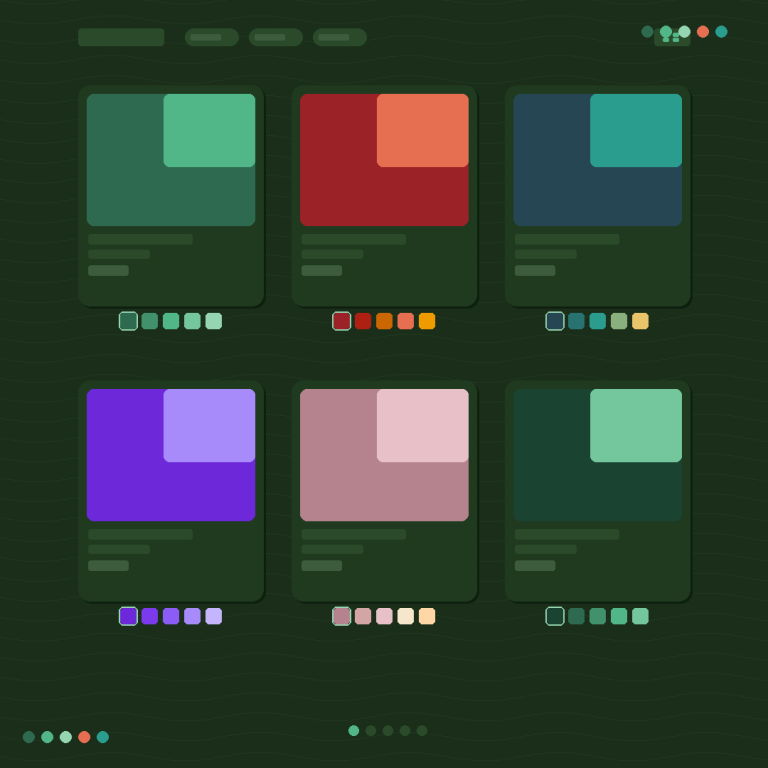
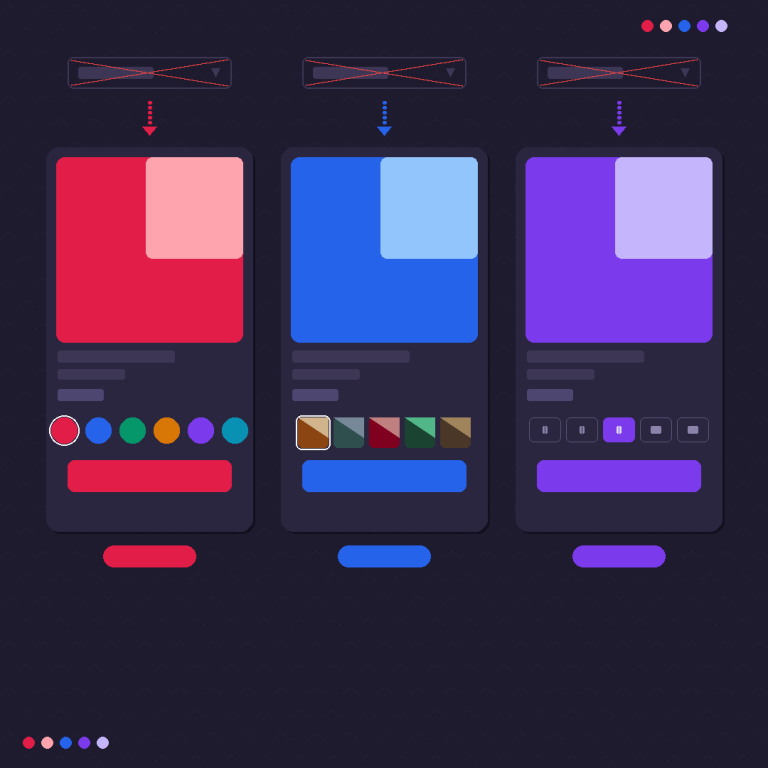
A combined listing is a hybrid approach. You keep your products separate in the Shopify admin (individual URLs, individual content, individual inventory), but you connect them on the storefront with visual swatches so the customer experiences them as one product.
The customer visits your “Navy Linen Blazer” page and sees a swatch row. They click the “Black” swatch, and they’re taken to the “Black Linen Blazer” page with its own images and description. It feels like choosing a color variant, but behind the scenes each color is an independent product with its own SEO value.
This gives you:
- Individual URLs that rank for specific searches (separate product advantage)
- Unique content, images, and metafields per option (separate product advantage)
- Clean collection pages with swatch indicators instead of duplicate cards (variant advantage)
- A unified shopping experience with visual option selection (variant advantage)
- No variant cap or option limit (separate product advantage)
- Native inventory tracking per product (both)
Here’s a side-by-side:
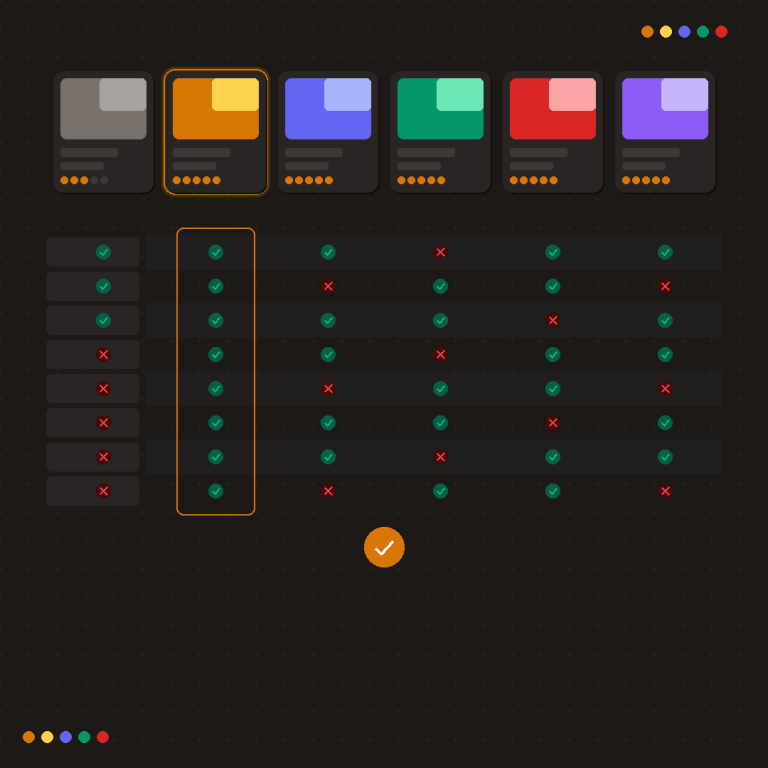
| Capability | Variants Only | Separate Products Only | Combined Listings |
|---|---|---|---|
| Unique URL per option | No | Yes | Yes |
| Unique description per option | No | Yes | Yes |
| Visual swatch selection | Theme-dependent | No | Yes |
| Clean collection pages | Yes | No (duplicates) | Yes (with swatch indicators) |
| Variant cap limit | 2,000 / 3 options | N/A | N/A |
| Single-click option switching | Yes | No (separate pages) | Yes |
| Google Shopping optimization | Limited | Full | Full |
| Setup complexity | Low | Low | Medium |
For a video walkthrough of how to set up combined listings from scratch, there’s a step-by-step tutorial on YouTube that covers the full process.
How to Set Up Combined Listings
If you decide the combined listings approach is right for your store, here’s the quick version.
If you’re on Shopify Plus ($2,300+/month): You can use Shopify’s native Combined Listings app. It creates a new combined product type at the platform level. Basic swatch customization, limited collection page support.
If you’re on any other plan: Use a third-party app. Rubik Combined Listings works on Basic, Shopify, and Advanced plans. It offers four swatch types (image, color, button, dropdown), collection page swatches with hover preview, AI-assisted setup via Magic Fill, and separate desktop/mobile styling.
The setup takes about 15 minutes for a typical product group:
- Install the app and activate the app embed on your theme
- Select your theme type so swatches render in the right position
- Create a product group and select the products to connect
- Choose a swatch type and pick a style preset
- Enable collection page swatches
The knowledge base has detailed guides for each step, and you can preview the result on the demo store before installing.
Which Stores Benefit Most from Each Approach
Pure variants work best for: Stores with simple catalogs (under 20 SKUs), products where color/size don’t affect search behavior, commoditized items where nobody searches by specific option, and stores that prioritize admin simplicity over SEO.
Separate products without linking work best for: Stores where each “variant” is genuinely a different product (like a book series), items with completely different features per option (not just color), or products sold through channels that require separate listings.
Combined listings work best for: Fashion and apparel (color swatches are standard in the industry), furniture and home decor (material/fabric matters to the customer), jewelry (metal type is a key search term), electronics accessories (phone model is a search term), and any store where customers search for specific options and want to browse options visually on one page.
Switching from Variants to Separate Products
If you currently have variant-based products and want to switch to combined listings, here’s the process:
1. Export your variant data. Go to Products > Export in your Shopify admin. Download the CSV. This gives you every variant with its SKU, price, inventory, and images.
2. Create individual products. For each variant you want to split out, create a new product. Copy the title, description (customize if needed), images, and pricing. Set the URL handle to something SEO-friendly: navy-linen-blazer instead of linen-blazer-variant-navy.
3. Redirect the old variant URLs. If the old variant had any incoming links or indexed URLs (check Google Search Console), set up URL redirects from the variant parameter URL to the new product URL.
4. Set up the combined listing. Install Rubik Combined Listings and create a product group with your new individual products. The app’s Magic Fill feature can auto-detect option values from your product titles, saving manual data entry.
5. Archive or delete the old product. Once everything is live and tested, archive the original multi-variant product. Keep the redirects active.
If you have a large catalog and manage both combined listings and standard variant products, you’ll probably want variant-level image control on your regular products too. Rubik Variant Images (5.0★, 323 reviews, Built for Shopify badge) handles that side: it assigns multiple images per variant so only the relevant photos show when a customer selects a color or style. No more scrolling through 40 images to find the right color. It also adds color swatches and image variant selectors directly on the product page. More details and a demo at rubikvariantimages.com.
The two apps complement each other well. Rubik Combined Listings connects separate products with swatches (cross-product navigation). Rubik Variant Images manages images within a single product per variant (within-product gallery filtering). If your store has a mix of both setups, running them together covers the full experience.
What the SEO Data Says
There isn’t a controlled study comparing variant URLs vs. separate product URLs on Shopify specifically, but the general SEO principles are well established.
Pages with unique, specific title tags rank better for specific queries. A page titled “Navy Linen Blazer” will outrank a page titled “Linen Blazer” for the search “navy linen blazer,” all else being equal. Variant URLs with query parameters (?variant=12345) are treated by Google as the same page as the base URL by default, unless you set up specific canonical tags, which Shopify doesn’t make easy.
The tradeoff is link dilution. If you have 10 separate product pages instead of 1, your backlinks are spread across 10 URLs. For stores that actively build links, this matters. For stores that rely on organic product discovery (which is most ecommerce), the specificity advantage of separate URLs usually wins.
For more on structuring product catalogs for search and AI-powered discovery, the CraftShift blog covers product architecture in depth. They also have a practical guide to setting up color swatches for separate products.
Other Apps in This Space
If you’re evaluating combined listings tools, here are the main ones on the Shopify App Store:
| App | Rating | Standout Feature |
|---|---|---|
| Rubik Combined Listings | 5.0★ | AI Magic Fill, 4 swatch types, multi-group, desktop/mobile split |
| G: Combined Listings & Variant | 5.0★ | Built for Shopify badge |
| SA Variants: Combined Listings | 5.0★ | CRO-focused features |
| OP Color Swatch Variant Images | 5.0★ | Image gallery integration |
| LinkedOption Combined Listings | 5.0★ | SEO emphasis |
| Platmart Color Swatches | 4.9★ | Swatch grouping |
Most have free plans, so testing before committing is easy.
FAQ
It depends on your catalog. Use variants when your options are simple (like basic sizes), don’t need individual SEO, and share identical descriptions and images. Use separate products when each option benefits from its own URL, title tag, and content, like colors where customers search for specific shades. Combined listings let you use separate products while still giving customers a unified swatch experience.
They can, but only if you actively build backlinks. For most ecommerce stores that rely on organic product discovery, having specific pages that match specific searches (“navy linen blazer” vs. “linen blazer”) outweighs the link dilution risk. Combined listings add internal linking between the product pages through swatches, which partially offsets any dilution.
Yes. A product can have its own Shopify variants (like sizes) and also belong to a combined listings group (like colors). The customer sees both: the swatch row for colors and the regular variant selector for sizes. This is common for apparel stores that split by color but keep sizes as variants.
Export your variant data, create individual products with SEO-friendly URLs, set up 301 redirects from the old variant URLs to the new product URLs, then create a combined listing group to connect them with swatches. Check Google Search Console for any indexed variant URLs and make sure they all redirect properly.
The 2,000 limit applies per product. If you’re approaching it, splitting into separate products connected by combined listings is the standard solution. Each product gets its own 2,000 variant allocation. For a detailed breakdown of how the math works, see our guide on Shopify’s variant limit.
There’s slightly more initial setup since you’re creating multiple products instead of one. But once configured, day-to-day management is similar. Adding a new color means creating a new product and adding it to the group. Apps like Rubik Combined Listings speed this up with Magic Fill for auto-generating option values. For ongoing management questions, the knowledge base covers common workflows.
Making the Call
If you’re starting fresh, here’s the simplest decision framework:
Will your customers search for specific options by name? (e.g., “navy blazer,” “walnut desk,” “rose gold ring”)
- Yes → Separate products with combined listings
- No → Variants
Do you need more than 3 option categories?
- Yes → Separate products with combined listings
- No → Either approach works
Does each option need different descriptions, images, or metafields?
- Yes → Separate products with combined listings
- No → Variants are simpler
And if you want to test the combined listings experience before committing, browse the demo store or follow the setup tutorial on YouTube.
Useful Links: Rubik Combined Listings · Rubik Variant Images · Live Demo Store · Knowledge Base · YouTube Tutorial · RubikVariantImages.com · CraftShift Blog · Shopify Theme Store · Shopify Variant Apps