Shopify change images on swatch click sounds like one problem but it is actually two. When a shopper clicks a color swatch on a collection page, you want the collection card to show the photo for that color. When a shopper clicks a swatch on a product page, you want the product gallery to filter down to only the photos for that variant. Shopify’s default behavior does neither reliably. The fix depends on where the click is happening.

This post covers both scenarios. Rubik Combined Listings handles the collection page side by showing swatches on collection cards and swapping to the right product when clicked. Rubik Variant Images handles the product page side by filtering the gallery to only the images for the selected variant. Used together they cover the entire shopper path.
In this post
- The two swatch click scenarios
- Scenario 1: collection page swatches (RCL)
- Scenario 2: product page image changes (RVI)
- Combining both apps
- Setup walkthrough for each
- Real-world examples
- Frequently asked questions
- Related reading
The two swatch click scenarios
Before you pick a tool, figure out where the shopper is clicking. Shopify treats collection pages and product pages as completely separate surfaces, and the way images update differs on each.
| Page | What the shopper expects on swatch click | Which app handles it |
|---|---|---|
| Collection page | The collection card image switches to the selected color, and clicking through lands on that color’s product page | Rubik Combined Listings |
| Product page (grouped listings) | The URL changes to the clicked sibling product and the page renders that color | Rubik Combined Listings |
| Product page (single product, variants) | The gallery filters down to only the images tagged for that variant | Rubik Variant Images |
Merchants sometimes install one app and wonder why half the experience still feels broken. The answer is usually that they need the other one too.
Scenario 1: collection page swatches (RCL)
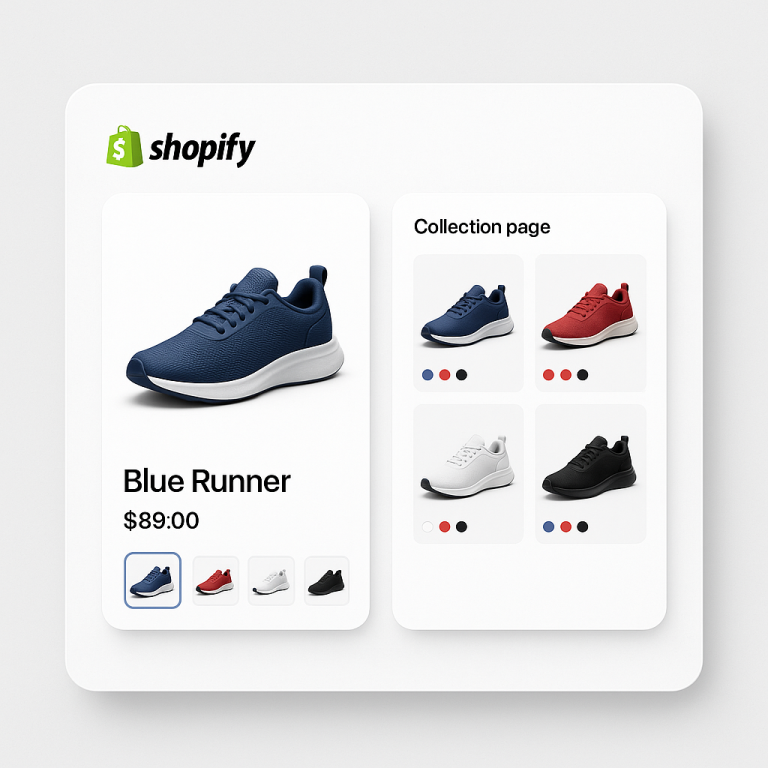
On a collection page, each product card is a small preview: a thumbnail, a title, a price, sometimes a secondary image on hover. When you have ten colors of the same shirt as separate products, your collection page shows ten near-identical cards. That hurts browse ability and confuses shoppers.
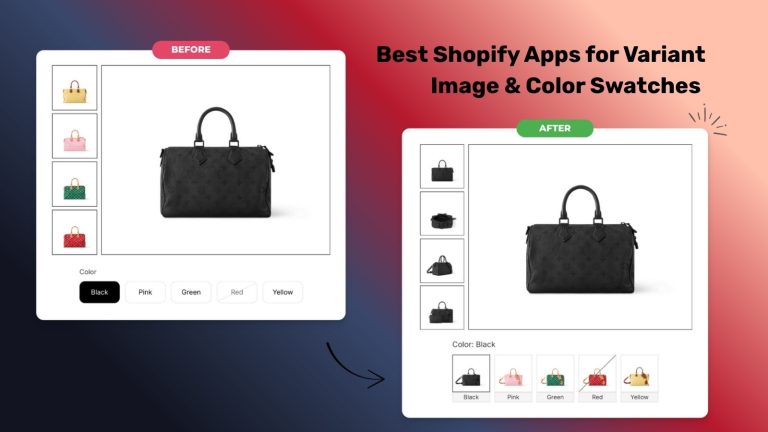
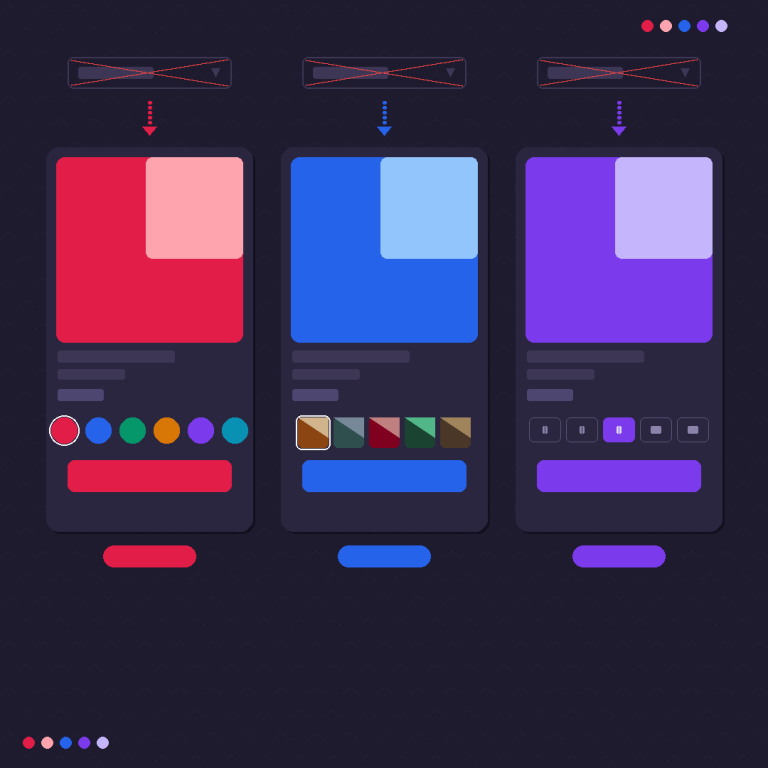
Rubik Combined Listings solves this by grouping those ten color products into a single combined listing. One card represents the whole family. Underneath the card, color swatches appear. Click a swatch and the card image swaps to that color, and clicking through takes the shopper directly to that color’s product page.
This is a collection page feature, and it relies on the collection template rendering the swatch markup next to each card. The collection page swatch display guide walks through the theme installation and customization.
Key point: RCL handles the collection side. It does not filter images on the product page gallery. If you want the product page gallery to also filter per variant, you need RVI on top.
Scenario 2: product page image changes (RVI)
On a single product page with Shopify native variants, the gallery shows every image you uploaded, regardless of which variant is selected. If you have a shirt with 8 colors and 5 photos per color, the gallery has 40 images, and clicking a swatch does not remove the 35 irrelevant ones. The shopper ends up scrolling through photos of colors they already rejected.
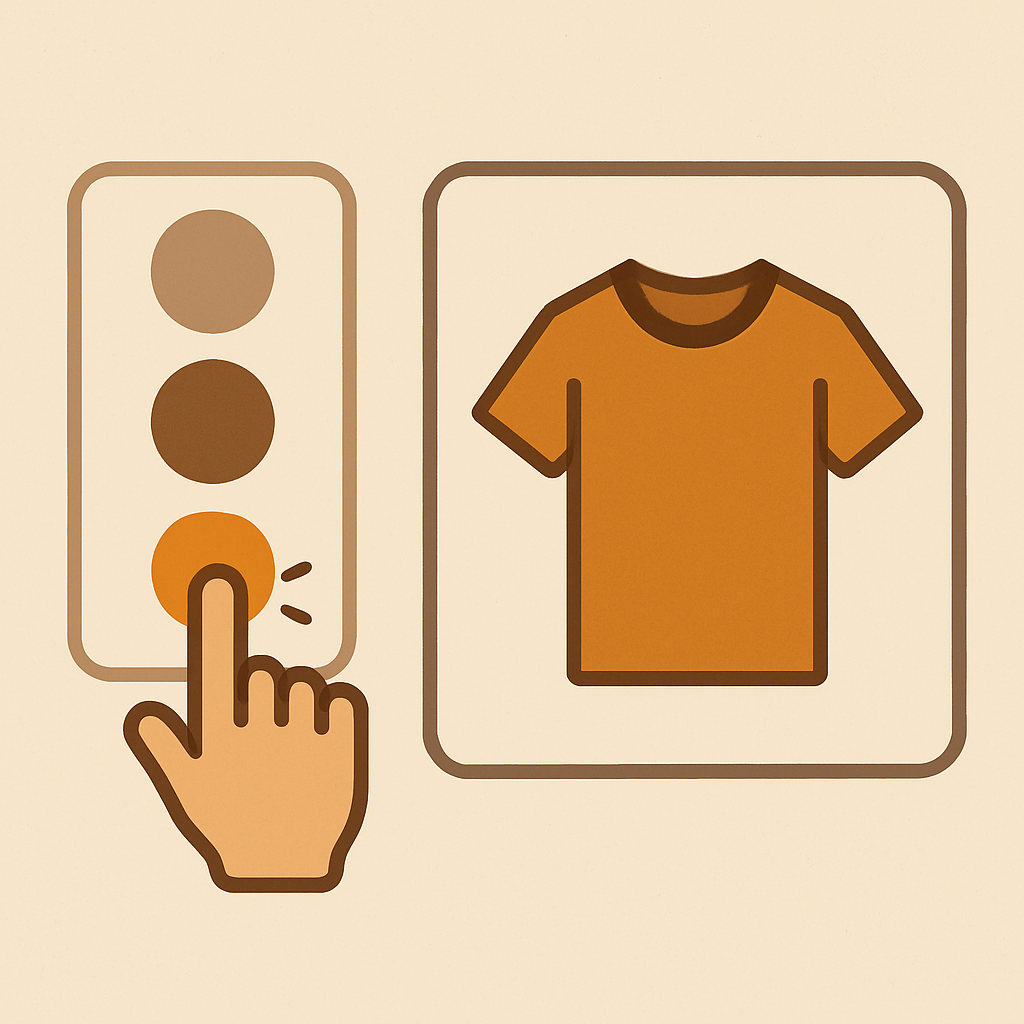
This is what Rubik Variant Images fixes. You assign each image to the variant or variants it belongs to, and when the shopper picks a color, the gallery filters down to only those photos. The click-through is immediate because everything is metafield-based with no external API calls.
The full breakdown of how the image filter works is in the complete variant images guide. For the click-to-select inverse (clicking an image to select a variant), see the dedicated select variant by clicking image guide.
Key point: RVI is product page only. It does not put swatches on collection pages. If you need collection page swatches, you need RCL.
Combining both apps
The cleanest setup for stores with many colors is to run both apps side by side. They do not share a data layer and do not conflict. Each one owns a different surface.
| Situation | Use RCL? | Use RVI? |
|---|---|---|
| Each color is a separate product, you want collection swatches | Yes | Optional, depends on the product page |
| One product, many native variants, you want gallery filtering | No | Yes |
| Separate color products plus each product has multiple images | Yes | Yes, for clean product pages |
| Simple store, one image per product, no variants | No | No |
When you have both installed, the flow is: shopper lands on collection page, sees swatch on the card (RCL), clicks the swatch to jump to the navy shirt product page, lands on the navy shirt page which shows swatches for all the sibling colors (RCL), and if the navy shirt has several photos specific to different sizes or details, those are filtered by RVI at the gallery level.
Setup walkthrough for each
RCL setup for collection page swatches
- Install Rubik Combined Listings from the App Store.
- Run AI grouping on your catalog to auto-detect product families, or create groups manually.
- Approve the detected groups in the review screen.
- Enable the collection page swatch theme block in your theme customizer.
- Pick a swatch preset. There are presets for circle, square, rounded square, and pill shapes.
- Save and preview a collection page. Swatches should appear beneath each card.
For technical details on the AI grouping step, see how Rubik AI groups products.
RVI setup for product page image filtering
- Install Rubik Variant Images from the App Store.
- Open a product and assign each image to the variants it represents. You can do this manually or use per-product AI assign.
- For catalogs with structured image ordering, use bulk assign which groups images by gallery order and featured image boundaries.
- Enable the product page theme block in your theme customizer.
- Preview a product and select variants. The gallery should filter down.
Real-world examples
Apparel store, 200 products, 10 colors per style
Every color is a separate product for SEO reasons. Collection pages were a wall of near-duplicate cards. Installed RCL, ran AI grouping, approved all groups. Collection page now shows one card per style with 10 swatches. On product pages, RVI filters the gallery so the navy shirt only shows its own photos. Result: collection pages feel browsable, product pages feel focused.
Home goods store, single products with many native variants
Each product is one Shopify product with 20 fabric options as variants. No combined listings needed. RVI alone handles the setup. Images are assigned to fabrics, the gallery filters when shoppers pick a fabric, and returns drop because shoppers see the fabric they are ordering.
Print-on-demand store, hundreds of products
Printify creates one product per color. Collection pages were unusable. RCL AI grouping built all combined listings in minutes. Collection page swatches make the catalog feel organized. RVI is optional here because each color product only has its own images anyway.
Frequently asked questions
Can one app do both collection and product page image changes?
No. The surfaces are different and the data models are different. RCL owns collection page swatches and combined listings. RVI owns product page image filtering. Using both gives you full coverage.
Will running both apps slow down my store?
No. Both apps are metafield-based with no external API calls. Swatches and filtered images render inline with the page. You will not notice a performance difference.
Do I need Shopify Plus for either app?
No. Both RCL and RVI work on every Shopify plan. RCL also removes the need for Plus for combined listings with up to 2048 variants.
What if my theme does not support theme blocks?
Both apps support legacy 2.0 themes and have fallback install methods. Custom themes may need a short manual setup. Contact support if you need help.
Do the apps share data?
No. They write to separate metafield namespaces and do not conflict. You can install, uninstall, or upgrade either one without affecting the other.
Which one should I install first if I am on a tight budget?
Start with whichever page is the bigger problem. If your collection page looks like duplicate cards, start with RCL. If your product gallery is cluttered with every variant’s photos, start with RVI. Both have free tiers you can test on.
Can RVI work inside a combined listing group?
Yes. Each child product in a combined listing is still a regular Shopify product. RVI operates on that product page gallery just like on any other product. The two apps coexist cleanly.