You installed a swatch app, set everything up, and something isn’t right. Swatches aren’t showing, they’re showing in the wrong place, the colors are off, or they work on desktop but not mobile. This is one of the most common support requests across every swatch app on the Shopify App Store, and the causes are almost always one of a handful of known issues.
This guide walks through the most frequent swatch problems, their causes, and how to fix them. It covers both variant swatch apps and combined listings apps, on any Shopify theme.
Problem 1: Swatches Not Showing at All
This is the most reported issue. You installed the app, created your groups or configured your variants, but the product page shows no swatches.
Check the app embed. This is the #1 cause. Shopify OS 2.0 apps require you to enable the app embed in your theme settings. Go to Online Store > Themes > Customize > App Embeds (in the left sidebar), and make sure the swatch app’s toggle is ON. If it’s off, the app’s JavaScript never loads and nothing renders.
Check that you’re viewing the live theme. If you installed the app on a draft or unpublished theme, swatches won’t appear on your live storefront. Make sure you’re previewing or have published the correct theme.
Check the theme type setting. Apps like Rubik Combined Listings let you select your specific theme type so the app knows where to inject swatches. If this is set incorrectly (or left on default), the app may be trying to inject swatches into a DOM element that doesn’t exist in your theme. Go to the app settings and select the correct theme.
Check for JavaScript errors. Open your browser’s Developer Tools (F12 or right-click > Inspect), go to the Console tab, and look for red error messages. If another app or custom code is throwing a JavaScript error before the swatch app loads, it can block the swatch script from running. Common culprits: broken analytics scripts, conflicting jQuery versions, or other product page apps.
Check if your products are in a group. For combined listings apps, swatches only appear on products that belong to a product group. If you created the group but forgot to add the product, or if the product was removed from the group, no swatches will render on that product page.
Problem 2: Swatches Show on Product Pages but Not on Collection Pages
Product page swatches and collection page swatches are usually separate settings.
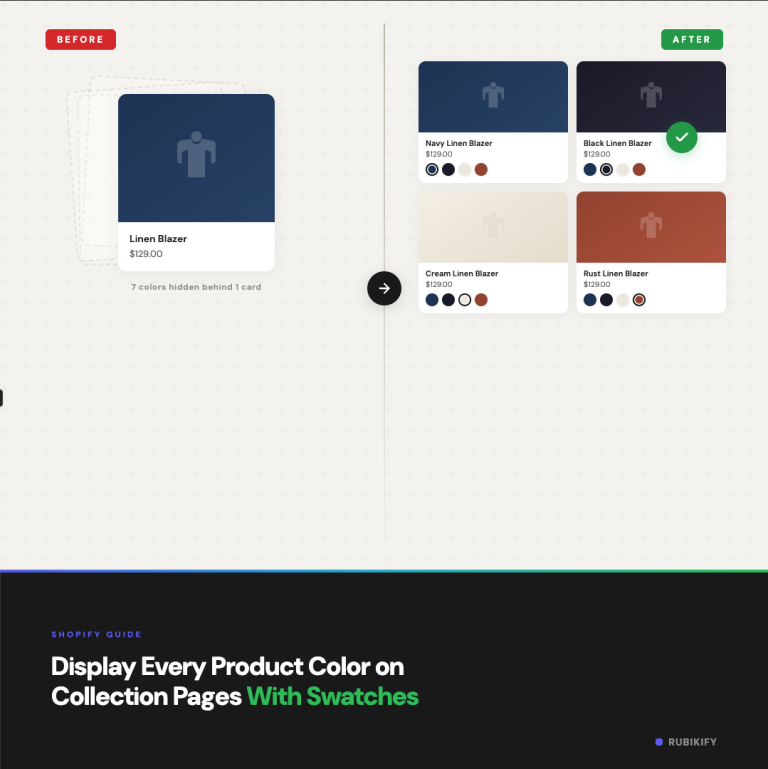
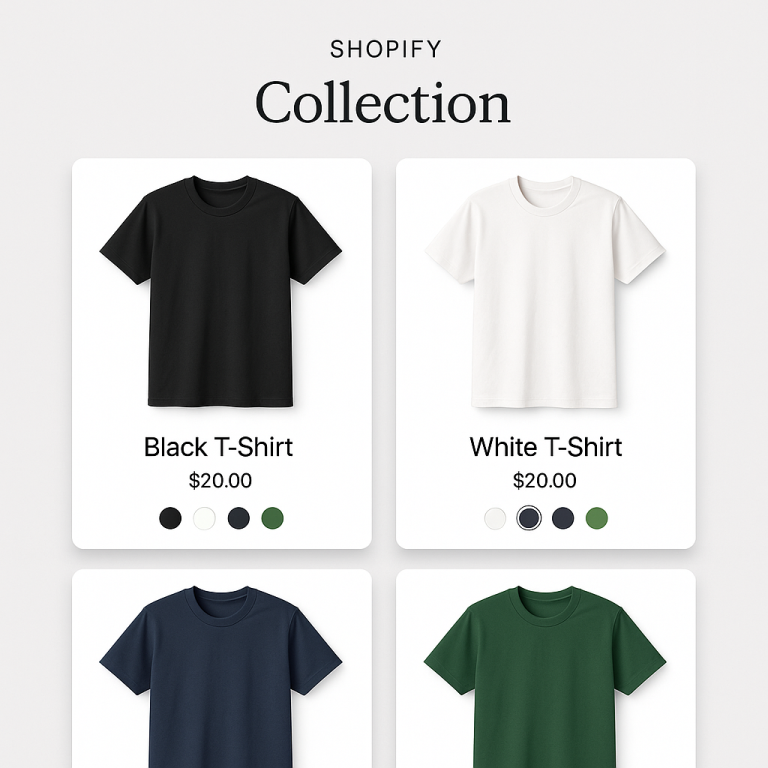
Enable collection page swatches separately. Most apps have a dedicated toggle for collection/product card swatches. It’s not automatic when you enable product page swatches. Check your app’s collection page settings.
Check app block vs. embed placement. Some themes support app blocks in the product card template, while others rely on the app embed to auto-detect card positions. If your theme uses a non-standard product card structure, the auto-detection might fail. Try switching between app block and embed modes if available.
Check for AJAX/infinite scroll conflicts. If your collection page uses infinite scroll or AJAX-based pagination (loading more products without a page refresh), swatches may only appear on the initially loaded products. The swatch app needs to re-run when new products are added to the DOM. Most well-built apps handle this, but some theme-specific infinite scroll implementations can cause issues.
Problem 3: Wrong Colors Showing
The swatch exists but the color doesn’t match the product.
Check your option value names. If you’re using a variant swatch app that maps color names to hex values, the color depends on the variant option name. “Navy” might map to a standard navy blue, but “Navy Heather” might not be recognized and fall back to a default gray.
Check for manual color overrides. If you set a custom hex color for a swatch and later changed it, clear your browser cache to make sure you’re seeing the updated value. Some apps cache swatch data for performance.
Use Magic Fill for automatic color detection. In Rubik Combined Listings, the Magic Fill feature analyzes your product images and assigns matching colors automatically. This avoids the guesswork of manually entering hex codes and ensures the swatch color matches what the customer sees in the product photo.
Check for duplicate option names. If you have two variant options with similar names (like “Color” and “Colour”), the app might be reading the wrong one. Standardize your option names across all products.
Problem 4: Swatches Appear in the Wrong Position
Swatches show up, but they’re above the title, below the add-to-cart button, or overlapping other elements.
Adjust the theme type setting. The most common fix. Different themes place the variant selector in different positions within the product form. When the app knows your exact theme, it can target the correct injection point. If you’re using a paid theme or custom theme, check whether the app has a specific setting for it.
Check for CSS conflicts. Other apps or custom CSS in your theme might be repositioning elements on the product page. Open Developer Tools, inspect the swatch element, and look for unexpected CSS rules overriding the app’s positioning. Common conflicts: display: none applied by another app, z-index issues pushing swatches behind other elements, or overflow: hidden on a parent container clipping the swatch row.
Try using an app block instead of auto-injection. If your theme supports app blocks in the product template, you can manually place the swatch block exactly where you want it. This gives you precise control over positioning rather than relying on the app’s auto-detection.
Problem 5: Swatches Work on Desktop but Not Mobile
This usually points to a responsive design issue rather than the swatch app itself.
Check if your theme has a separate mobile template. Some themes render completely different HTML for mobile and desktop. The app might be injecting into the desktop product form but missing the mobile one. Check if the app has a mobile-specific injection setting.
Check for CSS media queries hiding swatches. Inspect the swatch element on mobile (use browser DevTools device simulation) and check if any CSS media query is setting display: none or visibility: hidden on the swatch container at smaller viewport widths.
Check swatch size on mobile. If swatches are set to a large size that doesn’t fit the mobile viewport, they might overflow off-screen or get clipped by a parent container. Try reducing the swatch size for mobile in the app settings. Rubik Combined Listings lets you configure desktop and mobile swatch sizes independently.
Problem 6: Clicking a Swatch Doesn’t Change the Product
The swatches render, but clicking them doesn’t navigate to the other product or update the variant.
For combined listings apps: Clicking a swatch should navigate to a different product URL. If it’s not working, check that the products in your group are published (not draft or archived). An archived product will show a grayed-out swatch (depending on your settings) but won’t be clickable.
For variant swatch apps: Clicking should update the selected variant and change the product images. If the images aren’t changing, make sure you’ve assigned images to each variant. Rubik Variant Images (5.0★, 316+ reviews, Built for Shopify) handles both variant selection and image filtering together. More at rubikvariantimages.com.
Check for JavaScript event conflicts. Some themes or apps bind their own click handlers to the variant selector area. If another script is intercepting the click event before the swatch app can process it, the swatch click won’t register. Try disabling other product page apps temporarily to isolate the conflict.
Problem 7: Out-of-Stock Products Not Styled Correctly
You expect out-of-stock swatches to show as crossed out or dimmed, but they look the same as in-stock swatches.
Check your out-of-stock display setting. Most swatch apps offer multiple options: crossed out (diagonal line), reduced opacity, hidden entirely, or pushed to the end of the row. Make sure you’ve selected one in the app settings.
Check inventory tracking. If the product doesn’t have inventory tracking enabled in Shopify, the app can’t determine stock status. Go to the product in your Shopify admin, check each variant’s inventory section, and make sure “Track quantity” is turned on.
Check for “Continue selling when out of stock” setting. If this is enabled on the product, Shopify treats it as always in stock. The swatch app follows Shopify’s inventory reporting, so it will show these products as available even with zero stock.
Problem 8: Slow Loading or Flickering Swatches
Swatches appear but there’s a visible delay, layout shift, or flickering as the page loads.
This is usually a loading order issue. The page renders the default product form first, then the swatch app loads and replaces or adds to it. A brief flicker is normal, but if it’s long or causes layout shift, check these:
Reduce the number of apps loading on product pages. Each app adds JavaScript that competes for load time. If you have 10+ apps active on product pages, the cumulative load time increases. Disable any apps you’re not actively using.
Check your theme’s lazy loading settings. If your theme lazy-loads the product section, the swatch app might not detect the product form until it scrolls into view.
Ensure your images are optimized. For image swatches, large unoptimized swatch images add load time. Keep swatch images small (under 100KB each) and in WebP format if possible.
Problem 9: Swatches Conflict With Another App
Two apps trying to modify the same part of the product page will conflict.
Identify the conflicting app. Disable apps one by one and test after each to find which one causes the conflict. Common conflicts happen between: two swatch/variant apps running simultaneously, product page builders (PageFly, GemPages) and swatch apps, product option apps and combined listings apps, and quick view apps that load a simplified product template.
Check page builder compatibility. If you’re using PageFly, GemPages, EComposer, or similar page builders, the product page structure might differ from the standard theme template. Many swatch apps support these builders, but you may need to select the correct page builder setting. Rubik Variant Images lists compatibility with Beae, PageFly, GemPages, EComposer, and ThemeForest themes.
Don’t run two combined listings apps. If you’re testing multiple apps, make sure to disable one before enabling another. Two apps trying to inject swatches into the same location creates duplicate swatches, layout breaks, or JavaScript errors.
Problem 10: Swatches Look Different From the Preview/Demo
The demo store looks great, but your store’s swatches don’t match.
Theme CSS inheritance. Your theme’s global CSS styles (fonts, colors, border-radius, spacing) affect how swatches render. The demo store uses a clean theme with default styling. Your theme might have custom CSS that overrides the swatch styles. Use the app’s custom CSS setting or your theme’s CSS editor to adjust.
Different product data. The demo shows products with clean titles, consistent images, and well-organized variants. If your product data is inconsistent (some products missing images, inconsistent naming), the swatches will reflect that. Clean up your product data first.
Browser/device differences. Always test on the actual devices your customers use, not just your own laptop. Chrome and Safari render CSS slightly differently, and mobile browsers have their own quirks.
When to Contact Support
If you’ve gone through the checklist above and the issue persists, contact the app’s support team with the following information:
- Your store URL and the specific product page where the issue occurs
- A screenshot or screen recording showing the problem
- Your browser and device (Chrome on Mac, Safari on iPhone, etc.)
- Whether the issue happens on the live theme or a preview
- Any other apps you have installed on product pages
- The Console tab output from Developer Tools (screenshot any red errors)
Most swatch app support teams respond within hours and can identify the issue quickly when they have this information.
For Rubik apps, the knowledge base covers the most common setup questions, and the support team is available via live chat and email. There’s also a video tutorial covering the initial setup and common configuration steps.
For further reading on swatch configuration and product architecture decisions, the CraftShift blog has guides on setting up color swatches for separate products.
FAQ
The most common cause is the app embed not being enabled. Go to Online Store > Themes > Customize > App Embeds and toggle the swatch app on. Other causes include incorrect theme type selection, JavaScript errors from other apps, or the product not being in a swatch group.
Collection page swatches are usually a separate setting from product page swatches. Check your app’s settings for a collection page or product card swatch toggle. Some themes also need app block placement in the product card template for collection swatches to work.
Check the option value name mapping (some color names aren’t recognized), verify any manually entered hex codes, and clear your browser cache. For combined listings, use the Magic Fill feature to auto-detect colors from your product images, which avoids manual color matching errors.
A brief loading delay is normal as the swatch app initializes after the page renders. Reduce the number of active apps on your product pages, optimize your swatch images, and check that your theme isn’t lazy-loading the product section.
You can use a variant swatch app (like Rubik Variant Images for within-product image filtering) alongside a combined listings app (like Rubik Combined Listings for cross-product swatches). But don’t run two apps of the same type (two combined listings apps or two variant swatch apps), as they’ll conflict.
Useful Links: Rubik Combined Listings · Rubik Variant Images · Live Demo Store · Knowledge Base · YouTube Tutorial · RubikVariantImages.com · CraftShift Blog · Shopify Variant Apps