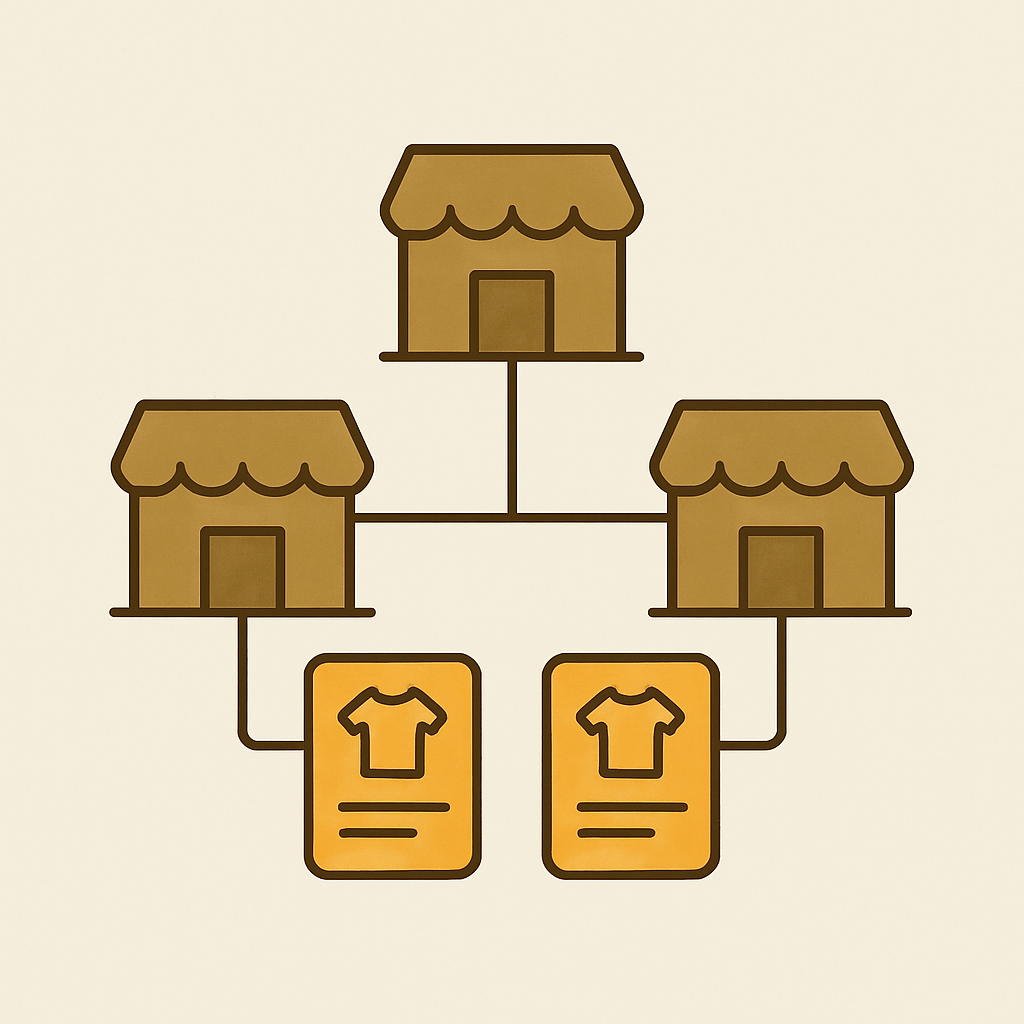
Many brands operate multiple Shopify stores. Some will have a store per region (US, EU, AU) while others will have a store per sub-brand within a larger parent organization. Sometimes a single enterprise will maintain a B2C and B2B store using the same inventory but with different pricing and content. Whatever the reason for multi-store structures, the problem is generally the same: you have separate Shopify accounts with separate product collections and you want to group products the same way across all of them without having to recreate the same groups (e.g. by category) in every store.
Combined listings cannot link products across different Shopify stores. That is a hard limit for any app. Combined listings show related products from within the same Shopify store using the product ID and other metaobjects and metafields stored in the database. Since each Shopify store is a separate database (within the same Shopify account), and product IDs are stored in that database, it is not possible for any app to retrieve a product from one Shopify store and display it alongside related products within another Shopify store. Related products from the other store cannot be shown. Products from stores other than the one being combined cannot be included in the combined listings.
Another approach, equally as flawed- is to apply the same combined listings strategy to all your stores, install one application per store and keep the customer experience the same across your retail network. Here’s how you think about this approach.
In this post
- Why brands run multi-store networks
- When to use one store with Markets vs many stores
- Building consistent grouping across stores
- CSV replication for group structure
- Per-store pricing and inventory
- Frequently asked questions
Why brands run multi-store networks
Three key drivers. Integrated companies are split for tax and compliance reasons, brand separation, and operational independence.
Tax and compliance can become a headache when running multiple stores in different locations. For example, both a US store and an EU store may require different settings for VAT and invoices, not to mention separate consumer protection regulations. Some brands find it easier to run locations as separate Shopify stores instead of using Markets.
Brand. A parent company might have three brands that share Warehousing, Customer Service etc. but have different identities, target markets and design treatment. By running each brand as separate Shopify stores you can keep the product catalog separate to the storefront.
Operational independence for everything else. So you may have some stores that sell direct to consumer and some that sell wholesale. You may have a flagship location versus an outlet. Different Shopify Plus organizations under one Plus account allows for the sharing of things like Flow workflows but the store catalogs are still separate.
When to use one store with Markets vs many stores
Before you go multi-store though? If your reason for going multi-store is based around regional currency / language then Shopify Markets is the better approach. Use one store and serve all of the markets / countries with one product catalog. Combined listings work across all of the markets within Shopify by default. Read the multi-currency article here.
You only need a true multi-store setup when:
- Different legal entities own different stores (different VAT IDs, different bank accounts)
- Different brand identities cannot share a domain or theme
- You need fully separate fulfillment, accounting, or operations per store
- One catalog is materially different from another (B2B vs B2C product sets, for example)
If none of the above apply to you, then just stick with one store – save yourself a lot of headaches with the additional overhead that multi-store entails. I’ve heard otherwise from a couple of retailers but they were clearly clueless as to the amount of additional work required to operate multi-store correctly.
Building consistent grouping across stores
After you’ve decided to sell in multiple locations, you’ll want to make sure that the setup for combined listings looks the same to the customer across all of your stores. This means that the way you display swatches, the organization of groups of related products, the behavior of certain product features such as FAQs, out of stock handling, and the way that products are listed on collections pages should be consistent.
Step 1: Install Rubik Combined Listings on all of your stores and get a free plan for each store to test everything out without spending a dime. Step 2: Change the swatch styling on the first store and use the live admin preview to play with the colors, sizes, layouts and group specific styling options using the 70+ CSS variables.
Step three: apply the new styling to all the other stores. The CSS variable overrides that we added can be copy and pasted store by store – they’re easily exportable and comprehensible. And if you want to update something like the swatch border radius across all the stores at once, you can update the variable file, then copy and paste that file into the settings on each store. It only takes a few minutes per store after you first do it.
CSV replication for group structure
Grouping products together is a time consuming process. If your stores carry similar products then you would want the same groups to appear on each store’s index, since the same products are being carried.
CSV tag import: Tag all the products with RUBIK::GroupName::OptionName::Value and then download the whole products list via CSV in the store A and then go to store B where you have Rudik. Import products from that file and include tags in the importing process. It automatically builds groups just like it does in store A but with the structure created from values of the imported tags.
Tags are used for the grouping logic and are store portable, and then bulk group metaobjects are created to store the actual group definitions on the target store. So essentially the grouping tags get rebuilt into the metaobjects on the target store, so same input, same output. See the bulk grouping guide for details on the tag format.
It can first attempt to organize the stores with bad or inconsistent product names naming using AI Magic Fill, process each store independently, and then fill based on the resulting groups after accepting the suggestions it provides. Any differing discrepancies can then be manually corrected.
Per-store pricing and inventory
Each store has its own pricing and inventory because that is the point of multi-store. Therefore, the Combined listings on each store will reflect the prices and the inventory of that individual store. Therefore, a swatch in your US store will show the US prices and the US stock level, and a swatch in your EU store will show the EU prices and the EU stock level. They will never cross-contaminate between stores.
Out-of-stock handling is configured per store. So you might want to set “push to end” on the retail store and “hide” on the wholesale store. These options behave differently, so check the out-of-stock handling guide for more information.
We use Stock Sync / Trunk to sync our inventory across all stores, this process happens at the shopify product level before Rubik ever sees it. As long as the initial sync is happening and it’s accurate, the swatches will render up correctly for that store.
Page builders, themes, and Variant Images
Most multi-store setups follow the same pattern where every store has its own theme. Some stores might have Dawn, another store Atelier and then Pebble in the third store. As we mentioned earlier, Rubik has 350+ verified themes and works flawlessly with 7+ page builders including Beae, EComposer, Foxify, GemPages, Instant Page, PageFly and Replo. We try to follow the same pattern of integration and guidelines across all themes.
If you need image changeable product page Swatch images for your stores (i.e. images that change when a customer clicks on a swatch option), we recommend using both Rubik Combined Listings and Rubik Variant Images. Both apps install per-store and will function identically across your network of stores.
For our collected notes on more general Shopify multi-store strategy and considerations throughout the Shopify playbook.
An honest take on multi-store
I know Multi-store is a featured request, but it is VERY tedious. EVERY App, EVERY Theme update would have to be redone per store. EVERY promotion would have to be replicated per store. The combined listings are nice because someone has to do that work – which is nice. But that work would have to be done per store.
Easiest to maintain after initial setup. Tag-based grouping, CSS variable exports, and New products created via AI Magic Fill per store. Why does Shopify still not have a feature to sync a multi-store catalog? I don’t know. Until then, this is how I do it.
See the live demo store, watch the tutorial video, or read the getting started guide.
Frequently asked questions
How do I use combined listings across multiple Shopify stores?
Install Rubik Combined Listings for each store, each with their own groups, prices, inventory and tags. Tag-based grouping can be replicated between stores and setup using a single CSV import. Styling between stores can also be replicated using exported CSS variable overrides.
Can combined listings link products across different Shopify stores?
This wouldn’t be possible because each Shopify store is treated as separate databases with separate product IDs. Most apps will not be able to natively group products across stores, but you can manually replicate the same grouping strategy on individual stores through tags and a CSV import.No. Each Shopify store is its own database with its own product IDs. You can apply the same strategy on each store separately using tags and CSV import to sync grouping settings across stores.
When should I use multi-store vs Shopify Markets?
Use Markets when you need support for different regional currencies and/or languages and/or pricing but Use multi-store when you have separate legal entities, separate brand identities, separate fulfillment operations, or a materially different catalog.
How do I replicate group structure across stores?
Tag products on store A using RUBIK::GroupName::OptionName::Value Format. Export tagged products on store A as a CSV. Import the exported CSV into store B. Tags are read by RUBIK and Groups are rebuilt as appropriate. Tagged products can also be imported into store B by having the tags column included in the appropriate CSV.
How does pricing work across stores?
Each store individually determines how to price the items it has in stock, and the prices for combined items in that store are set to the price of that store. Items from other stores are never cross-contaminated to alter pricing.
Does Rubik handle inventory sync between stores?
How does it handle inventory sync between Rubik and Shopify / Shopify Plus store? Some people use native Shopify functionality for this, others use third party products like Stock Sync or Trunk. We render on the store whatever inventory information Shopify shows for that specific store at that time.
Do I need to pay for Rubik on every store?
Every Rubik installation comes with its own configuration. What can you solve and how? Each store comes with a free plan that includes 5 groups and 100 free AI solves per store. For more groups or AI solves, paid plans start at just $10 per month for 100 groups. Paid plans are 83% off the monthly cost with an annual subscription, saving you 17%.