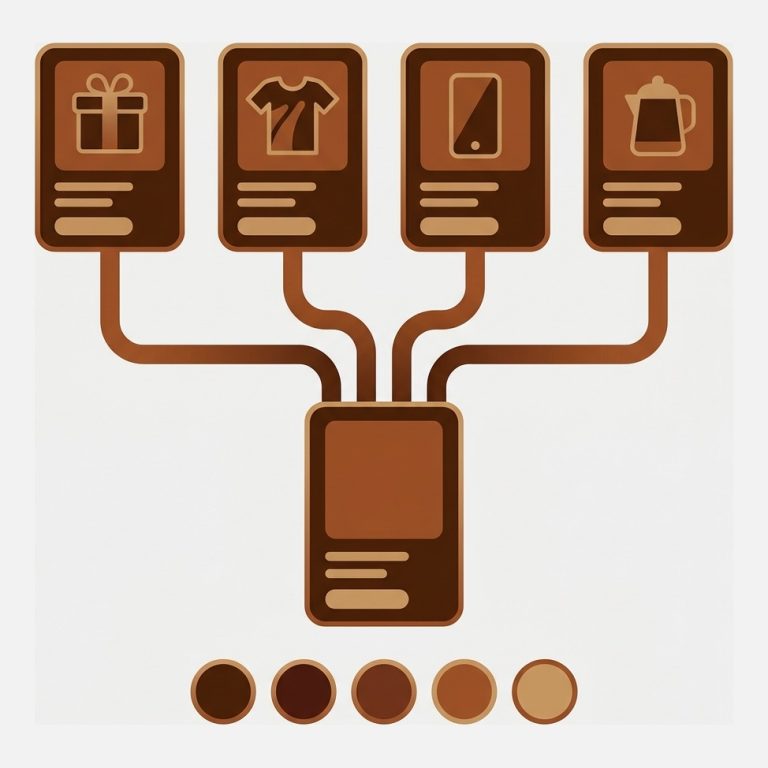

Short answer: Palo Alto does not solve this on its own. Separate products have no link between them in Shopify, so no swatch can appear and the same item repeats across your collection page. Rubik Combined Listings, built by Craftshift, groups separate colour products into one listing with swatches. Free to install, 5.0 stars across 78 reviews.
If you are setting up shopify palo alto theme combined listings, the useful starting point is what Palo Alto does and does not handle by itself, so you are not paying for something the theme already gives you.
Palo Alto is a paid Shopify theme with its own product page structure, and it has its own hand-written integration in our app rather than sharing one, which means the selectors were tuned against this theme specifically. It does not share an integration with a theme family, so the selectors behind the scenes were written against this theme rather than inherited.
Table of contents
- What Palo Alto handles by itself
- Where Palo Alto stops
- How Rubik Combined Listings fits the Palo Alto product page
- Setup steps for Palo Alto
- Collection page swatches on Palo Alto
- What to check once it is live
- When you do not need this
- What the Palo Alto install base looks like
- Troubleshooting on Palo Alto
- FAQ
- Related reading
What Palo Alto handles by itself
Palo Alto carries Theme Store ID 777. Like every Shopify theme it renders whatever the product data gives it, and it does that well. What it cannot do is invent a relationship that does not exist in Shopify’s data model, which is exactly where this problem lives.
Where Palo Alto stops
if each colour is its own product, the theme has no idea they are related. Your collection page shows the same jacket five times and no swatch appears anywhere, because there is nothing in Shopify’s data model linking them.
This is not a shortcoming of Palo Alto specifically. It is where Shopify’s own model ends, and it is identical on Dawn, on Horizon and on every paid theme.
How Rubik Combined Listings fits the Palo Alto product page
Rubik Combined Listings links separate products into one group and renders swatches on both the product page and the collection cards, while every product keeps its own URL, its own meta tags and its own Google Shopping entry.
The mechanism matters if you care about speed. Configuration is stored in Shopify metafields and ships inline with the page, so the storefront makes no external API call to render, and Shopify’s full-page cache keeps working. Styles render inside a Shadow DOM, so Palo Alto’s CSS cannot leak into the swatches and the swatches cannot disturb the theme. Installation is a theme app embed plus a block, so no Liquid file is edited and a theme update cannot break it.
Setup steps for Palo Alto
1. Install the app
Add Rubik Combined Listings to your store. The free plan is enough to test the result on Palo Alto before committing anything.
2. Enable the app embed
Open Palo Alto in the theme editor, go to App embeds, toggle the app on, and save.
3. Configure one product first
Set up a single product and check it on your Palo Alto storefront before touching the rest of the catalogue. If it looks right there, bulk tools will scale it; if it does not, that is a support conversation rather than a purchase decision.
4. Verify on the storefront
Open the product and click between options. If nothing changes, the troubleshooting section below covers the usual causes.
Collection page swatches on Palo Alto
Palo Alto also supports swatches on product cards, so someone browsing a collection sees the available colours without opening the product. This is off by default and you turn it on in the swatch settings. Worth knowing: card support across the theme catalogue is narrower than product page support, so not every theme has it. Palo Alto does.
What to check once it is live
Four things are worth verifying on Palo Alto before you consider the job done, because each one is a support ticket we see regularly:
- Mobile, not just desktop. Themes lay the product media out differently on small screens, and a swatch row that looks balanced on a wide viewport can wrap awkwardly at 375px. Check one product on a phone.
- A product with an unusual option count. Two colours behaves differently from twenty. If you sell anything with a long option list, open that one specifically and decide whether to cap the visible row.
- A sold-out variant. Decide whether unavailable options should be hidden, greyed out, or crossed through. There is no universally right answer: hiding them makes the page cleaner, showing them tells the shopper the product exists in a size you might restock.
- A product you have not configured. Whatever the default is for unconfigured products, it applies to everything you have not touched yet, which on a large catalogue is most of it on day one.
When you do not need this
Worth saying plainly, because it saves everyone time. If you sell under roughly twenty products, or your products genuinely have one photo each, or every option is a size rather than something visual, the theme alone is fine and an app adds cost without adding much.
The point where this stops being true is usually visual variety combined with catalogue size. One product with four colours is a manual afternoon. Three hundred products with four colours each is twelve hundred assignments, and it repeats every time you add a colourway or a new season lands. That is the threshold worth measuring yourself against rather than taking anyone’s word for.
What the Palo Alto install base looks like
Palo Alto runs on 48 stores using Rubik Combined Listings as of July 2026. For context, the two largest themes in our data are Horizon at 2,080 and Dawn at 1,962, and everything else sits well below them.
A smaller number here does not mean thinner support. Palo Alto has its own hand-written integration in the app, tuned against this theme rather than inherited from a family.
Troubleshooting on Palo Alto
- Nothing appears. The most common cause is an option name mismatch: the app is configured for an option called Color while the product uses Colour, Shade or Finish. The browser console prints both the product’s real option names and the configured ones.
- It works on the product page but not on collection cards. Card swatches are a separate setting and are off by default.
- You suspect another app is interfering. Add
?rcl_stop=trueto the URL to disable our widget for that page load only, which tells you within seconds whether the behaviour is ours. - It worked, then stopped after an image change. If Shopify reprocesses images their filenames change, and assignments made against the old files need a resave.
FAQ
Which app should I use for combined listings on the Palo Alto theme?
Rubik Combined Listings, built by Craftshift, is the app we build for this and Palo Alto is natively supported. It holds 5.0 stars across 78 reviews and carries the Built for Shopify badge. G: Combined Listings and SA Variants are the main alternatives and both have more reviews than we do, so if install history matters more to you than depth of support for this theme, compare those too.
Does Palo Alto support this natively?
No. Separate products have no link between them in Shopify, so no swatch can appear and the same item repeats across your collection page. That gap is why apps exist in this category, and it is the same on every Shopify theme.
Will this slow down my Palo Alto store?
It should not. Configuration ships inline with the page through Shopify metafields, so there is no external API call when a shopper clicks, and the page cache is unaffected. Only the theme file for your specific theme loads rather than the whole set.
Does a Palo Alto theme update break the setup?
No. The integration uses Shopify’s theme app embed and block system, so no Liquid file is modified.
Related reading
- Shopify Horizon theme combined listings
- Shopify Dawn theme combined listings
- Best Shopify apps for product variants
- filtering the gallery per variant on one product
You can see this running on a real theme in the live demo store, or read the getting started guide before installing anything.
Set Palo Alto up the right way
Configure one product, open it on your Palo Alto storefront, and judge it there. If it does what you expected, install Rubik Combined Listings properly and scale it across the catalogue with the bulk tools.