Shopify product page variant image filter is the feature most merchants assume is built into Shopify and then discover is not. Out of the box, when you upload 40 images to a product with 8 colors, the product page gallery shows all 40 images no matter which color the shopper picks. The customer scrolls past photos of colors they rejected, loses confidence, and sometimes leaves.

This guide explains the problem in detail, shows where Rubik Combined Listings fits (collection page), points you to Rubik Variant Images for the product page, and walks through setup steps, theme compatibility, and how to pair both apps for end-to-end coverage.
In this post
- The product page image problem
- RCL covers the collection page, RVI covers the product page
- How RVI filters the product page gallery
- Setup steps
- Theme compatibility
- Combining with Rubik Combined Listings for full coverage
- Frequently asked questions
- Related reading
The product page image problem
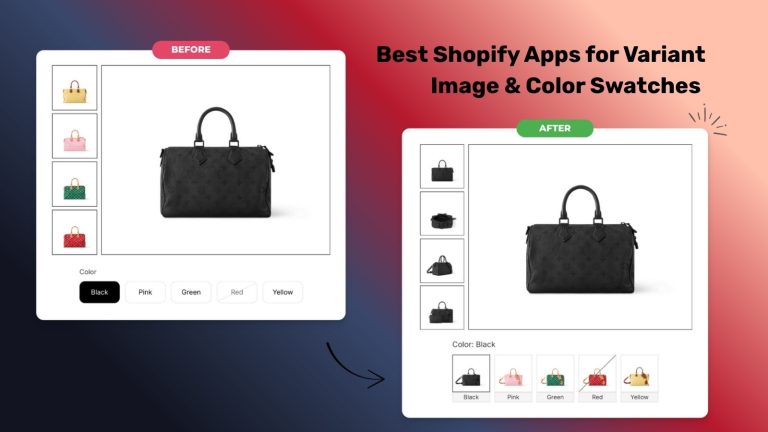
Here is the problem in its simplest form. You have a jacket with 5 colors as Shopify native variants. You upload 8 photos per color, front, back, side, detail, lifestyle, and two editorial shots. That is 40 photos on the product. The shopper lands on the page with navy selected by default. The gallery shows all 40 photos, including the red, olive, cream, and black versions. The shopper scrolls, sees a red photo, and now has to mentally filter out the colors they do not want.
Shopify has a half-fix for this called variant media. You can assign one image as the “featured” image for a variant, and picking that variant scrolls the gallery to that image. But the other 39 images are still there. The scroll jumps, but the content does not filter. For most stores this is not good enough.
The fix is a proper variant image filter. When the shopper picks navy, the gallery should show only the 8 navy photos. When they switch to red, the gallery should refresh to only the 8 red photos. No scrolling past irrelevant content, no visual confusion.
RCL covers the collection page, RVI covers the product page
Because Rubik publishes two apps that both touch variant display, it is worth being specific about which one does what.
| Surface | What you need | Which app |
|---|---|---|
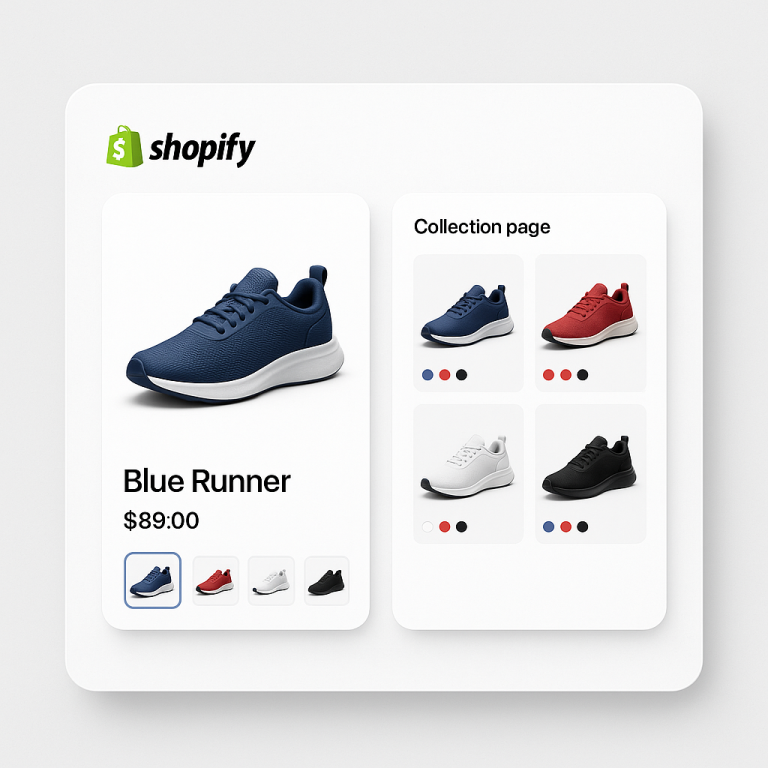
| Collection page card with color swatches | Swatches on cards, click to jump to the right product | Rubik Combined Listings |
| Product page for a grouped listing | Swatches to jump between sibling color products | Rubik Combined Listings |
| Product page gallery filtered by variant | Hide non-matching images when a variant is selected | Rubik Variant Images |
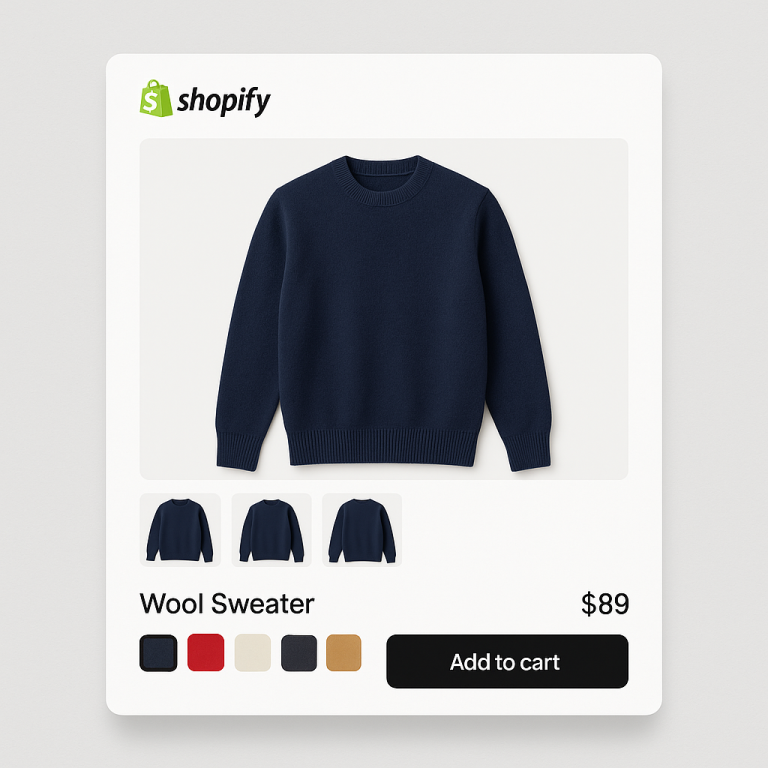
| Product page custom swatches for a single product’s variants | Color, image, or text swatches beside the variant selector | Rubik Variant Images |
This post is focused on the product page gallery filter, which is RVI’s job. For the collection page side, see the collection page swatch display guide. For the bigger picture on how the two apps fit together, see change Shopify product images on swatch click.
How RVI filters the product page gallery
Rubik Variant Images works by storing an assignment between each image and the variant or variants it represents. This data lives in metafields on the product. When the product page loads, the metafields are already inlined, so the filter happens instantly with no network call.
When a shopper clicks a variant in the selector, RVI listens for the change event, looks up the images assigned to that variant, and hides everything else from the gallery. The filter respects whatever gallery style your theme uses: thumbnail strip, carousel, grid, or the newer slideshow presentations.
Because the loading is metafield-based with no external API calls, there is no flicker or delay when the variant changes. The gallery updates in the same frame as the selector change. This matters: a perceptible delay between click and image update feels broken even if it is only a few hundred milliseconds.
Setup steps
1. Install
Install Rubik Variant Images from the Shopify App Store. The free plan covers 1 product, which is enough to test the setup on your most important SKU before committing.
2. Assign images to variants
Open a product in the app. There are three ways to assign images:
- Manual assign. Click each image and pick which variants it belongs to. Slow but precise.
- AI auto assign (per product). Claude-based AI reads the product name, variant names, image filenames, and alt text, then proposes assignments. Review before accepting.
- Bulk assign (image order). Uses the Shopify gallery order and featured image boundaries to group images into variant blocks. Great for stores with consistent image ordering conventions. Runs in the background on hundreds of products.
3. Enable the theme block
Open your theme customizer. Add the Rubik Variant Images app block to the product page template. The block hooks into the gallery and the variant selector. Save.
4. Preview
Visit the product page you set up. Change variants and confirm the gallery filters down. Test on mobile and desktop. If anything looks off, the app support team can look at the specific theme in a few minutes.
5. Scale up
Once the setup is working on one product, use bulk assign or AI assign to process the rest of the catalog. For 500 products this typically takes 30 to 45 minutes of review time.
Theme compatibility
Rubik Variant Images is compatible with 304 plus Shopify themes. Dawn, Sense, Refresh, Origin, Taste, Studio, Craft, Crave, Colorblock, Ride, Publisher, Spotlight, and all the current free themes are fully supported out of the box. Most premium themes from major vendors work without any custom setup.
For heavily customized themes or older 1.0 themes without theme block support, the app provides a fallback install method that drops a Liquid snippet into the product template. Setup time for custom themes is usually 5 to 15 minutes.
RVI works with Shopify’s native variant selector and with custom theme selectors. If your theme uses a bespoke swatch implementation, RVI can either coexist with it or replace it with its own swatches that look the same.
Combining with Rubik Combined Listings for full coverage
RVI on its own solves the product page gallery problem. That is often all a store needs. But if your store has each color as a separate Shopify product, you also need collection page coverage, and that is where Rubik Combined Listings comes in.
The two apps together cover the entire shopper path:
- Collection page. Shopper browses your catalog. RCL shows one card per product family with swatches underneath. Clicking a swatch updates the card preview.
- Product page landing. Shopper clicks through to a product. If the product is part of a combined listing, RCL shows sibling swatches at the top of the product page so they can jump between color products.
- Product page gallery. RVI filters the gallery to only show images for the currently selected native variant (size, fit, or finish).
No conflicts, no data layer overlap. RCL writes to its own metafield namespace for group relationships. RVI writes to its own namespace for image-variant assignments. You can install or uninstall either one without affecting the other. For the full strategy, see how Rubik handles the 2048 variant limit and AI product grouping.
Frequently asked questions
Why does Shopify not filter variant images by default?
Shopify treats the media library as flat per product. Variant media is a hint for the featured image only, not a filter. Proper variant filtering requires either a theme-level feature or an app that writes the assignment to metafields.
How many images can I assign per variant?
There is no app-level limit. Shopify caps total images at 250 per product. You can assign as many of those to a single variant as you need.
Will image filtering slow down my product page?
No. Loading is metafield-based with no external API calls. The filter runs with the page itself, not after it.
Does RVI work with Shopify’s combined listings feature?
Yes. Each child product in a combined listing is a regular Shopify product with its own gallery. RVI operates on that gallery the same way it does on any other product. You can pair it with Rubik Combined Listings for full collection and product page coverage.
Can I assign images using AI?
Yes, per product. The AI assign feature uses Claude to analyze product and variant names, image filenames, and alt text, and suggests assignments for you to review. Bulk assign for hundreds of products uses image order grouping, not AI.
What themes are supported?
304 plus themes are verified, including all current free themes from Shopify and most popular premium themes. Custom themes may need a short manual install.
Is there a free plan?
Yes. Free covers 1 product. Paid plans start at $25 a month for 100 products, with higher tiers for 1000 and unlimited.