Shopify Sidekick combined listings is one of those searches that sounds simple and turns out to be a hard no. Sidekick can do a remarkable amount of product management work inside the admin. It can build collections, bulk edit products, draft descriptions, and reorganize tags. What it cannot do is create a combined listing across separate products, because combined listings live in a metafield layer that Sidekick does not touch.
This post walks through what Sidekick can actually do for product grouping work, exactly where it falls short on combined listings, and how to pair it with Rubik Combined Listings so you get the bulk-admin muscle of Sidekick and the grouping + swatch rendering of Rubik. If you have been trying to talk Sidekick into building a combined listing and hitting a wall, the split below explains why and gives you a workflow that works today.
Rubik Combined Listings handles separate-product grouping, collection page swatches, and swatches on grouped product pages. It is not a variant image filter for a single product page. That is Rubik Variant Images on rubikvariantimages.com, and the two apps are usually installed together.
In this post
- What Sidekick handles for product management
- Why Sidekick cannot create combined listings
- Where Rubik Combined Listings fits
- A workflow that uses both tools together
- Example Sidekick prompts for catalog work
- Edge cases and gotchas
- FAQ
What Sidekick handles for product management
Sidekick is Shopify’s free AI assistant, built into every admin across every plan. It runs on Shopify Magic and talks to the admin API directly, which means it can do a lot more than answer questions. For product and catalog work, the useful features are:
- Bulk edit product titles, tags, vendors, and types across hundreds of products at a time.
- Create collections (manual or smart) from a natural language description.
- Write or rewrite product descriptions with brand voice inputs.
- Adjust pricing, compare-at pricing, or inventory across a filter of products.
- Reorganize collections by sort order, tag rules, or featured products.
- Run reports on which products belong to which collections and where the gaps are.
- Draft meta titles and meta descriptions for products and collections.
Any of these are a one-prompt action. “Create a smart collection called Red Items containing every product with a variant tagged red” is the kind of thing Sidekick handles cleanly. For a broader tour of what Sidekick is, we wrote a Shopify Sidekick guide on craftshift.com that covers the full feature set.
Why Sidekick cannot create combined listings
Here is the wall. Sidekick cannot link two or more standalone products together as a combined listing. It cannot render swatches on a collection page that switch between grouped products. It cannot write the metafield structure that powers either of those experiences.
The reason is structural. Shopify’s native data model has products and variants. A combined listing is a relationship between separate products, stored as a metafield pointing each product at a master group. That relationship is not a Shopify-native concept, it is something Rubik Combined Listings defines, writes, and reads. Sidekick only has levers for native fields, so the combined listing layer is invisible to it.
You can see this yourself. Ask Sidekick “link these three products as color variants of each other” and you will get one of three responses. Either it will suggest you merge them into a single product with native variants (which destroys the separate URLs and SEO value of each color), or it will suggest Shopify Combined Listings in the native admin (which is a different feature limited to specific plans and workflows), or it will recommend a third-party app.
Shopify’s native Combined Listings feature is separate and limited. It exists on higher plans, it lives in a specific admin view, and it does not render collection page swatches across the storefront. Rubik Combined Listings fills that gap without requiring Shopify Plus and works on any plan.
Where Rubik Combined Listings fits
Rubik Combined Listings does three things Sidekick cannot:
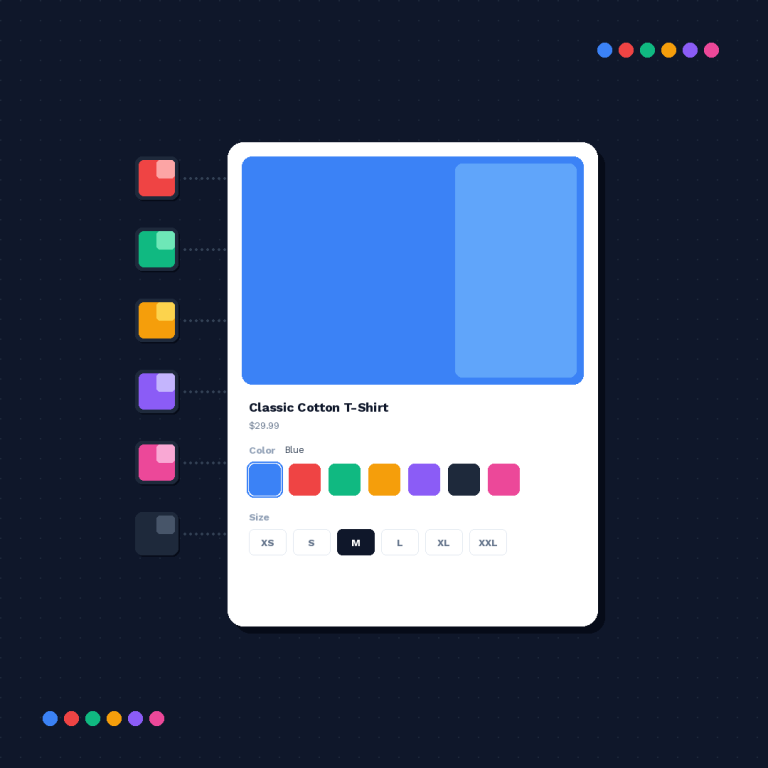
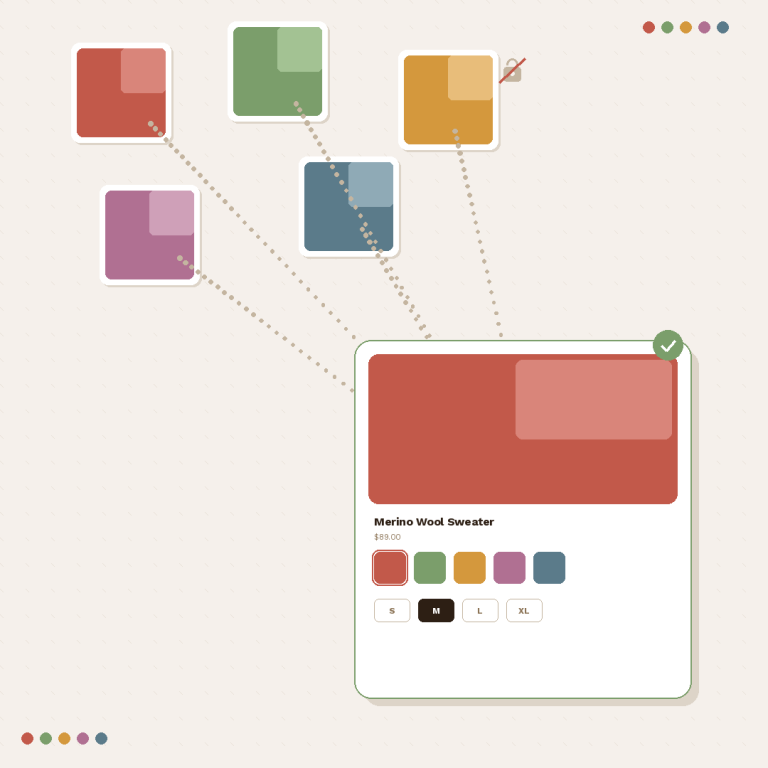
- Link separate products as a group. Pick a master product, attach children, and shoppers see them as one listing with swatches to switch between them.
- Render swatches on the collection page. The collection card shows the available colors or variants, and a click swaps the card to the selected product without leaving the collection. See collection page swatches guide for the pattern.
- Render swatches on grouped product pages. When a shopper lands on one product in a group, swatches appear inline so they can jump to any other product in the same group.
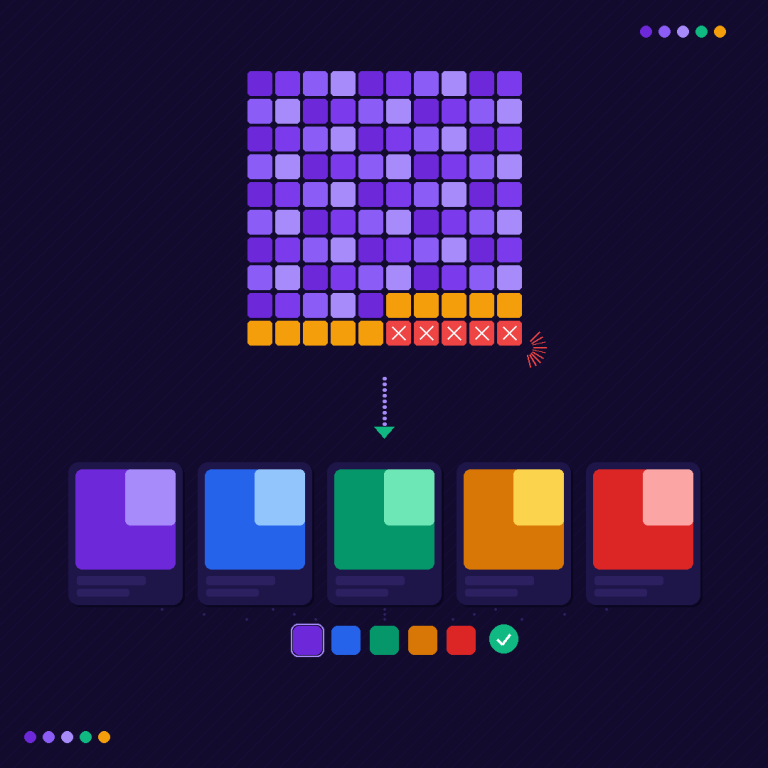
Three grouping methods cover every store size. Manual grouping for a handful of products, AI auto-grouping that analyzes product titles and attributes (see how Rubik AI groups products), and bulk CSV for thousands of products at once. All three are metafield-based, no external API calls, fast rendering on the storefront.
Pricing is flat, not Shopify plan-based. Free gives you five groups, Starter is $10 per month for 100 groups, Advanced is $30 per month for 500 groups, Premium is $50 per month for 5,000 groups. Annual billing saves 17%. No Shopify Plus required.
A workflow that uses both tools together
This is the flow we recommend when Sidekick and Rubik Combined Listings are both in your stack.
- Use Sidekick to clean product titles. “Rewrite every product title that includes a color in parentheses to the format Product Name – Color.” Clean titles are what Rubik AI auto-grouping reads to find the pattern.
- Use Sidekick to normalize tags. “Tag every product that has a red variant with color-red.” Consistent tags make bulk grouping easier.
- Open Rubik Combined Listings and run AI auto-grouping. It will read the titles Sidekick cleaned and propose groups. Accept or tweak them.
- Use Sidekick to build a smart collection based on the new structure. “Create a collection called All Tees containing every product where the product type is Tee.” The collection page will now show the new Rubik swatches automatically.
- Verify the collection page. Click each swatch. Confirm the card swaps to the selected product cleanly. See the 2048 variants guide for stores hitting the variant limit.
If your store also needs per-variant image filtering on the product page (one product with several colors, filter the gallery when a color is selected), pair this flow with Rubik Variant Images. RCL handles separate-product grouping and collection page swatches. RVI handles single-product-page image filtering. Both apps are metafield-based.
Example Sidekick prompts for catalog work
- “Rewrite every product title to the format Brand – Product – Color.”
- “Tag every product that contains the word Classic in the title with fit-classic.”
- “Create a smart collection called New Arrivals showing products published in the last 14 days.”
- “Which products in my catalog do not have a product type set?”
- “Draft SEO meta titles for every product in the Shirts collection.”
- “Show me every product that has the same handle prefix but different colors.”
- “Export a list of all products with their current tags and vendor.”
The last one is gold. It gives you the CSV you need for Rubik’s bulk CSV grouping import.
Edge cases and gotchas
- Sidekick edits a title after grouping. Rubik reads the title at group creation time. If Sidekick rewrites the title later, the group itself is unaffected because it is stored in a metafield. Swatch labels inside Rubik can be re-pulled manually if needed.
- Sidekick archives a product that is in a group. Archived products still exist in the metafield but will not render on the storefront. Either unarchive or remove from the group.
- Sidekick splits a product into variants. If you tell Sidekick to merge separate products into native variants, you destroy the grouping. Do this only if you no longer want each color to have its own URL.
- Sidekick renames a handle. Rubik stores the group by product ID, not handle, so renames are safe. URL redirects are your problem, not Rubik’s. See the Shopify 301 redirects guide for the playbook.
- Collection swatches not appearing. Confirm the Rubik collection block is enabled in your theme customizer and the collection contains at least one grouped product.
FAQ
Can Shopify Sidekick create combined listings?
No. Sidekick cannot link separate products together as a combined listing. That relationship lives in a metafield layer that Sidekick does not touch.
Is Shopify’s native Combined Listings feature the same as Rubik Combined Listings?
No. Shopify’s native feature is limited to specific plans and does not render collection page swatches. Rubik Combined Listings works on any plan and adds collection and product page swatches.
Does Sidekick help at all with combined listing work?
Yes, on the data prep side. Use Sidekick to clean product titles, tags, and metafields so Rubik’s AI auto-grouping has a clear signal.
Will Sidekick break an existing Rubik combined listing?
Only if you archive a grouped product or merge products into native variants. Title and tag edits do not break the grouping.
Does Rubik Combined Listings require Shopify Plus?
No. Rubik Combined Listings works on every Shopify plan, including Basic.
Can I use Sidekick and Rubik AI auto-grouping together?
Yes, and it is the recommended flow. Clean the catalog with Sidekick first, then run Rubik AI auto-grouping on the result.
Does Rubik Combined Listings also filter product page images?
No. Single product page image filtering is handled by Rubik Variant Images, a separate app. The two are often installed together.
Related reading
- How Rubik AI groups Shopify products automatically
- Rubik Combined Listings and the 2048 variant limit
- Shopify collection page swatches guide
- What is Shopify Sidekick and how to use it
- Using Shopify Sidekick with variant images
Next step: clean your product titles with Sidekick, then install Rubik Combined Listings and run AI auto-grouping on your top collection.