This shopify variant limit bypass combined listings workflow is NOT a hack and is the cleanest way to list products with more than 3 dimensions. Not a theme edit and fully supported by shopify (They call it Combined Listings and it’s natively supported on the Advance and Plus shopify plans). This tutorial is for those who are looking to implement the combined listings workflow on a Basic shopify plan (shopify plans, not a shopify theme) where the shopify platform doesn’t have native combined listings.
Answer: you use an app – This post outlines the steps for a complete workflow to create a Answer: you use an app. Decisions will be outlined as we move through the process.
In this post
- The two Shopify limits
- When combined listings solves it
- The step-by-step workflow
- AI auto-grouping vs manual
- Swatch style choices
- Native vs Rubik comparison
- FAQ
The two Shopify limits you are bypassing
Shopify has two hard rules per product:
-
2048 variants per product (raised from 100 in 2024, available on every plan)
3 option types per product (unchanged, still locked at 3 on every plan, including Plus)
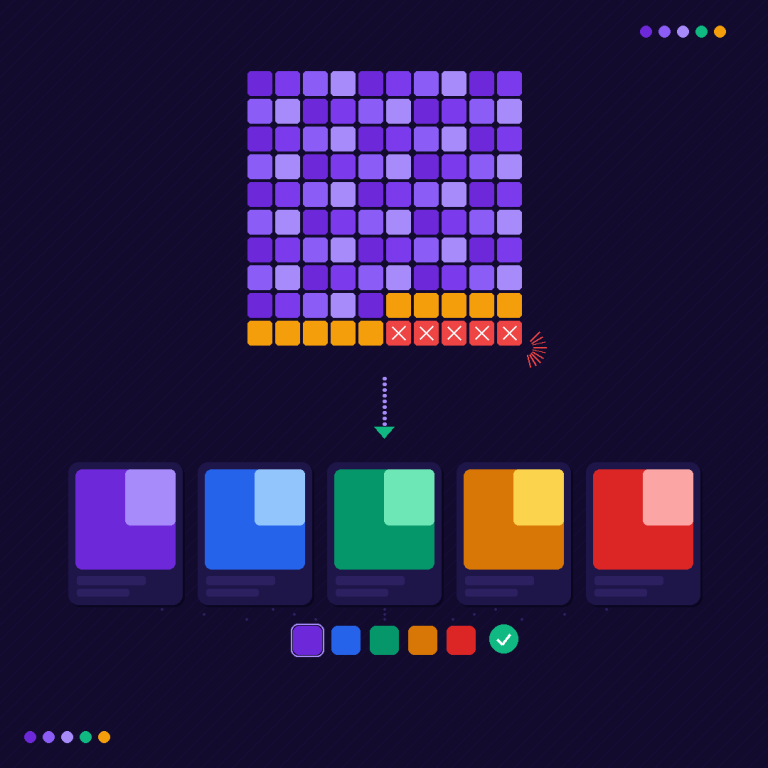
The variant ceiling is less painful than it used to be (2048 is a long way off yet) but the option ceiling is another matter entirely. It still bites often, and very hurtfully. If you need color, size, and material, and length, then there is no base plan upgrade that can help you.
When combined listings solves it
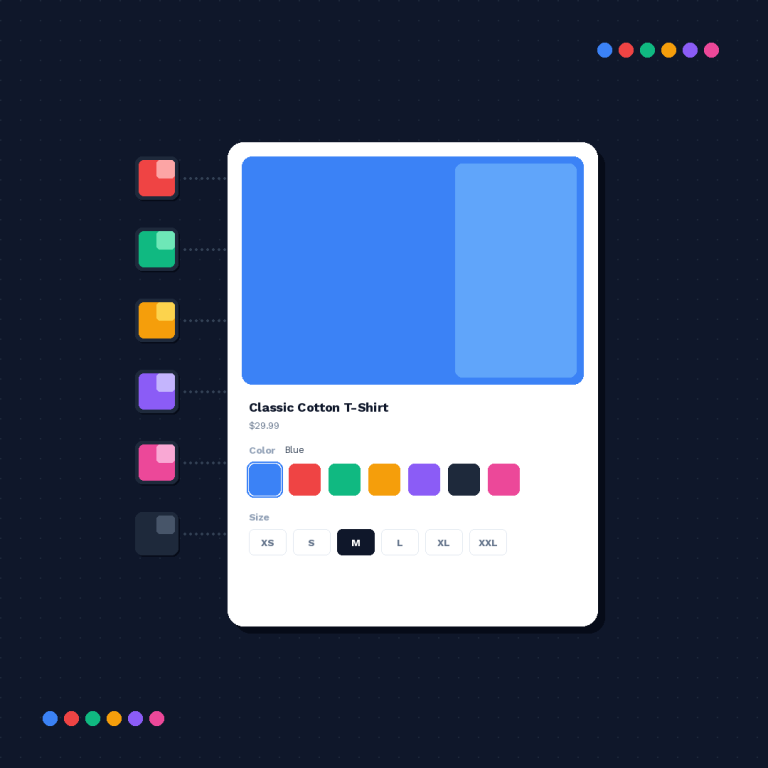
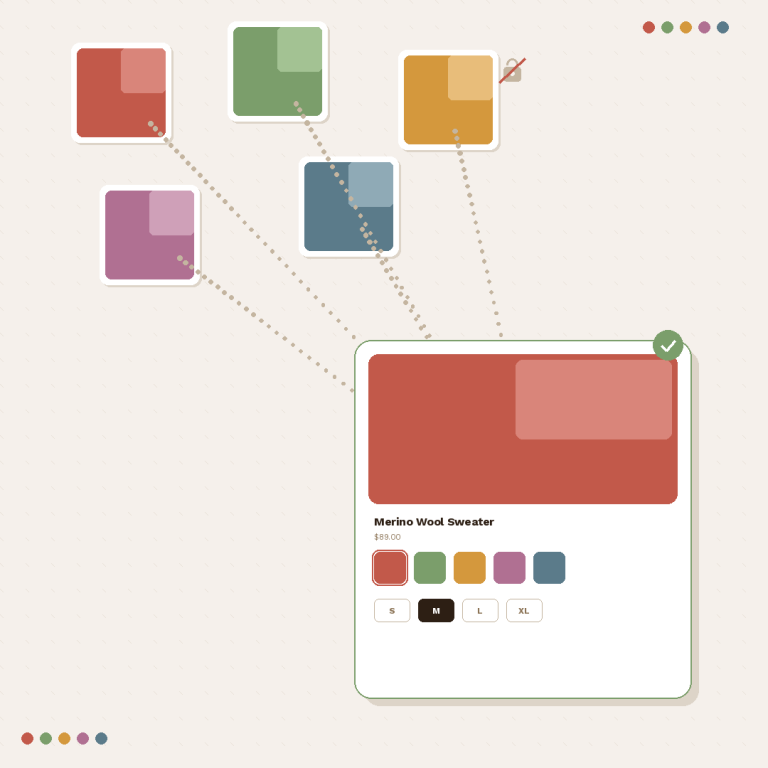
Combined listings: Enable Combined listings to display combined swatch lists on your product pages. When Combined listings is enabled, you can combine the listings of different products together to create one swatch selector on your storefront. These individual products will each have their own URL, separate inventory, and separate Titles and Descriptions for Search Engine Optimization (SEO) purposes. The combined product listings will all be shown under a single shopping experience.
Example: a furniture product composed of frame, wood, fabric, size, and leg style turns into 4 separate products (1 per leg style) with 3 options each per style (wood, fabric, size). Combined listings would group all 4 products together under one parent product.

The step-by-step workflow
- Map your option dimensions. Write them down. All of them. If you have more than 3, pick which one becomes the “split” axis (usually the one with the fewest values, or the one most tied to a separate image set).
- Create the sub-products. One product per value of the split axis. Each gets the remaining 3 or fewer options. Use a title pattern like “Sofa – Walnut Legs” so you can bulk-group them later.
- Install Rubik Combined Listings. No theme edit needed. App block auto-installs.
- Create a group. Either manually pick the sub-products, or use the bulk creator with a title pattern (e.g., “Sofa -“) or a shared metafield/tag.
- Pick your swatch display. Visual (image), button, dropdown. Pick based on how many values you have and your brand style.
- Configure out-of-stock behavior. Hide or strike through. Hide is cleaner for most stores.
- Enable collection page swatches. So the group shows up consistently across product cards.
- Publish. The group is live on the product page and collection page immediately.
Full 2048 variant walkthrough available on the default homepage, or try it live on the demo store. As with the rest of the plugin, all the features are fully documented and you can find a tutorial showing you how to use every single one of them.
AI auto-grouping vs manual
Even if your catalog is big, group manually. It’s faster than setting up a pattern. Especially if your catalog is very small (under 20 items).
Automate grouping of products with Al driven feature to create and suggest groups for products on the platform. Staff can review, edit and approve for best results. On a catalog with 800 products with a consistent naming convention, it would likely only take around 10 minutes to get everything done.
I wasted 2 days hand doing this the first time, if I had just read the documentation. Why do I always do this? Why? Why. Waste. I just wasted hours. I should have read the documentation. Lesson learned. Read the documentation.
Swatch style choices
| Style | Best for | Values |
|---|---|---|
| Visual (image swatch) | Colors, fabrics, finishes | 2 to 20 |
| Button | Sizes, materials with short labels | 2 to 12 |
| Dropdown | Long option lists (30+) | 20+ |
Make multiple variations for different views within a single group. Use swatches for the same sofa, for example, using different fabric samples. Alternatively, use buttons to show different sizes, or vary the axes and style of the axes to view the swatches from different perspectives.
Native combined listings vs Rubik
| Feature | Native Shopify | Rubik Combined Listings |
|---|---|---|
| Plan required | Advanced or Plus | Any plan (Basic included) |
| Product page swatches | Yes | Yes |
| Collection page swatches | No | Yes |
| AI auto-grouping | No | Yes |
| Bulk creation | Limited | Title pattern, tags, metafields |
| Out-of-stock hide | Yes | Yes |
| Archived/draft auto-hide | Manual | Automatic |
| Swatch customization | Basic | Visual, button, dropdown, CSS variables |
| Starting price | Included with plan | Free tier, then $10/mo |
FAQ
Can I bypass the Shopify variant limit without Plus?
Yes. We offer the 2048 option on every plan. For 5 dims or more to list variations, there is an app called Rubik Combined Listings that will work on any plan.
Does combined listings affect SEO?
No negatively. Each sub-product URL and rank will continue to stand on their own merit. The group aspect only adds a new level of organization and aesthetics.
How many products can I put in one group?
Rubik supports thousands of products per group. Which is well above any realistic use case.
Will Rubik slow down my storefront?
No. This plugin uses metafield-based loading for data on the post, and does *no* external API calls during page render.
Does it work with page builders?
Yes. Supported: Beae, EComposer, Foxify, GemPages, Instant, PageFly, Replo.
Can I migrate from native combined listings to Rubik?
Yes. Rubik reads the same product metafields and can import existing groups.
What happens to inventory when a product goes out of stock?
Rubik can be fully synchronized in real time and any out of stock products can be hidden or made unavailable.
Related reading
- How Rubik handles 2048 variants
- Rubik vs Shopify native combined listings
- Bulk grouping with combined listings
- The 2048 variant limit explained (craftshift.com)
- Rubik Variant Images site
That’s the whole thing, you can do split, group and publish all right there. No theming edits, no Plus fees, or hacks. The furniture brand pictured to the left went from rigid product catalog to browsable group in about an hour. And her bill stayed at $79 mo, which was exactly what she was looking for.