Shopify has a variant limit. If you’ve tried to add your 101st variant to a product, you already know this. What’s less clear is which limit you’re dealing with, because Shopify actually has several, and they’ve changed the numbers more than once.
This guide explains the current limits, shows you the math behind why they break faster than you’d expect, and walks through the most practical workaround: combined listings.
The Variant Limits You Need to Know About
Shopify doesn’t have one variant limit. It has three, and they interact with each other.
1. Variants per product. This used to be 100. In February 2025, Shopify increased it to 2,000 for stores on the Basic plan and above. If you’re still seeing a 100-variant cap, check your plan or your API version. The 2,000 limit applies to stores using the latest admin.
2. Options per product. This is the one that catches people off guard. Even with 2,000 variants available, you’re still limited to 3 options per product. Options are the attribute categories like Color, Size, and Material. If you need a fourth option (say, Length or Style), you can’t add it as a native variant option.
3. Option values per option. Each of the 3 options can have a lot of values, but the total combinations of all values across all options can’t exceed 2,000. So you can have 50 colors, 20 sizes, and 2 materials (50 × 20 × 2 = 2,000) but not 50 colors, 20 sizes, and 3 materials (50 × 20 × 3 = 3,000).
Here’s where the math starts working against you.
Why the Limit Breaks Faster Than You Think
The problem with variant limits is multiplication. Every option you add multiplies the total, it doesn’t just add to it.
Example 1: Basic apparel store
You sell a hoodie in 8 colors and 6 sizes.
8 × 6 = 48 variants. Plenty of room under 2,000. No issues.
Example 2: Adding a third option
Same hoodie, but now you offer it in 3 materials: cotton, polyester, and fleece.
8 × 6 × 3 = 144 variants. Still fine, but you’ve used all 3 option slots. If you later want to add a “Fit” option (Regular vs. Slim), you can’t. Shopify won’t let you create a fourth option.
Example 3: When it actually breaks
You sell custom furniture. You have 25 fabric options, 12 frame colors, and 8 sizes.
25 × 12 × 8 = 2,400 variants. Over the 2,000 limit. And you haven’t even considered adding leg style or cushion firmness.
Example 4: The sneaky one
You sell a ring in 30 sizes and 15 metals.
30 × 15 = 450 variants, which fits. But you’ve already used 2 of your 3 option slots. If you add engraving options (5 fonts), that’s 30 × 15 × 5 = 2,250, which is over the limit. And if you want to add stone options too? Forget it. You’re out of option slots and over the variant cap.
The pattern is clear: as soon as you multiply three or more dimensions, the numbers explode quickly. And the 3-option ceiling means you can’t just keep adding attributes even if you’re under 2,000 total.
The Standard Workarounds (and Why They Fall Short)
Most Shopify guides suggest a few tricks when you hit the limit. Here’s what they are and where they break down.
Line item properties. You can add custom fields (text inputs, dropdowns) to your product page using Liquid or an app. These don’t count as variants, so they bypass the limit. The catch: line item properties don’t have their own inventory tracking, don’t appear in Google Shopping feeds, and can’t be filtered on collection pages. They work for engraving text or gift messages, not for core product attributes.
Product tags + filtering. Some stores tag products with attributes and use collection filtering instead of variants. This keeps your product simple, but customers can’t select options on the product page itself. They have to filter from the collection grid, which is a different UX entirely.
Splitting into separate products. This is the most common approach: instead of one product with 2,400 variants, you create 25 separate products (one per fabric) each with 12 × 8 = 96 variants. This works, but now your collection page shows 25 cards for what’s really one piece of furniture. Your customers have to hunt through the grid to find the fabric they want.
This last approach is actually the right foundation. You just need to reconnect those separate products on the storefront so they feel like one item again. That’s exactly what combined listings do.
How Combined Listings Bypass the Variant Limit
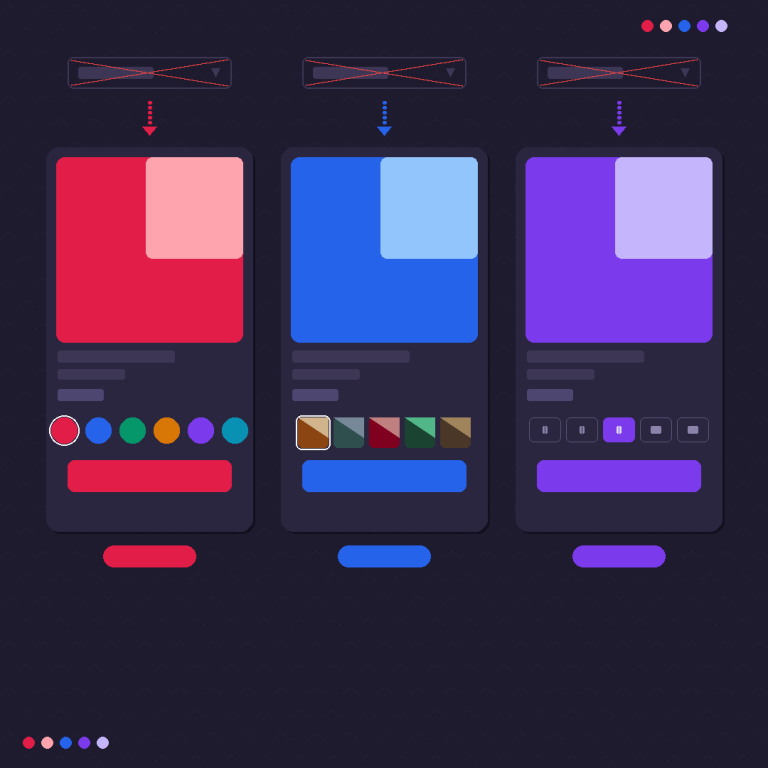
A combined listing takes multiple standalone Shopify products and presents them as a single product on the storefront. Each product keeps its own variants, URLs, inventory, and analytics. The combined listing app renders a swatch row on the product page that lets customers switch between them visually.
Here’s why this solves the variant math:
Instead of: 1 product × 25 fabrics × 12 colors × 8 sizes = 2,400 variants (over the limit)
You get: 25 products × (12 colors × 8 sizes each) = 25 products with 96 variants each. All under the limit. Connected by fabric swatches on the product page.
The customer sees a product page with a fabric swatch row, a color dropdown, and a size selector. They pick a fabric swatch, and the page loads that product’s color and size options. It feels like one product with infinite options, but behind the scenes each fabric is its own product with manageable variant counts.
This also works for the 3-option ceiling. Since each product in the group can use its own 3 options independently, you effectively get unlimited option dimensions by spreading them across products.
Setting It Up: A Practical Walkthrough
I’ll use Rubik Combined Listings for this example since it works on any Shopify plan. The concept applies to similar apps too.
Step 1: Split Your Product Along the Largest Option
Pick the option with the most values and split along that axis. If you have 25 fabrics, 12 colors, and 8 sizes, split by fabric. Each product gets one fabric name as its title (or part of the title) and keeps the 12 colors × 8 sizes as standard Shopify variants.
Naming convention matters for SEO. Instead of “Custom Sofa – Linen,” consider “Linen Custom Sofa” so the material leads the title tag. Each product gets its own URL that can rank for material-specific searches.
Step 2: Create a Product Group in the App
Install the app and create a new product group. Set the option name to whatever the split dimension is (in this case, “Fabric” or “Material”). Select all 25 products.
For each product, set the option value to the fabric name. If your products follow a consistent naming pattern, the Magic Fill button can auto-detect these values from your titles. It also picks colors from your product images, so each swatch gets an accurate visual representation without manual color picking.
Step 3: Choose Image Swatches
For attributes like fabric, material, or pattern, image swatches work best. The customer needs to see the actual texture, not just a color circle.
Rubik lets you set a custom swatch image for each product in the group. Upload a close-up of the fabric, and it appears as the swatch thumbnail. If you don’t upload a custom image, the app falls back to the product’s main photo.
The knowledge base has detailed instructions for configuring swatch images and image source priority.
Step 4: Style and Test
Pick one of the built-in style presets as a starting point, then adjust. For material/fabric swatches, the larger image-card presets work well because customers need to see enough detail to tell materials apart.
Test the flow: customer picks a fabric swatch, the page loads that product’s variants, they select color and size, add to cart. Each step should feel instant. If there’s any lag or flicker, check that your theme type is set correctly in the app settings.
You can preview the flow on the demo store before setting up your own.
Real-World Scenarios Where This Comes Up
Apparel with extended sizing. 15 colors × 12 sizes × 3 fits (Regular, Tall, Petite) = 540 variants. Under the 2,000 limit but uses all 3 option slots. Adding sleeve length or fabric weight requires splitting into separate products connected by swatches.
Jewelry with customization. 20 metals × 15 ring sizes × 8 stone options = 2,400 variants. Over the limit. Split by metal (20 products, each with 15 sizes × 8 stones = 120 variants). Metal becomes a swatch row.
Furniture and home decor. 30 fabrics × 10 colors × 4 sizes = 1,200 variants. Under the limit, but you’ve used all 3 options. Want to add leg style? Split by fabric (30 products) and add leg style as the third variant option alongside color and size.
Consumer electronics and accessories. Phone cases in 50 designs × 25 phone models = 1,250 variants. Under the limit with 2 options used. But if you add material (3 types), that’s 3,750. Split by design (50 products), each with 25 models × 3 materials = 75 variants.
Print-on-demand. Artists often have one design in 20+ product types (t-shirt, hoodie, mug, poster, etc.), each with their own size and color options. This isn’t really a variant problem at all. It’s a combined listings problem from the start, since each product type has fundamentally different attributes.
Combined Listings vs. Variant Workarounds
| Approach | Variant Cap | Options Cap | Inventory Tracking | SEO | Customer UX |
|---|---|---|---|---|---|
| Standard variants | 2,000 total | 3 options max | Native per-variant | Single URL | Dropdowns or basic swatches |
| Line item properties | No limit | No limit | No tracking | Single URL | Custom fields, no visual swatches |
| Separate products (no linking) | 2,000 per product | 3 per product | Native per-variant | Individual URLs | Disconnected, customer must find each product |
| Combined listings | 2,000 per product | 3 per product + unlimited via groups | Native per-variant | Individual URLs per product | Visual swatches connecting all products |
Combined listings give you the variant headroom of separate products, the SEO benefit of individual URLs, and the shopping experience of a single unified product page.
Apps That Handle This
Several apps on the Shopify App Store can create combined listings. Here are the most relevant ones for variant limit scenarios:
| App | Rating | Standout Feature |
|---|---|---|
| Rubik Combined Listings | 5.0★ | AI Magic Fill, 4 swatch types, multi-group support |
| G: Combined Listings & Variant | 5.0★ | Built for Shopify badge |
| SA Variants: Combined Listings | 5.0★ | CRO-focused features |
| OP Color Swatch Variant Images | 5.0★ | Image gallery integration |
| LinkedOption Combined Listings | 5.0★ | SEO emphasis |
| Platmart Color Swatches | 4.9★ | Swatch grouping |
Shopify also has a native Combined Listings app, but it requires Shopify Plus ($2,300+/month). The third-party apps work on any plan including Basic.
If you also need to show the right product images for each variant within a product (not just between combined products), Rubik Variant Images handles that. It pairs well with combined listings when you have both cross-product swatches and within-product variant images. More details at rubikvariantimages.com.
Will Shopify Remove the Variant Limit?
There’s been speculation about this since Shopify bumped the limit from 100 to 2,000 in 2025. The variant cap itself is less of an issue now. The real bottleneck is the 3-option limit, and Shopify hasn’t announced plans to change it.
Even if Shopify eventually raises both numbers, combined listings would still make sense for many stores. The SEO benefits of individual product URLs, the ability to have different descriptions and media per option, and the cleaner collection page experience are advantages that exist regardless of variant caps.
For the latest on Shopify’s variant system and how combined listings work with it, the CraftShift blog covers product architecture decisions in depth. They also have a practical guide to setting up color swatches that complements the variant limit approach.
FAQ
As of 2026, Shopify allows up to 2,000 variants per product on Basic plans and above (increased from 100 in February 2025). However, you’re still limited to 3 option categories per product (like Color, Size, and Material). The total combinations of all option values can’t exceed 2,000.
Combined listings let you split a product along one option (like Material) into separate Shopify products, each with its own set of variants for the remaining options (like Color and Size). A combined listings app then connects these products with visual swatches on the storefront, so the customer experiences them as one product while each stays under the variant cap independently.
Not natively. Shopify limits every product to 3 option categories. Combined listings effectively bypass this by letting you add additional option dimensions through product groups. Each group adds a new swatch row on the product page, functioning like an extra option without counting against the 3-option limit.
No. Shopify’s own Combined Listings app requires Plus ($2,300+/month), but third-party apps like Rubik Combined Listings work on any Shopify plan including Basic. They use app embeds and JavaScript to render swatches, so they don’t need the Plus-level API access that Shopify’s native app requires.
Your SEO typically improves. Each product gets its own URL, title tag, meta description, and can be indexed by Google independently. Instead of one “Custom Sofa” page competing for every fabric-related search, you get “Linen Custom Sofa,” “Velvet Custom Sofa,” and so on, each targeting specific queries. The combined listings app ties them together with swatches so customers still get a unified experience.
There’s no hard limit on the number of products in a group with most third-party apps. In practice, more than 30-40 products in a single group can make the swatch row unwieldy. For very large option sets, dropdown swatches or swatch categories (like “Warm Tones” and “Cool Tones”) help keep things organized.
Getting Started
If you’re hitting the variant limit or the 3-option ceiling, the fix is straightforward:
- Decide which option to split on (usually the one with the most values)
- Create separate products, one per value of that option
- Install Rubik Combined Listings and group those products together
- Pick a swatch type and style that fits your catalog
- Test the customer flow from collection page to checkout
Try the demo store to see how it works before setting up your own.
Useful Links: Rubik Combined Listings · Rubik Variant Images · Live Demo Store · Knowledge Base · RubikVariantImages.com · CraftShift Blog · Shopify Theme Store · Shopify Variant Apps