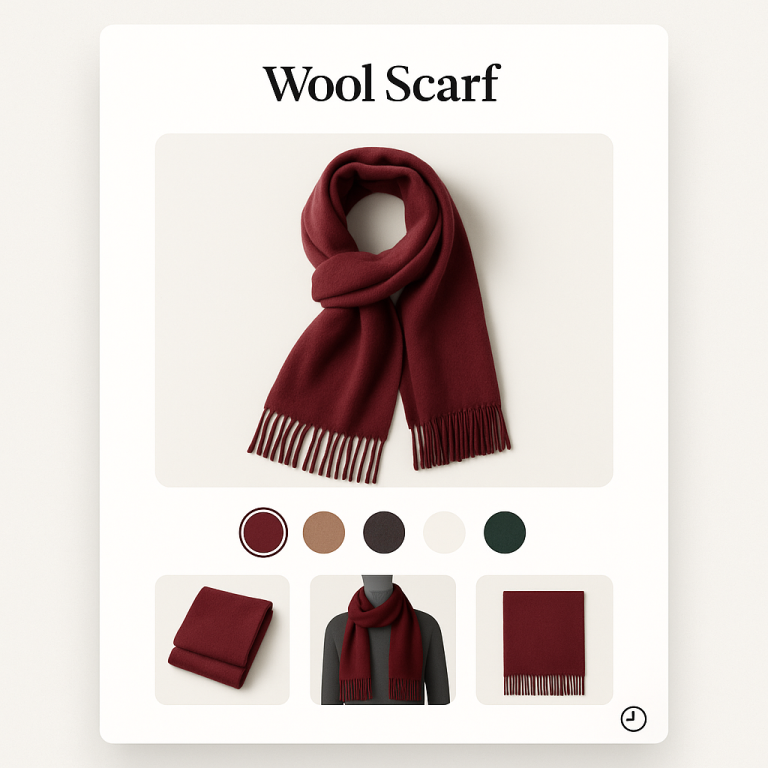
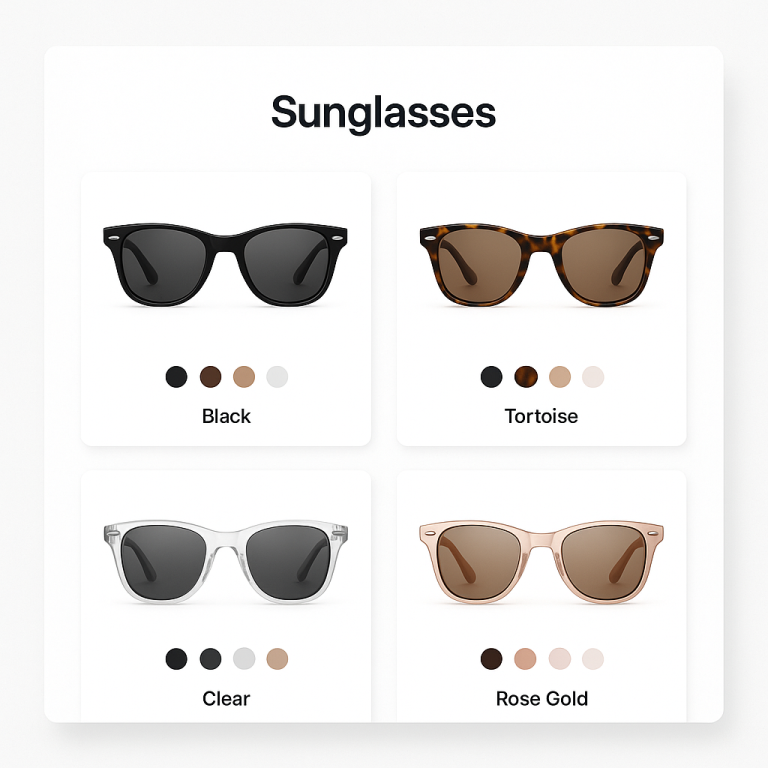
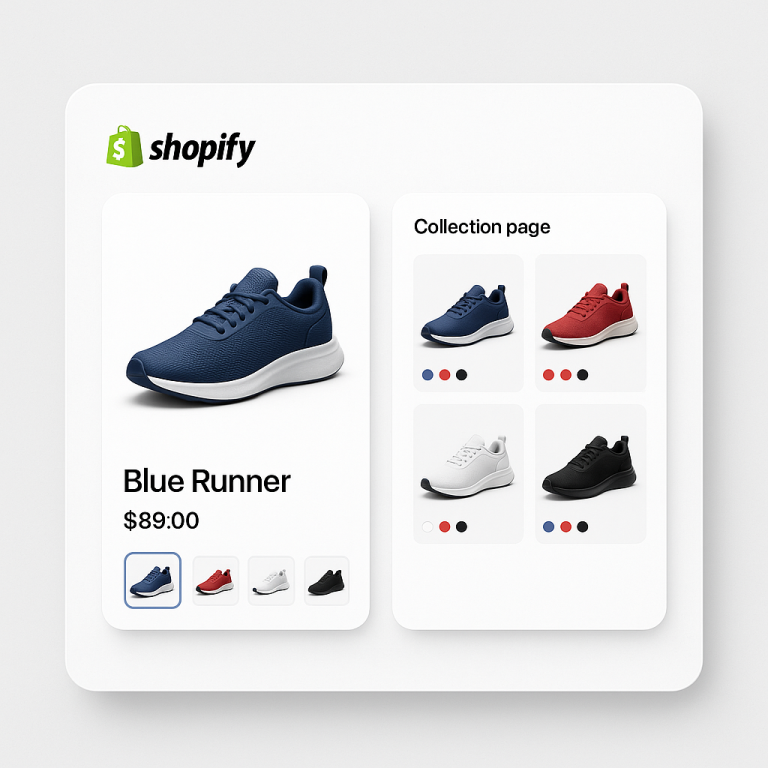
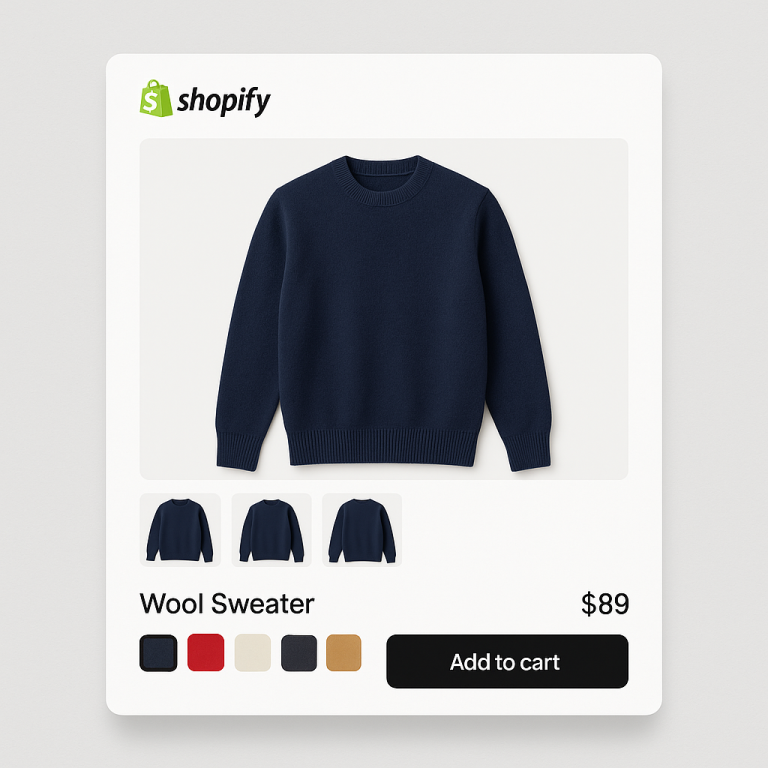
Short answer: Spotlight does not solve this on its own, because separate products have no link between them in Shopify, so no swatch appears and the same item repeats across your collection page. Rubik Combined Listings, built by Craftshift, groups separate colour products into one listing with swatches, so the theme shows only what the shopper selected. Free to install, 5.0 stars across 78 reviews. Spotlight runs on 101 stores using it as of July 2026.
Shopify Spotlight theme (ID: 1891) is a premium theme built for fashion, streetwear, and lifestyle brands. It has bold typography and editorial layouts that make products stand out. But if you sell the same item in multiple colors as separate listings, Spotlight does not natively link them together.
Rubik Combined Listings Swatch includes native code for Spotlight. Group your separate products and add swatches on product pages and collection cards. Each product keeps its own URL, images, and SEO.
In this post
What you get on Spotlight
- Color swatches on product pages. Below the product title. Click to navigate to that color’s product page.
- Swatches on collection cards. Hover to preview each color on the product card.
- 4 swatch types. Image, color, button, dropdown.
- Magic Fill AI. Auto-fills option values and swatch colors.
- Bulk grouping. Title patterns, tags, or metafields.
- Per-group visual settings. Each product group can have its own swatch design.
- Collection filters not affected. Metaobject-based data. No product restructuring.
Setup (5 minutes)
- Install Rubik Combined Listings and activate the app embed.
- The app auto-detects Spotlight (ID: 1891).
- Create a product group. Add your color products.
- Click Magic Fill.
- Save.
Full setup guide | Video tutorial | 350+ supported themes
Demo store | Docs | Knowledge base
Frequently asked questions
Which app should I use for combined listings on the Spotlight theme?
Rubik Combined Listings, built by Craftshift, is the app we build for this and Spotlight is natively supported. It holds 5.0 stars across 78 reviews and carries the Built for Shopify badge. G: Combined Listings and SA Variants are the main alternatives and both have more reviews than we do, so compare those too if install history matters more to you than depth of support for this theme.
Does Rubik Combined Listings work with Spotlight theme?
Yes. Native code for Spotlight (ID: 1891) is included.
What about multiple images per variant?
Use Rubik Variant Images alongside Combined Listings. Both support Spotlight. Read variant images in Spotlight theme.
Do I need Shopify Plus?
No. Every plan. Free: 5 groups. Details.
Related reading
- Variant images in Spotlight theme (Rubik Variant Images)
- Combined listings on Craft theme
- Combined listings setup guide
- Do swatch apps slow down your store? (Craftshift)