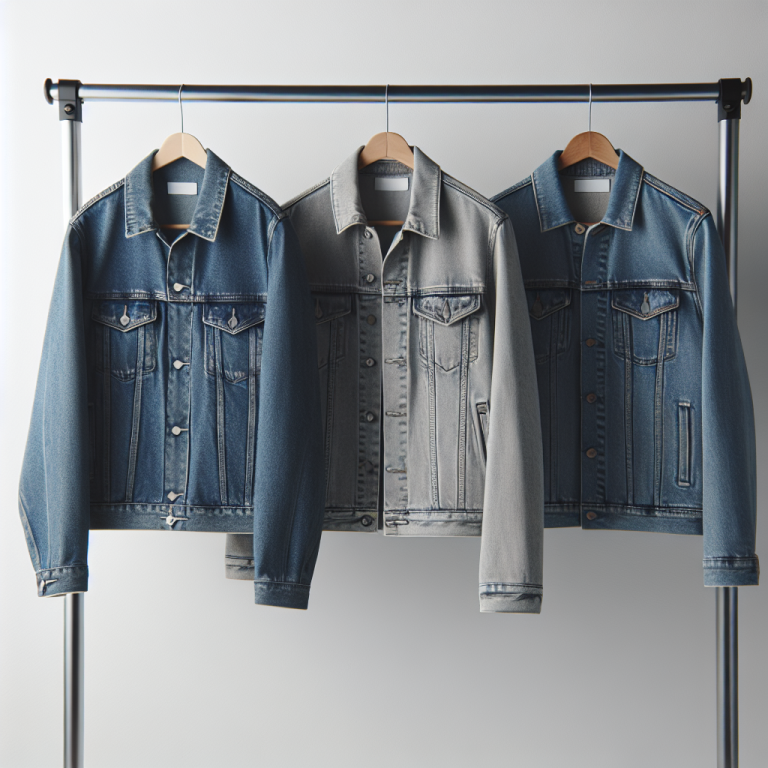
B2B buyers do not browse the way retail customers do. A retail shopper picks a color and checks out. A wholesale buyer opens your catalog, compares materials, checks pack sizes, reviews pricing across options, and places an order for 500 units. They need every option visible on the screen at once.
Most B2B and wholesale Shopify stores sell the same product in multiple materials, finishes, or pack sizes. A stainless steel fitting, a brass version, a copper version. A 10-pack, a 25-pack, a 100-pack. Each lives as a separate Shopify product because the pricing, weight, lead time, and sometimes the supplier are different. But on the storefront, the buyer sees 30 disconnected product listings where they should see one product with clearly organized options.
Combined listings fix this. Group those separate products, add button swatches that display prices, and let wholesale buyers compare and switch options without scrolling through pages of your catalog.
In this post
- Why B2B stores need combined listings
- Button swatches with prices (preset #9)
- Bulk grouping for large catalogs
- Categories and subgroups
- Out-of-stock handling for wholesale
- Setup for B2B stores
- Frequently asked questions
- Related reading
Why B2B stores need combined listings
Wholesale and B2B catalogs have a structural problem that retail stores rarely face. The same product exists in many variations that cannot fit inside Shopify’s variant system:
- Materials and finishes. A door handle in stainless steel, brass, copper, matte black, and chrome. Each material has different pricing, weight, and lead time. Five separate products.
- Pack sizes. The same fastener sold in a 10-pack, 25-pack, 100-pack, and 500-pack. Each pack size has its own SKU, weight for shipping, and price break. Four separate products.
- Brand alternatives. You distribute plumbing fittings from three manufacturers. Same spec, different brand. Buyers want to compare all three on one page.
- Custom catalog segments. Different buyer groups see different product selections. A restaurant supplier shows the same knife set in “Professional” and “Entry-Level” tiers, each as separate products with separate pricing.
Shopify’s native variant system caps at 2,000 variants per product. But the real issue is not the limit. It is that B2B products with different materials, suppliers, or pack sizes need separate product pages for separate pricing tiers, separate inventory tracking, and separate fulfillment workflows. You cannot collapse a brass fitting and a stainless steel fitting into one product when they ship from different warehouses at different costs.
Combined listings keep each product independent while connecting them visually. The buyer lands on the stainless steel version, sees swatches for brass and copper, clicks brass, and goes to the brass product page with brass-specific pricing, images, and inventory. No merging. No variant workarounds.
Button swatches with prices (preset #9)
For retail stores, a small color circle is enough. The buyer knows what “Navy” looks like. But B2B buyers care about pricing first. They need to see the price of each option before clicking through.
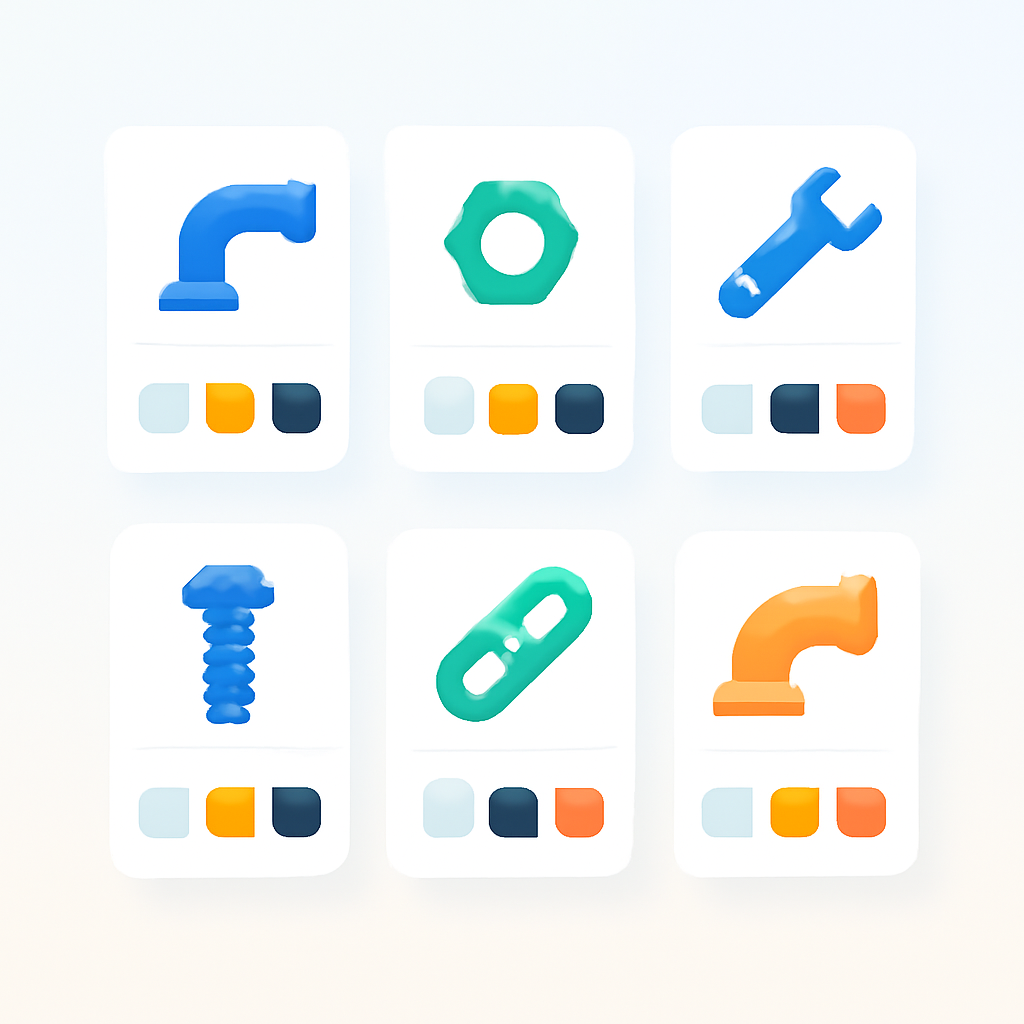
Rubik Combined Listings includes preset #9: a square button swatch that shows a product image and the price. Instead of five small color dots, the buyer sees five labeled buttons:
- [Image] Stainless Steel – $14.50
- [Image] Brass – $18.00
- [Image] Copper – $22.00
- [Image] Matte Black – $16.75
- [Image] Chrome – $15.50
The buyer compares prices instantly. No clicking through five separate product pages to check each one. This matters when you have a purchasing manager reviewing 40 product lines in a single ordering session.
For pack sizes, the same approach works. Each button shows the pack quantity and price: “10-Pack – $45.00,” “25-Pack – $100.00,” “100-Pack – $350.00.” The buyer sees the price break at a glance and picks the right quantity.
If you have a long list of options (15+ materials or sizes), switch to dropdown mode. The dropdown shows all option names and prices in a compact select menu. This keeps the product page clean while still giving the buyer access to every option. Read more about swatch customization in the swatch customization guide.
Bulk grouping for large catalogs
A B2B store with 500 products cannot create groups one at a time. Wholesale catalogs are big, and product naming tends to follow strict conventions set by manufacturers or internal SKU systems.
Rubik’s bulk grouping feature uses title pattern matching to auto-detect groups. If your products follow a naming pattern, the app reads the titles, finds the common base, and splits them into groups.
Common B2B naming patterns:
- “HD-4500 Bracket – Stainless Steel” and “HD-4500 Bracket – Brass” share the base “HD-4500 Bracket”
- “Industrial Shelf Unit | 3-Tier” and “Industrial Shelf Unit | 5-Tier” share “Industrial Shelf Unit”
- “CAT6 Cable 10ft / Blue” and “CAT6 Cable 10ft / Red” share “CAT6 Cable 10ft”
The detection algorithm works with dashes, pipes, slashes, and fuzzy word matching. It handles the catalog-style naming that B2B stores typically use. Preview the detected groups before confirming, adjust anything that looks off, then create all groups at once.
For stores where product titles do not follow a clean pattern, use product tags instead. Tag each product with RUBIK::HD-4500 Bracket::Material::Stainless Steel and the app groups them from the tags. You can add tags in bulk via CSV import if your catalog management system exports them.
A wholesale distributor with 800 products and 150 product families can create all 150 groups in a single bulk operation. That is the difference between an afternoon of manual work and five minutes of configuration.
Categories and subgroups
Some B2B products have two dimensions of variation. A commercial lighting fixture comes in three materials (aluminum, steel, brass) and four color temperatures (2700K, 3000K, 4000K, 5000K). That is 12 separate products. Showing 12 swatches in a flat row is hard to scan.
Categories split the swatch row into labeled sections. Group the first set of swatches under “Aluminum,” the next under “Steel,” the last under “Brass.” Each category gets a header label. The buyer scans the headers, finds the material they want, and picks the color temperature within that section.
This is especially useful for:
- Multi-brand comparisons. Categories labeled “Brand A,” “Brand B,” “Brand C” with each brand’s options underneath.
- Tiered pricing. Categories labeled “Standard,” “Premium,” “Industrial Grade” so the buyer sees the tier before the specific option.
- Size families. Categories labeled “Small (1-25 units),” “Medium (26-100 units),” “Large (101-500 units)” grouping pack sizes into volume tiers.
Categories are set per group. You define the category label and assign products to each category. The swatch row renders with headers between sections. No code needed.
Out-of-stock handling for wholesale
Wholesale buyers plan ahead. If a material or pack size is temporarily out of stock, they may still want to know it exists so they can ask about lead times or pre-order. Hiding out-of-stock options entirely can confuse buyers who know your catalog well.
Rubik Combined Listings gives you two global settings for out-of-stock products:
- Hide: Removes the swatch entirely. The buyer only sees options that are in stock. Clean and simple, but the buyer does not know the option exists.
- Push to end: Moves out-of-stock swatches to the end of the row. In-stock options appear first. Out-of-stock options appear last, visually distinct (reduced opacity, optional strikethrough line).
For most B2B stores, “push to end” is the better choice. The buyer sees all available options first, then sees that stainless steel is temporarily unavailable but still part of the product line. They can contact your sales team about restock dates or alternative materials.
Archived and draft products are always hidden automatically. If you discontinue a product, archive it in Shopify and its swatch disappears from every group it belongs to. No manual cleanup.
Setup for B2B stores
- Install Rubik Combined Listings and activate the app embed on your theme. Works on every Shopify plan.
- Choose your grouping method. For structured catalogs with consistent naming, use bulk grouping with title pattern matching. For catalogs with inconsistent names, add RUBIK:: tags via CSV import.
- Run bulk grouping. Preview the detected groups, adjust any mismatches, then confirm. All groups are created at once.
- Set the swatch preset to #9 (square button with image and price) for product pages. This gives buyers the price comparison view they need.
- Add categories if your products have multi-dimensional options (material + finish, or brand + size). Label each category clearly.
- Configure out-of-stock handling. Set to “Push to end” so buyers see all options but in-stock products appear first.
- Run Magic Fill to auto-detect swatch images and labels from your product titles and photos. One click per group.
For a full walkthrough of each step, see the combined listings setup guide. For grouping products that share a base name, see how to group products as variants.
Watch it in action
See how Rubik Combined Listings groups products and displays button swatches with prices:
Frequently asked questions
How do I use combined listings for B2B on Shopify?
Install Rubik Combined Listings and group your separate products (different materials, pack sizes, or finishes) into product groups. The app adds button swatches with price display so wholesale buyers can compare options without opening each product page individually. Works on every Shopify plan.
Can swatches show prices for each product option?
Yes. Preset #9 renders square button swatches that display a product image and the price. Each swatch shows the price of that specific product. Wholesale buyers see price differences across materials or pack sizes at a glance without clicking through individual product pages.
I have 500 products. How do I group them quickly?
Use bulk grouping. If your products follow a naming pattern (like “HD-4500 Bracket – Stainless Steel”), the app auto-detects groups from titles. For inconsistent names, add RUBIK::GroupName::OptionName::Value tags via CSV import. Either method handles hundreds of products in minutes. Full guide: bulk grouping methods.
What happens to out-of-stock swatches in a wholesale store?
You choose. “Hide” removes the swatch entirely. “Push to end” moves out-of-stock options to the end of the row with reduced opacity and an optional strikethrough. Most B2B stores prefer “push to end” because buyers want to see all options in the product line, even if some are temporarily unavailable. Details: out-of-stock handling guide.
Related reading
- Combined listings setup guide: step by step
- Bulk grouping: 3 methods for large catalogs
- Categories and subgroups for multi-option products
- Out-of-stock handling options explained
- How to customize combined listing swatches
- How to group separate products as variants
- Collection page swatches guide (CraftShift)
- How color swatches increase sales (CraftShift)