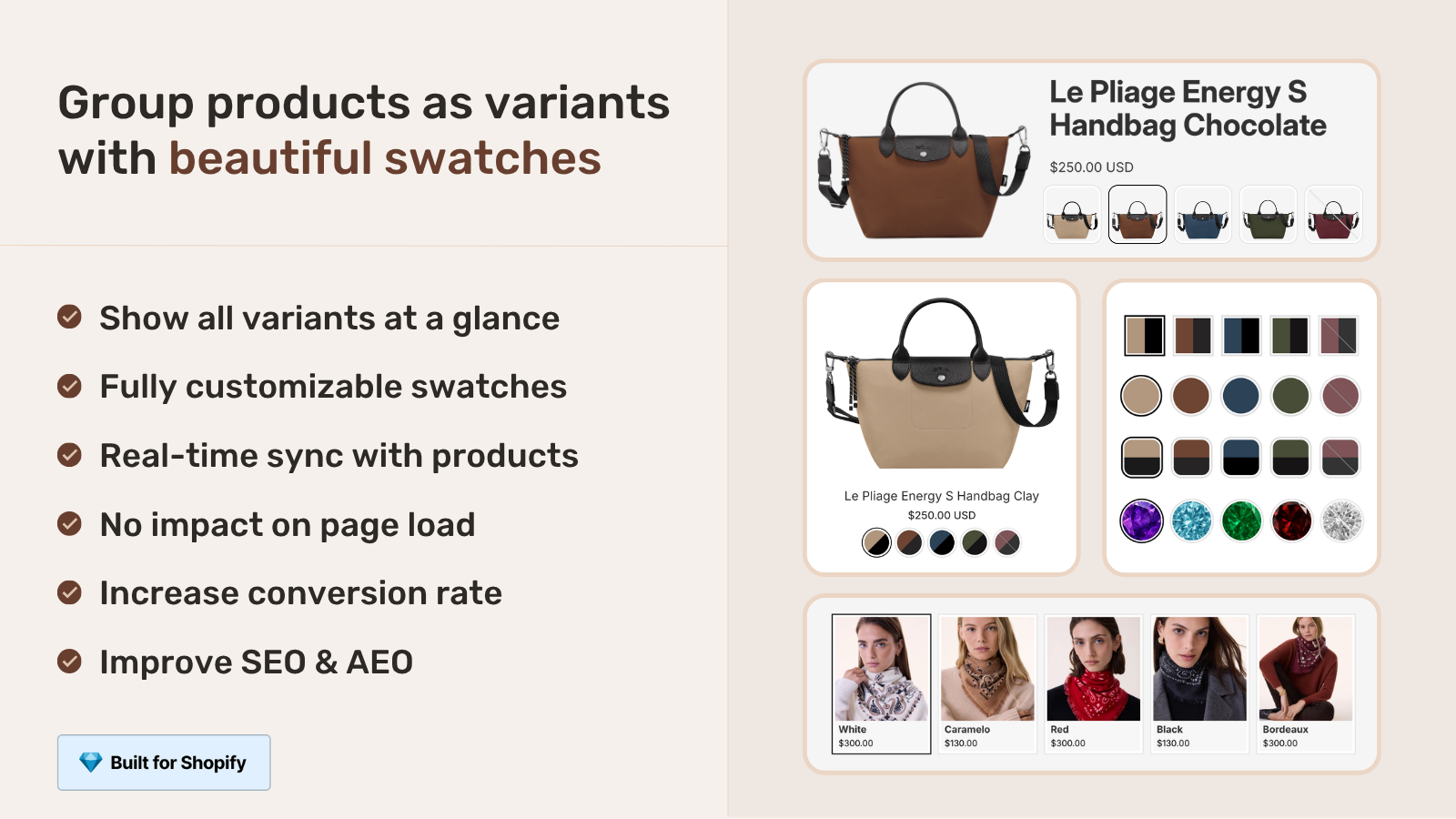
Shopify product siblings are separate Shopify products that belong together visually, linked on the storefront with swatches so customers can switch between them as if they were variants of the same product. The Olive shirt and the Charcoal shirt are two different products, with two different URLs, two different SEO titles, and two different image sets. But on the product page, both show a row of swatches at the bottom. Click the Charcoal swatch on the Olive shirt page, you land on the Charcoal shirt page. Same shirt, same fit, different color, different product, linked.
The term comes from premium Shopify themes. It is not a Shopify-platform feature. There is no “Product Siblings” toggle in your admin. Instead, each premium theme studio (Fluorescent, Maestrooo, Pipeline, Roar, Fuel, Omni, Archer, Jhango, Presidio Broadcast, Local) ships its own implementation, with its own metafield names and its own setup walkthrough. The behavior looks similar across themes. The plumbing underneath is completely different.
This post covers what product siblings actually are, how the major themes implement them, why the theme-by-theme setup is fragile, and the universal alternative that works on any Shopify store regardless of theme. If you are about to set up siblings on a premium theme, read this before you spend a weekend in metafield admin.
In this post
- What are Shopify product siblings?
- Siblings vs variants vs combined listings
- Why merchants want siblings instead of variants
- Themes that use the product siblings concept
- How themes implement siblings: metafields explained
- Five problems with theme-level siblings
- Three paths to set up product siblings
- The universal fix: combined listings apps
- Setup walkthrough
- SEO benefits of product siblings
- Frequently asked questions
- Related reading
What are Shopify product siblings?
Product siblings are Shopify products that share a relationship: same base item, different colors, materials, or styles. Each sibling is a fully independent Shopify product, with its own URL, title, description, images, price, and inventory. On the storefront, a swatch row links them together so customers can switch between siblings without seeing them as separate listings.
The naming is borrowed from family terminology. Same parent (the conceptual product), different children (the actual Shopify products). Themes call them “siblings” because each child is on equal footing. Some themes call the same concept “linked products”, “product variations”, or “product family”. They all describe the same underlying setup.
What makes siblings different from variants is independence. Shopify variants share a single product page, single URL, single SEO title. Siblings each have their own. From a search engine’s perspective, siblings are five products. From a customer’s perspective, they look like one product with five color options.
Siblings vs variants vs combined listings
Three ways Shopify lets you handle “the same product in multiple colors”. They sound similar, they are not.
| Variants | Combined Listings (Plus) | Product Siblings | |
|---|---|---|---|
| Storage | One product | Many products + master | Many products linked |
| URL count | 1 | Many | Many |
| SEO titles | 1 | Many | Many |
| Native Shopify support | Full | Plus plan only | None (theme feature) |
| Plan requirement | Any plan | Plus ($2,300+/yr) | Any plan, but theme dependent |
| Collection page swatches | Limited | Yes | Usually no |
| Image set per option | One image per variant | Full per product | Full per product |
| Setup effort | Low | Medium | High (per product) |
The right pick depends on your SEO strategy and budget. If each color genuinely deserves its own URL and indexing (apparel, jewelry, paint), siblings or combined listings beat variants. If you only sell on Plus, combined listings are the official path. If you want siblings on a non-Plus plan, you either rely on theme features or use an app. We covered the broader trade-off in separate products vs variants for Shopify SEO.
Why merchants want siblings instead of variants
Five reasons we hear in support chat.
- SEO per color. “Olive linen shirt” and “Charcoal linen shirt” rank as separate pages, with separate titles, separate alt text, separate Google Shopping feeds. Variants force one page to rank for all colors.
- More than 100 variants. Shopify caps you at 100 variants per product (2,048 with Combined Listings on Plus). Sock stores, paint stores, and luxury accessory stores hit this fast. Siblings remove the ceiling without Plus.
- Different content per color. Material descriptions, sizing notes, care instructions can vary by color (silk vs linen, leather vs vegan leather). Siblings let each product have its own copy.
- Different price per color. Limited edition or seasonal colors that command higher prices fit naturally as separate products.
- Inventory and reporting. Each sibling shows up cleanly in inventory, sales reports, and analytics. Variant-level reporting is less granular in some tools.
For most apparel and accessories merchants, the SEO point alone justifies the switch. Run your catalog through the free Combined Listings Grouping Planner to see how many of your current variant-based products would benefit from being split into siblings.
Themes that use the product siblings concept
The premium theme studios that ship native sibling support, with the term they use:
| Theme studio | Themes | Their term |
|---|---|---|
| Fluorescent | Stiletto, Spark | Sibling product swatches |
| Maestrooo | Prestige | Linked products / product variations |
| Groupthought | Pipeline, Story | Product siblings |
| Presidio Creative | Broadcast | Product siblings |
| Roar Themes | Concept, Be Yours, Honey | Sibling products |
| Fuel Themes | Local and others | Product siblings |
| Omni Themes | Pebble and others | Product siblings |
| Archer Themes | Multiple | Siblings product |
| Jhango | Multiple | Product siblings |
That is roughly 30+ premium themes with native sibling implementations. Free themes (Dawn, Horizon, Studio, Sense, Refresh, Origin) generally do not have this feature. If you are on a free theme and want sibling-style linking, you need an app.
How themes implement siblings: metafields explained
Almost every theme uses the same pattern: two custom product metafields plus a hidden collection. The metafield names differ by theme, but the structure is consistent.
- Metafield 1: option name or color value. Single-line text. Stores the visible label for the swatch (“Olive”, “Charcoal”, “Wood”). Each sibling product gets its own value.
- Metafield 2: sibling collection or product reference. Either a collection reference (Fluorescent’s
stiletto.siblings_collection) or a list of product references (Maestrooo’scustom.variation_products). Defines which other products belong in the same sibling group.
Two specific examples from the major studios:
- Fluorescent (Stiletto, Spark):
stiletto.siblings_collection(Collection reference) +stiletto.sibling_option_name(Single text). Image swatches by default, with optional hex color override. - Maestrooo (Prestige):
custom.variation_value(Single text) +custom.variation_products(List of products). Each sibling stores the full list of related products in its own metafield, including itself.
Setup steps are roughly the same across all themes:
- Create a separate Shopify product for each color or material.
- Create a hidden collection that contains all the sibling products (or skip this and use a product list metafield).
- Define the two metafields under Settings, Custom Data, Products. Use the exact namespace and key your theme expects (case-sensitive, no typos allowed).
- Open each sibling product, set the option value metafield (the visible label) and link to the collection or sibling list.
- Add the “Sibling products” or “Linked products” block in the theme editor’s product page section.
- Save. Test on the storefront.
Per product, the setup takes 2-3 minutes once you know what you are doing. For a 200-product catalog with 5 sibling colors each, that is 1,000 metafield entries. A weekend, easily.
Five problems with theme-level siblings
The theme-native approach works, but it carries five real costs that show up after launch.
- Theme-locked. Switch from Stiletto to Prestige and your
stiletto.siblings_collectionmetafields become useless. Prestige expectscustom.variation_products. You rebuild every metafield. For a 200-product catalog, that is days of admin work. - Manual per-product setup. Most themes don’t ship a bulk grouping tool. You go product by product, picking the collection and entering the option value. There is no AI to do it for you, no metafield import shortcut, no auto-detection from product titles.
- Different conventions per theme. If you run multiple stores on different themes (a parent brand and a sub-brand, for example), each store needs its own metafield setup. No reuse, no shared logic.
- Usually no collection page swatches. Maestrooo confirms this directly: with linked products, “showing swatches in collection pages won’t be possible”. Most other themes have the same limit. Customers see siblings on product pages but plain product cards on collection pages, which weakens the merchandising story.
- Theme update fragility. Premium themes update their metafield namespaces occasionally. The 2024 version of Stiletto used different keys than the 2026 version. When you update the theme, the swatches sometimes vanish until you migrate metafield data.
None of these are dealbreakers if you commit to one premium theme for the long haul. They become painful when you experiment with themes, run multiple stores, or grow past 100 products.
Three paths to set up product siblings
Pick based on your theme, plan, and catalog size.
Path 1: Theme-native siblings (premium themes only)
Use your premium theme’s built-in feature. Configure the two metafields, build the hidden collection, save. Best for stores already committed to a single premium theme with a stable catalog under 100 products.
Cost: The premium theme itself ($280-$380 one-time). Plus your time to set up metafields per product.
Path 2: Shopify Plus Combined Listings
Shopify’s native Combined Listings feature, available only on Plus. Creates a master product that aggregates the sibling group. The official, platform-supported path.
Cost: Shopify Plus subscription, $2,300+ per year. Plus admin time to set up the master products.
Path 3: Combined Listings app
Install an app like Rubik Combined Listings that handles sibling grouping at the app layer, not the theme layer. Works on any theme, any plan, any catalog size.
Cost: Free for 5 groups, then $10-$50/month based on group count. Flat pricing, not Shopify-plan-based.
The universal fix: combined listings apps
The reason a Combined Listings app beats theme-native siblings for most stores: it removes the theme dependency. Your sibling groups live in app data and metaobjects, not in stiletto.siblings_collection or custom.variation_products. Switch from Stiletto to Prestige to Horizon, your siblings keep working without a single metafield migration.
Specifically with Rubik Combined Listings:
- Theme-agnostic rendering. Works on 350+ themes including all the sibling-aware premium themes (Stiletto, Prestige, Pipeline, Broadcast, Concept) AND all the free themes (Dawn, Horizon, Studio, Sense, Refresh, Origin) where native siblings don’t exist.
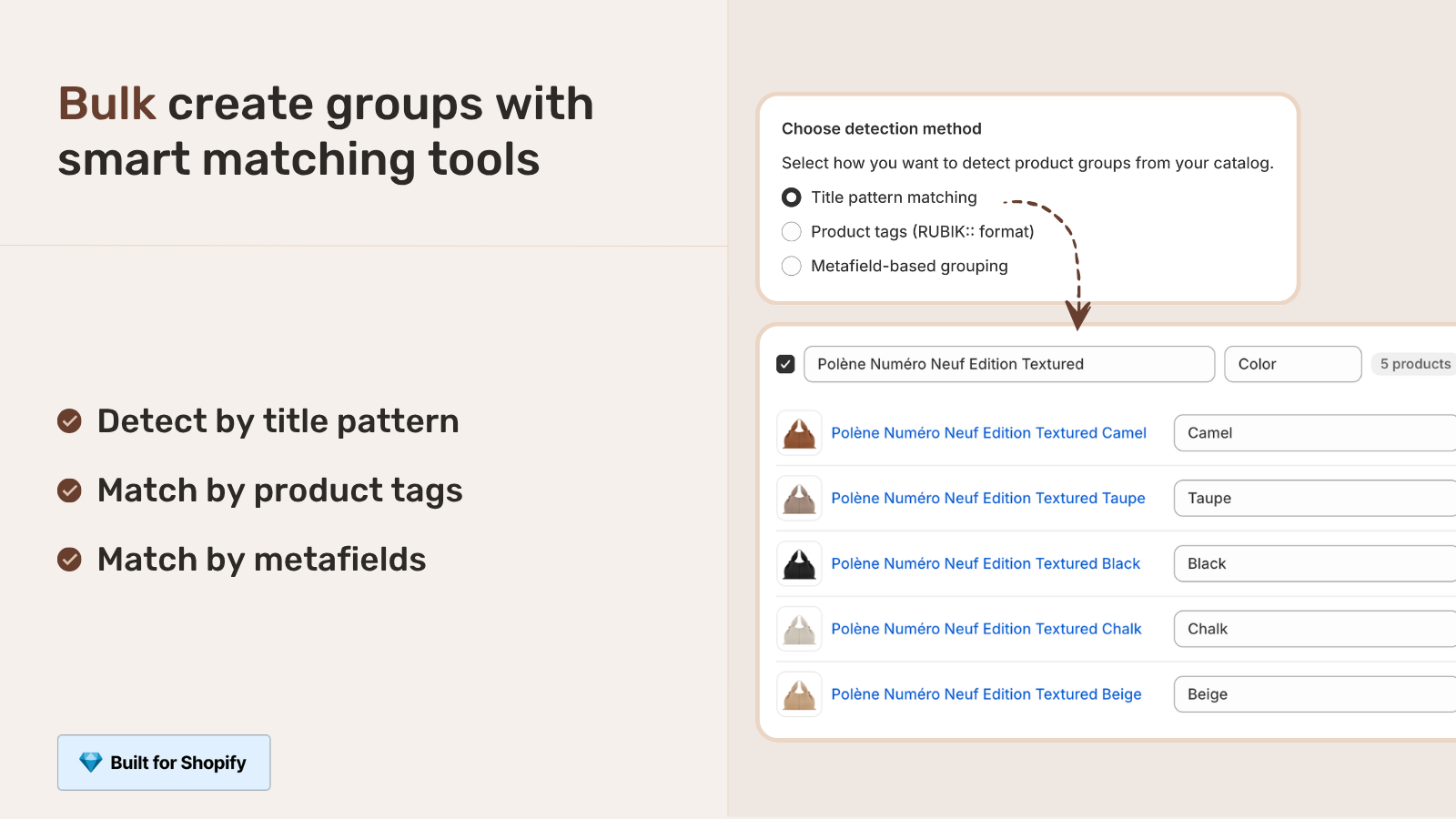
- Bulk grouping. Detect siblings automatically by title pattern (everything before “in Olive” or “Linen Shirt, “), product tags, or shared metafield values. Group 500 products in one pass instead of 1,500 manual metafield entries.
- AI Magic Fill. Reads each product’s image and title, fills in the swatch color (hex code) automatically. No manual color picking.
- Collection page swatches included. Unlike most theme-native siblings, the app renders swatches under collection cards too. Customers see all sibling colors in the grid before clicking in.
- Real-time sync. Out-of-stock siblings hide automatically. Archived siblings disappear from the swatch row. No manual maintenance.
- Shadow DOM rendering. CSS isolation means theme styles don’t leak in, app styles don’t leak out. Theme updates don’t break the swatch row.
“The App just released but it looks that its going to be great. This just saved a lot of hours of coding. Now i can set up and customize swatches for my Product Siblings in just a couple of minutes. Plus, the customer service response is fast and clear. Thank you”
Mattera, Spain, February 2026, Rubik Combined Listings on the Shopify App Store
Setup walkthrough
Setting up product siblings with Rubik Combined Listings, end to end.
- Install Rubik Combined Listings from the App Store. Click “Add app”, approve permissions.
- Open the app and click “Create group” (manual) or “Bulk grouping” (auto-detect).
- For manual: pick the sibling products in the resource picker, name the group, set the option name (Color, Material, Style).
- For bulk: pick a detection method (title pattern, tag, metafield) and let the app find sibling groups automatically. Review the suggestions, accept the ones that look right.
- Click “AI Magic Fill” to auto-fill swatch colors from product images. The AI reads each image and picks the dominant color.
- Pick swatch style: visual (image), button, pill, or dropdown. Set per-group visual settings if you want different styles on different products.
- Save. Refresh your storefront. Click a sibling swatch on the product page or the collection card. Watch it route to the linked product.
Total setup time for a 200-product catalog: about 30 minutes with bulk grouping, vs. several days with theme-native metafield setup.
SEO benefits of product siblings
The strongest reason to choose siblings over variants is search visibility.
- Each color gets its own URL. “/products/linen-shirt-olive” vs “/products/linen-shirt-charcoal”. Both ranks for “Olive linen shirt” and “Charcoal linen shirt” separately.
- Each color gets its own SEO title. “Olive Linen Shirt | Brand Name” beats “Linen Shirt (Multiple Colors) | Brand Name” for the color-specific search.
- Each color gets its own image alt text. “Olive linen shirt on model” indexes for “Olive linen shirt” image search. Variant alt text usually doesn’t.
- Each color gets its own Google Shopping feed entry. Better than one feed entry covering all colors. Higher chance of impression in color-specific shopping queries.
- Each color gets its own structured data. Product schema, including price, availability, and image, is per-product. Variant schema is messier in Google’s eyes.
For a 50-product catalog with 8 colors each, that is 400 URLs instead of 50, all indexable, all rankable. Done right, this can multiply organic traffic 4-6x within 6 months. We covered the SEO mechanics in detail in the Shopify separate products vs variants SEO decision guide.
Quick caveat: more URLs only helps if each URL has unique content. If your sibling products all have identical descriptions and only differ by color name, you risk thin content flags. Each sibling needs at least slightly different copy, ideally color-specific lifestyle imagery and styling notes. Run your store through the free URL Analyzer to check current canonical and title structure before splitting variants into siblings.
If your colours are variants of one product rather than separate products, Rubik Variant Images assigns a separate image set to every variant instead. Free to install, 5.0 stars across 436 reviews.
Quick next steps
See the live demo store to click through real product siblings in action, watch the tutorial video, or read the getting started guide. If you also need product page variant image filtering on top of sibling swatches, the Rubik Variant Images blog covers that side.
Frequently asked questions
What are Shopify product siblings?
Shopify product siblings are separate Shopify products that belong to the same conceptual group, linked on the storefront with swatches so customers can switch between them like variants. Each sibling has its own URL, title, images, and SEO. The term comes from premium Shopify themes that ship native sibling support.
What’s the difference between siblings and variants on Shopify?
Variants share one product page, one URL, and one SEO title. Siblings are separate products with separate URLs, titles, and SEO. Siblings give better SEO per color and bypass the 100-variant limit, but require more setup. Variants are simpler but limit your indexing per color.
Which Shopify themes support product siblings natively?
Premium themes that ship native sibling support include Fluorescent (Stiletto, Spark), Maestrooo (Prestige, where it’s called “linked products”), Groupthought (Pipeline, Story), Presidio Creative (Broadcast), Roar (Concept, Be Yours, Honey), Fuel Themes, Omni Themes, Archer Themes, and Jhango. Free themes like Dawn, Horizon, Studio, Sense, Refresh, and Origin do not have this feature natively.
Do I need Shopify Plus for product siblings?
No. Product siblings work on any Shopify plan. Shopify’s native Combined Listings feature requires Plus, but theme-level sibling implementations and third-party Combined Listings apps work on Basic, Shopify, and Advanced plans.
How are theme-level siblings set up?
Most premium themes use the same pattern: two custom product metafields (one for the option value, one for the sibling group reference), a hidden collection that contains all siblings, and a theme block that renders the sibling swatches on the product page. Specific metafield names vary by theme. Fluorescent uses stiletto.siblings_collection and stiletto.sibling_option_name. Maestrooo uses custom.variation_value and custom.variation_products.
Why don’t theme-level siblings show on collection pages?
Most theme-native sibling implementations only render on product pages, not collection pages. Maestrooo’s documentation explicitly notes that “showing swatches in collection pages won’t be possible” with the linked products feature. To get sibling swatches under product cards on collection pages, you typically need a Combined Listings app that handles both layers.
What happens to product siblings if I switch themes?
If you used theme-native siblings, your metafield setup typically becomes useless because each theme expects its own metafield namespace. Switching from Stiletto to Prestige means rebuilding all your sibling metafields. If you used a Combined Listings app instead, sibling groups are stored in app data and survive theme switches without changes.
Can I bulk-create product siblings on Shopify?
Theme-native sibling setup is per-product manual work. To bulk-create siblings, you need a Combined Listings app with bulk grouping. Rubik Combined Listings can detect sibling groups automatically by title pattern, product tag, or shared metafield value, and create hundreds of groups in one pass.
Related reading
- What are Shopify combined listings and why do they matter for SEO
- Separate products vs variants for Shopify SEO
- Shopify combined listings without Shopify Plus
- Bulk grouping for combined listings
- Shopify separate products vs variants decision guide
- Rubik Variant Images: filter the product page gallery per variant