Shrine Pro (theme ID: 99990005) is one of the most used ThemeForest themes among Shopify merchants. It has a clean product page layout, built-in variant pickers, and a strong focus on product imagery. But if you sell the same product in multiple colors as separate listings, Shrine Pro does not have a native way to connect them.
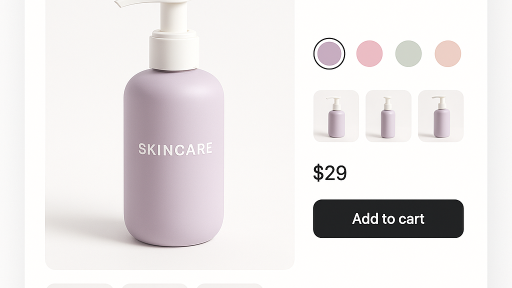
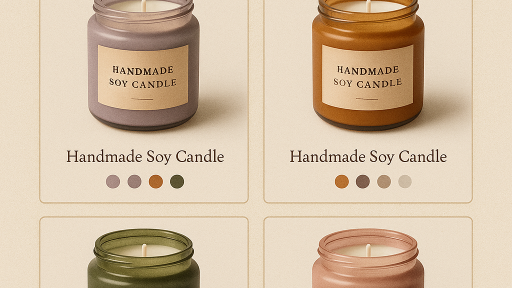
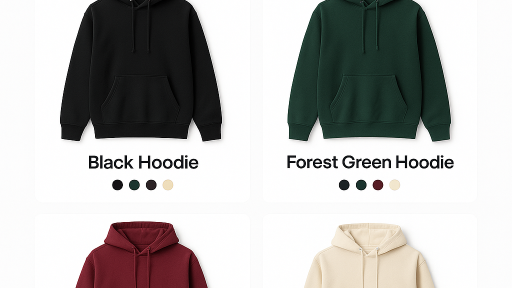
That is where combined listings come in. You group your separate color products and add swatches that let customers switch between them on the product page and in your collections. Rubik Combined Listings Swatch includes native code for Shrine Pro, so swatches appear in the right position and match your theme layout.
In this post
- What you get on Shrine Pro with combined listings
- How to set it up (5 minutes)
- Swatches on Shrine Pro collection pages
- Customizing swatch appearance for Shrine Pro
- Works on other ThemeForest themes too
- Frequently asked questions
- Related reading
What you get on Shrine Pro with combined listings
- Color swatches on the product page. Below the product title, customers see swatches for every color. Click a swatch, go to that color’s product page with its own photos and SEO.
- Swatches on collection page product cards. Each product card in your Shrine Pro collections shows color swatches. Hovering a swatch changes the product card image to preview that color.
- 4 swatch types. Image swatches (product photo thumbnails), color swatches (solid or dual-color circles), button/pill swatches, or a dropdown selector. Mix types per group.
- Each product keeps its own URL. The blue jacket stays at
/products/blue-jacket. The red stays at/products/red-jacket. Swatches link between them. Good for SEO and Google Shopping. - No code editing. Rubik injects swatches through Shopify’s app embed system. You do not edit theme files. Theme updates do not break anything.
How to set it up (5 minutes)
- Install Rubik Combined Listings and activate the app embed.
- The app auto-detects Shrine Pro. If not, select it as your theme type in settings.
- Create a product group. Add your separate color products.
- Click Magic Fill. The AI reads your product titles and images, fills option values (“Navy Blue”) and picks swatch colors (#1B2A4A).
- Save. Swatches appear on your Shrine Pro product page and collection cards.
For many products at once, use bulk grouping to create all groups from product titles, tags, or metafields.
Watch the tutorial or read the getting started guide for the full walkthrough.
Swatches on Shrine Pro collection pages
Shrine Pro has a distinctive collection page layout with large product cards. Rubik places swatches below each product card image. When a customer hovers over a swatch, the product card image changes to show that color. They can preview every color without leaving the collection page.
This works automatically once you enable “Product card swatches” in the app settings. Rubik detects Shrine Pro’s card structure and positions swatches correctly.
Customizing swatch appearance for Shrine Pro
Shrine Pro has a clean, minimal aesthetic. The default swatch style works well, but you can adjust it:
- Style presets: 11 product page presets and 8 product card presets to start from.
- Visual editor: 70+ CSS variables for width, spacing, border radius, colors, and fonts.
- AI visual assistant: Type “make swatches smaller and round” and the AI applies it with a live preview.
- Shadow DOM isolation: Shrine Pro’s CSS cannot affect swatch styles. No conflicts, no broken layouts.
- Per-group settings: Different swatch designs for different product groups.
- 4 responsive variants: Product page desktop/mobile and product card desktop/mobile can each look different.
See the visual settings guide and custom CSS reference for details.
Works on other ThemeForest themes too
If you switch from Shrine Pro to another theme, your combined listings keep working. Rubik supports 350+ Shopify themes including other popular ThemeForest themes:
- Ella (ID: 99990001), Minimog (99990003), Ecomus (99990009), Kalles (99990010)
- Debutify (99990027), Turbo (99990035), Booster (99990050)
- All Shopify free themes: Dawn (887), Horizon (2481), Refresh (1567), Sense (1356), Craft (1368)
- Premium themes: Prestige (855), Impulse (857), Impact (1190), Focal (714), Symmetry (568)
- 7 page builders: GemPages, PageFly, EComposer, Instant, Beae, Foxify, Replo
See the demo store | Documentation | Knowledge base
Watch It in Action
See Rubik Combined Listings features:
Frequently asked questions
Does Rubik Combined Listings work with Shrine Pro theme?
Yes. Rubik includes native code for Shrine Pro (theme ID: 99990005). Swatches appear in the correct position on product pages and collection cards without editing theme code.
Do swatches show on Shrine Pro collection pages?
Yes. Swatches appear on product cards with hover image preview. Enable “Product card swatches” in the app settings. Rubik auto-detects Shrine Pro’s card layout.
What about multiple images per variant on Shrine Pro?
Combined listings connect separate products. If you need multiple images per variant within a single product, use Rubik Variant Images, which also supports Shrine Pro natively. Read how to add multiple variant images in Shrine Pro.
Do I need to edit Shrine Pro theme files?
No. Rubik works through Shopify’s app embed. No theme file editing. Theme updates do not break your swatches.
What if I switch from Shrine Pro to another theme?
Your product groups and swatch settings carry over. Rubik supports 350+ themes. The app detects your new theme and adapts automatically.
Related reading
- How to add multiple variant images in Shrine Pro theme (Rubik Variant Images)
- How to set up combined listings on Shopify: step-by-step guide
- Shopify combined listings without Shopify Plus
- 11 best Shopify combined listings apps compared (CraftShift)
- Do swatch apps slow down your Shopify store? (CraftShift)