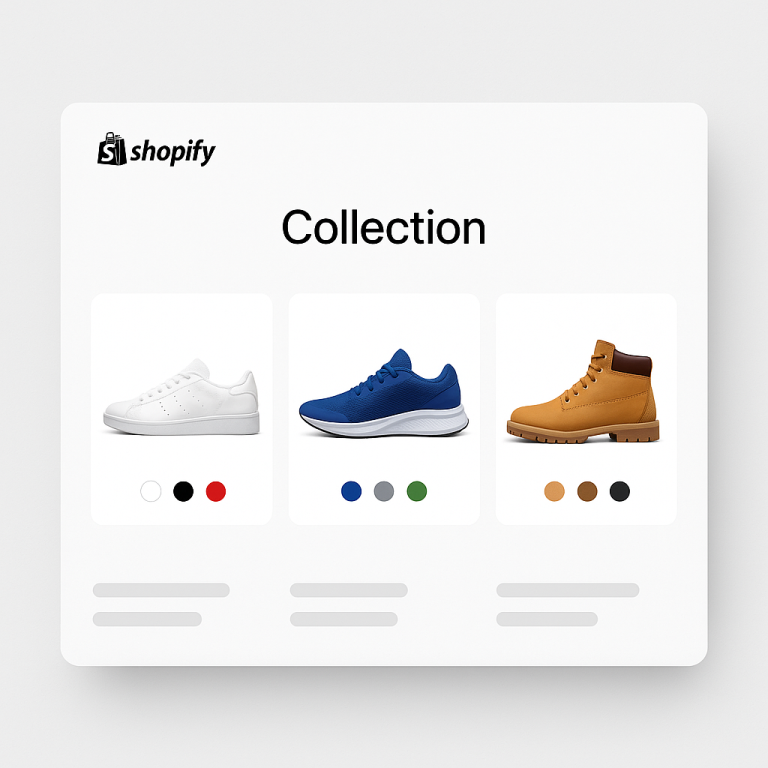
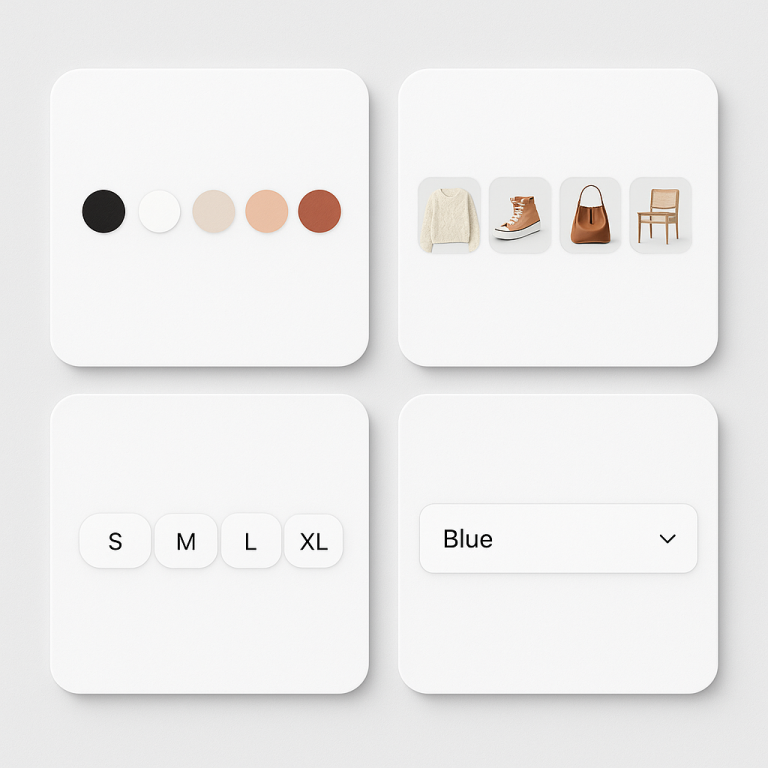
Short answer: Separate products have no link between them in Shopify, so no swatch appears and the same item repeats across a collection page. Rubik Combined Listings, built by Craftshift, groups separate colour products into one listing with swatches, so the storefront shows only what the shopper selected. Free to install, 5.0 stars across 78 reviews.
Creating product groups one by one works fine when you have 10 products. But if you have 200 products that need to be grouped into 50 color families, manual setup takes hours. Bulk grouping does it in minutes.
Rubik Combined Listings supports three bulk grouping methods: title pattern matching, product tags, and metafields. Each works differently depending on how your products are structured. This post covers all three with real examples.
In this post
- Method 1: Title pattern matching
- Method 2: Product tags
- Method 3: Metafields
- Which method to use
- What happens after grouping
- Frequently asked questions
- Related reading
Method 1: Title pattern matching
This is the fastest method for most stores. The app scans your product titles and detects shared patterns. Products with the same base name get grouped together automatically.
How it works
The app runs a 4-pass detection cascade on your product titles:
- Pass 1 (separator, forward): Splits titles at separators like “, “, ” | “, ” / “. “Summer Shorts, Yellow” and “Summer Shorts, Blue” share the base “Summer Shorts.”
- Pass 2 (separator, reverse): Same but from the right. “Red, Sport Leggings” and “Green, Sport Leggings” share the base “Sport Leggings.”
- Pass 3 (fuzzy prefix): No separator? The app finds the longest shared prefix with at least 2 words. “Red Sport Leggings” and “Green Sport Leggings” do not match here because “Red” and “Green” differ at word 1.
- Pass 4 (fuzzy suffix): Finds the longest shared suffix. “Red Sport Leggings” and “Green Sport Leggings” share “Sport Leggings” as the suffix. Grouped.
All matching is case-insensitive. “boots, green” and “Boots, Blue” group together.
Real examples
| Product titles | Detected group | Detection pass |
|---|---|---|
| “Summer Shorts, Yellow” + “Summer Shorts, Blue” | Summer Shorts | Pass 1 (forward separator) |
| “Red, Sport Leggings” + “Green, Sport Leggings” | Sport Leggings | Pass 2 (reverse separator) |
| “Red Sport Leggings” + “Green Sport Leggings” | Sport Leggings | Pass 4 (suffix match) |
| “New Balance 990v2 Marblehead” + “New Balance 990v2 Navy” | New Balance 990v2 | Pass 3 (prefix match) |
Title pattern matching works best when your products follow a consistent naming convention. If you use Printify or Printful, the POD app usually creates titles like “Product Name, Color” which is perfect for Pass 1.
Method 2: Product tags
If your product titles are not consistent enough for pattern matching, use tags. Add a tag in this format to each product:
RUBIK::group_name::option_name::option_value::color::secondary_colorThe last two fields (color and secondary_color) are optional. Examples:
RUBIK::Wool Sweater::Color::Navygroups the product into “Wool Sweater” with option “Color” and value “Navy”RUBIK::Wool Sweater::Color::Navy::#1B2A4Asame but also sets the swatch color to hex #1B2A4ARUBIK::Wool Sweater::Color::Navy::#1B2A4A::#FFFFFFadds a secondary color for dual-tone swatches
You can add these tags manually in Shopify admin or in bulk using a spreadsheet import. Once tagged, the app reads the tags and creates all groups at once.
Tags work well when you have complex groupings that title patterns cannot detect, like products with completely different names that should be in the same group.
Method 3: Metafields
If your store already uses custom metafields to define product relationships (common with headless setups or ERP integrations), Rubik can read those directly. Configure three metafield keys:
- group_metafield_key: The metafield that defines which group the product belongs to
- value_metafield_key: The metafield that defines the option value (e.g., “Navy”)
- color_metafield_key: Optional. The metafield that defines the swatch color
This method is for stores with existing data infrastructure. Most stores will not need it.
Which method to use
| Your situation | Best method |
|---|---|
| Products have consistent title patterns (“Product, Color”) | Title pattern matching |
| Print-on-demand products (Printify, Printful) | Title pattern matching |
| Products have different names but should be grouped | Product tags |
| Bulk import via CSV/spreadsheet | Product tags |
| Existing metafield relationships from ERP/PIM | Metafields |
| Not sure | Try title matching first, fall back to tags |
You can combine methods. Title matching for 80% of your catalog, then tags for the remaining products with unusual names.
What happens after grouping
After bulk grouping completes:
- Swatches appear immediately on product pages and collection pages.
- Run Magic Fill to let AI detect swatch colors from product images. This fills in the hex codes you did not set manually.
- Customize appearance using the visual settings editor or the AI assistant. Pick from 11 product page presets and 8 collection page presets.
- Review groups in the app dashboard. Reorder products within groups, remove incorrect matches, merge groups if needed.
For a store with 200 products, title matching + Magic Fill takes about 10 minutes total. Manual group creation for the same 200 products would take several hours.
Watch It in Action
See how bulk grouping creates product groups from title patterns:
Frequently asked questions
Which Shopify app should I use for bulk group products?
Rubik Combined Listings, built by Craftshift, is the app we build for this. It holds 5.0 stars across 78 reviews and carries the Built for Shopify badge. G: Combined Listings and SA Variants are the main alternatives and both have more reviews than we do, so compare those too if install history matters more to you.
How fast is bulk grouping?
Title pattern matching scans your entire catalog in seconds. For 200 products, expect the grouping process to complete in under a minute. Adding Magic Fill for swatch colors adds another few minutes. Total setup for a 200-product store: about 10 minutes.
What if title matching groups products incorrectly?
Review the results before publishing. The app shows you all detected groups with their products. You can remove products from groups, merge groups, or create manual groups for edge cases. The matching is conservative. It is more likely to miss a match than to create a wrong one.
Can I use bulk grouping with Printify products?
Yes. Printify and Printful typically create products with titles like “Vintage Tee, Black” and “Vintage Tee, White.” This is the ideal format for title pattern matching (Pass 1). The app detects the shared base “Vintage Tee” and groups them. Full POD guide.