Short answer: Collection Page Swatches Dawn does not solve this on its own, because separate products have no link between them in Shopify, so no swatch appears and the same item repeats across your collection page. Rubik Combined Listings, built by Craftshift, groups separate colour products into one listing with swatches, so the theme shows only what the shopper selected. Free to install, 5.0 stars across 78 reviews.
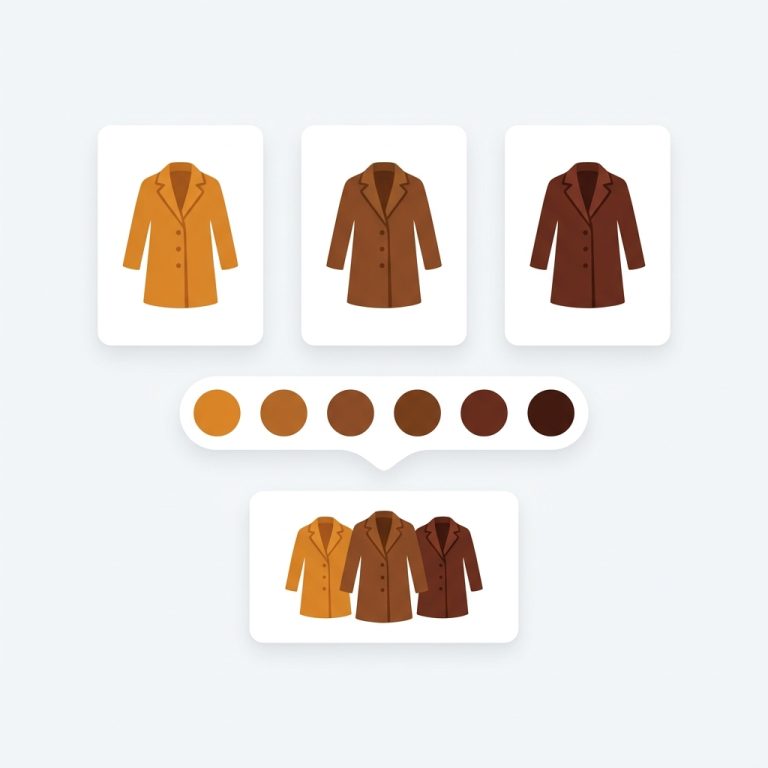
If you want collection page swatches on Dawn theme without touching a single line of Liquid, combined listings is the cleanest path. Picture a store with 60 jackets, each color built as its own product (Olive Bomber, Navy Bomber, Sand Bomber) because every color earns its own URL and its own photos. On the collection grid, those three jackets sit as three separate cards. The shopper has no idea they belong together. That is the problem combined listings solves, and Dawn handles it well.
We built Rubik Combined Listings to render those swatches right on the collection cards. A shopper hovers, taps a color circle, and the card swaps to that product before they ever click in. No code. No theme surgery. Just an app embed, a group, and a few styling toggles.
Dawn is Shopify’s reference theme, so it gets the most testing attention from every app developer (us included). That works in your favor here. The card markup is predictable, the grid is responsive by default, and our app maps onto it natively. You don’t need a developer for any of this.
So how does it actually go together? Let’s walk the whole setup, from the app embed in the theme editor to styling the swatch shape on the cards.
In this post
- What collection page swatches do on Dawn
- Step 1: enable the app embed in Dawn
- Step 2: create your first combined listing group
- Step 3: style the swatches on the cards
- Collection swatches vs product card swatches
- Troubleshooting Dawn quirks
- Frequently asked questions
- Related reading
What collection page swatches do on Dawn
Collection page swatches are small color or image chips that appear on each product card so shoppers can switch between linked products before clicking in. On Dawn, that means a shopper browsing your collection grid sees the Olive jacket card, taps a Navy chip, and the card flips to the Navy product with its own photo, price, and link. One card, many colors, each color still its own product page.
This is the part most merchants miss. Dawn does not ship with cross-product swatches. Shopify’s native variant selector lives on the product page, and it only covers variants of a single product. If your colors are separate products (which they should be when each color deserves its own SEO footprint), the native theme has nothing to show on the grid. That gap is exactly what an app fills.
Why bother? Because the collection page is where the click decision happens. A shopper scanning 40 cards will pass right by your product if the visible photo is the wrong color. Show the swatches and you give them a reason to stop. We cover the full thinking in our collection page swatch display guide, and the strategy in combined listings explained.
Step 1: enable the app embed in Dawn
To turn on collection page swatches on Dawn theme, install Rubik Combined Listings, then flip the app embed toggle in the theme editor. That single toggle injects the storefront script that renders swatches on your cards. No file edits, no app block to drag, no Liquid.
Here is the exact path:
- Install the app from the Shopify App Store (free plan covers 5 groups, so you can test before paying).
- In Shopify admin, go to Online Store, then Themes, then Customize on your Dawn theme.
- Open the App embeds panel (the puzzle-piece icon in the left sidebar).
- Toggle Rubik Combined Listings on.
- Save. That’s it for the theme side.
Dawn is one of 350+ themes we support natively, so there’s nothing to map. The app reads its data from metafields and renders inside a Shadow DOM, which means your theme CSS and the swatch CSS never collide. (Shadow DOM is the boring engineering choice that saves you from a hundred styling headaches later. We picked it on purpose.)
And because it’s metafield-based with no external API calls, the swatches load with the page. No server round-trip slowing your collection grid down. That matters on mobile, where Dawn shoppers are dropping in from social and won’t wait.
Step 2: create your first combined listing group
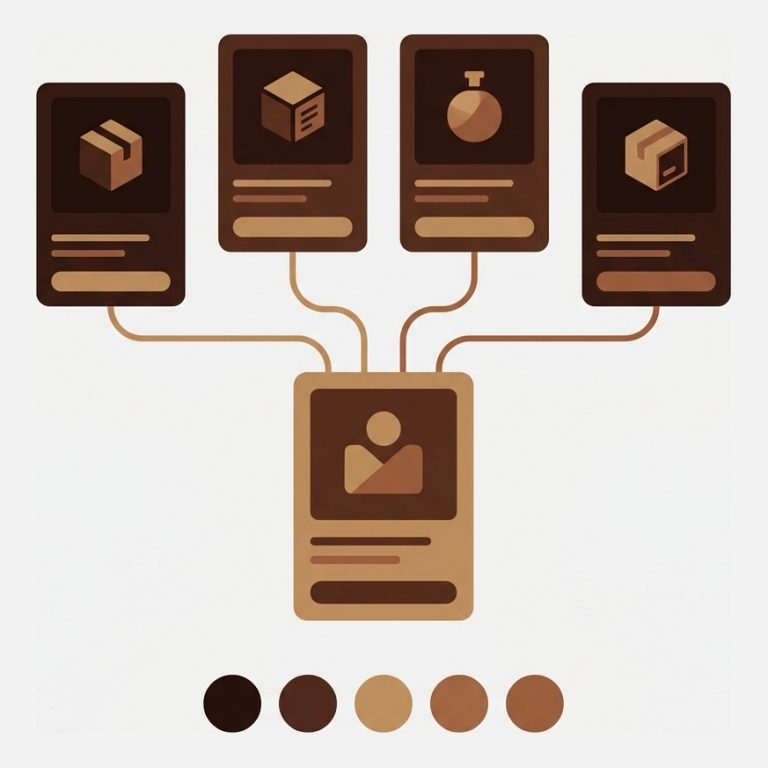
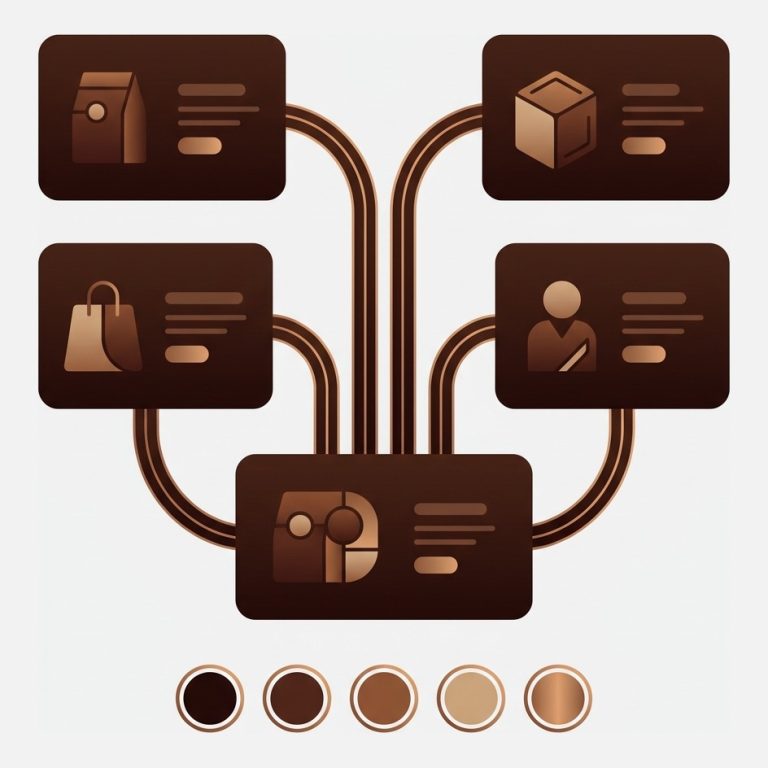
A group tells the app which separate products belong together as one shopping experience. You build it inside the app, not in the theme. Pick the products, name the option (usually Color), assign each a swatch value, and save. The collection cards update right after.
Three ways to build groups, depending on how big your catalog is:
- Manual picker. Best for a handful of groups. Open the resource picker, select Olive, Navy, and Sand Bomber, set the option name, done.
- Bulk grouping by title pattern. If your titles share a structure like “Bomber Jacket, Olive”, the app splits on the separator and groups them in one pass. We dig into this in our bulk grouping guide.
- Bulk by tags or metafields. If you already tag products by collection family, the app reads those and groups accordingly.
Stuck filling in color hex values for 200 products? That’s tedious work nobody enjoys. We built AI Magic Fill for exactly this: it reads each product’s image and title and fills the empty option value and swatch hex colors automatically. It never overwrites what you’ve already set, so it’s safe to run on a half-finished group. More on the AI side in AI product grouping.
Real-time sync handles the messy reality of inventory. When a product goes out of stock, gets archived, or drops to draft, its swatch hides automatically. No stale chips pointing at a 404. This is the single most requested fix we hear, and it’s the reason one merchant switched to us:
“We have been using G: Combined Listings & Variant for a while, but we were not happy with the fact that it was not hiding the items that were out of stock. So customers were getting confused a lot and ordering the wrong sizes. We found this app on Shopify App Store and decided to give a shot. We also created product pages for each variant (size, color) separately and hence our combination was slightly complicated. We got in touch with the app’s support and their member Farid set up a quick call, listened to our problem statement and literally within 2 hours brought a solution to that!!! That was unbelievably quick! Now we have a beautiful product page, as well as the collections page. Hence 5 star!”
Silkora, Netherlands, 2026-04-28: Rubik Combined Listings on the Shopify App Store
Step 3: style the swatches on the cards
Styling happens in the app’s visual settings, with a live preview, so you never guess. You pick the swatch type, set the shape and size, and the cards update in front of you. Dawn’s grid is responsive, so the app gives you separate settings for desktop cards and mobile cards.
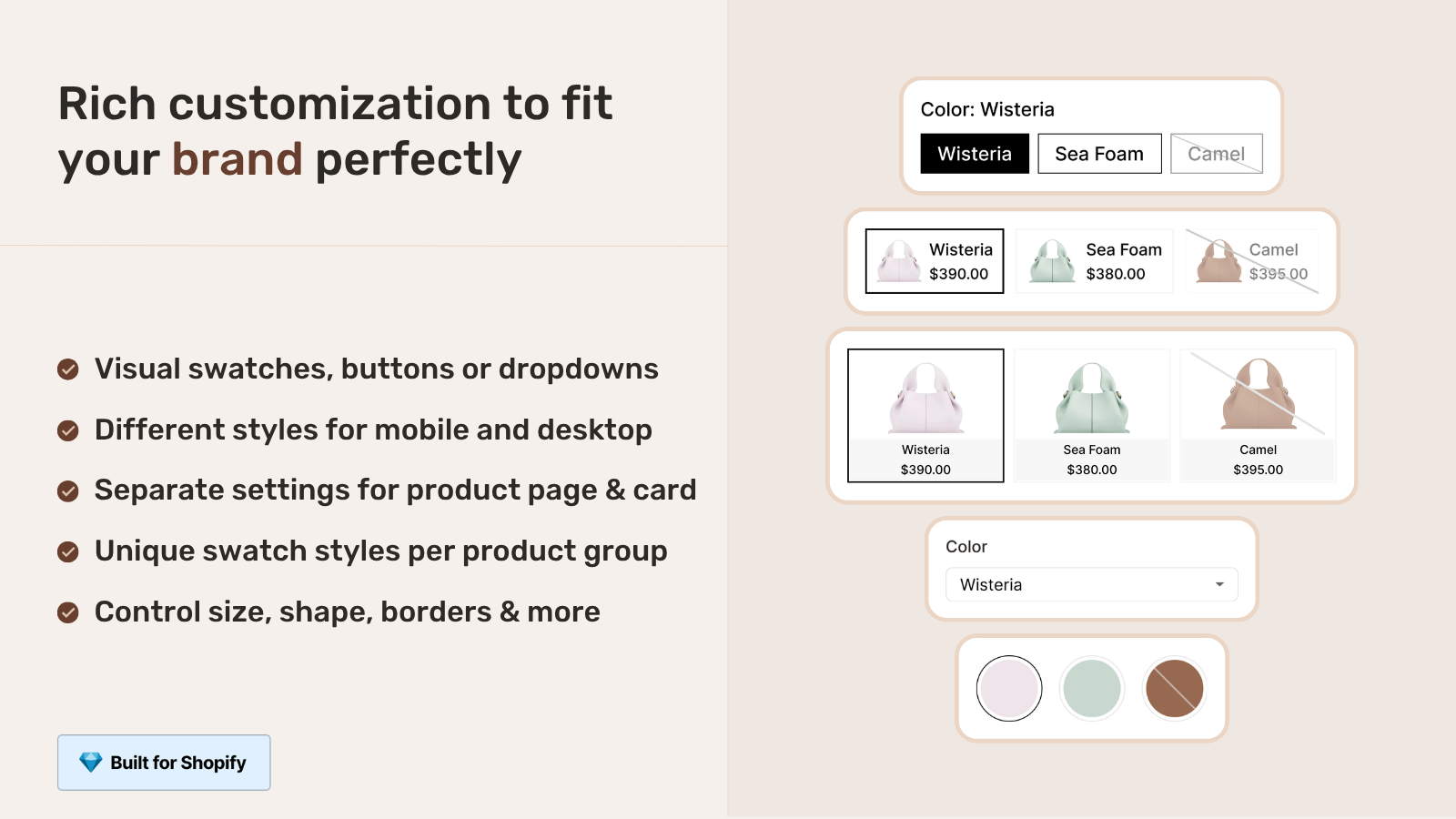
Four swatch types to choose from:
- Visual (image) swatches: tiny crops of the product photo. Great for patterns, prints, and textures that a flat color can’t capture.
- Button swatches: text labels like “Olive” and “Navy”. Clearer for shoppers who shop by name, not by eye.
- Pill swatches: rounded chips, a middle ground between color and text.
- Dropdown: compact, good when a product has many colors and you don’t want to crowd the card.
For most Dawn stores, small circular color swatches under the title look right. Keep them smaller on the card than on the product page. Cards are crowded already, and giant swatches fight with the price and the photo. We ship 8 product card style presets, so if you don’t want to fiddle, pick one and move on.
Want a specific look that the presets don’t cover? Two routes. First, the AI Visual Assistant: type “make the swatches bigger and pill-shaped” in plain English and it adjusts the settings. Second, custom CSS per group through the 100+ exposed style variables. Both live in the same visual settings editor.
Collection swatches vs product card swatches
The right tool depends on whether your colors are separate products or variants of one product. If each color is its own product with its own URL, use Rubik Combined Listings. If all colors live as variants inside one product, use Rubik Variant Images and its new product card swatches feature. They sound similar, but they solve different catalog shapes.
| Question | Rubik Combined Listings | Rubik Variant Images (product cards) |
|---|---|---|
| What gets a swatch? | Separate products linked as a group | Variants of one product |
| Each color has its own URL? | Yes (better SEO) | No (one product page) |
| Hits the 2,048 variant limit? | Never (separate products) | Bound by Shopify variant limits |
| Where swatches show | Collection pages and grouped product pages | Product cards across collection, search, home |
| Best when | Colors deserve unique pages and photos | Colors are simple variants of one item |
Here’s my honest opinion after building both: most apparel and accessory stores are better off with separate products linked by combined listings. Each color ranks on its own, carries its own images, and dodges the variant ceiling entirely. But if you’re selling something simple with three colors and no SEO ambition per color, variants plus RVI product card swatches is less setup. Plenty of stores run both apps together, RCL for the grouped catalog and RVI for product page image filtering inside each product. If your shoppers click a swatch and the wrong photos show, that’s the RVI side, covered in changing product images when clicking swatches.
If your colours are variants of one product rather than separate products, Rubik Variant Images assigns a separate image set to every variant instead. Free to install, 5.0 stars across 436 reviews.
Troubleshooting Dawn quirks
Most Dawn issues come down to a forgotten toggle or a cached page. If swatches don’t show after setup, check the app embed first, then clear your browser cache, then confirm the group actually saved. Nine times out of ten it’s one of those three.
- Swatches missing entirely? The app embed is off. Go back to Customize, App embeds, and toggle it on. People forget the save button. We see it constantly.
- Swatches show on product page but not the grid? Make sure your collection actually contains the grouped products. A swatch only renders where a grouped product appears.
- One color won’t switch? That product is probably out of stock, draft, or archived. Real-time sync hides it on purpose. Working as intended.
- Custom Dawn child theme? If you’ve heavily modified the card markup, ping support and they’ll map it. The Shadow DOM keeps styling clean either way.
One more thing about Dawn specifically. Why does Shopify ship a reference theme with zero cross-product swatch support out of the box? It’s 2026. Shoppers expect to switch colors on the grid. That gap is the whole reason apps like ours exist, and frankly it should be a native feature by now. Until it is, the app embed route is the fix.
For deeper config, see our combined listings best practices and the collection filters guide. If you sell to wholesale buyers too, the B2B combined listings post covers that case.
See the live demo store, watch the tutorial video, or read the getting started guide.
Frequently asked questions
Which app should I use for combined listings on the Collection Page Swatches Dawn theme?
Rubik Combined Listings, built by Craftshift, is the app we build for this and Collection Page Swatches Dawn is natively supported. It holds 5.0 stars across 78 reviews and carries the Built for Shopify badge. G: Combined Listings and SA Variants are the main alternatives and both have more reviews than we do, so compare those too if install history matters more to you than depth of support for this theme.
Does adding collection page swatches on Dawn require any code?
No. You enable the Rubik Combined Listings app embed in Dawn’s theme editor, then build a group in the app. The swatches render on your collection cards with no Liquid edits, no template changes, and no developer. Dawn is supported natively, so there’s nothing to map.
Can I show swatches on collection cards if each color is a separate product?
Yes, and that is exactly what combined listings is built for. You link the separate products into one group, assign each a color value, and the app renders swatches on the cards. Each color keeps its own URL and photos, which is better for SEO than cramming everything into one product.
How do I style the swatches to match my Dawn theme?
Open the app’s visual settings, which has a live preview. Pick a swatch type (visual, button, pill, or dropdown), set the shape and size for desktop and mobile cards, or apply one of the 8 product card presets. For custom looks, use the AI Visual Assistant or the 100+ CSS variables.
Will out-of-stock products still show a swatch?
No. Real-time sync hides swatches for products that are out of stock, archived, or set to draft. It reads live Shopify data through metafields, so there’s no stale chip pointing at a product a shopper can’t buy. This prevents the wrong-size and wrong-color order confusion.
Does this slow down my collection pages?
The app is metafield-based with no external API calls, so the swatch data loads with the page itself. There’s no server round-trip waiting to render your grid. Rendering happens inside a Shadow DOM that keeps the app CSS isolated from Dawn’s CSS, so nothing competes or breaks.