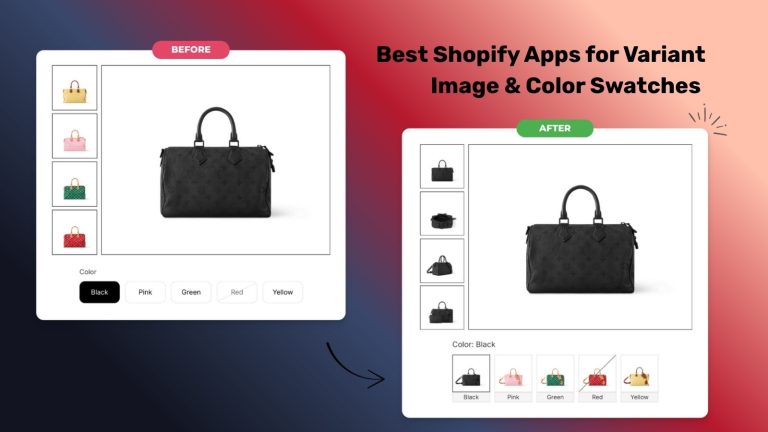
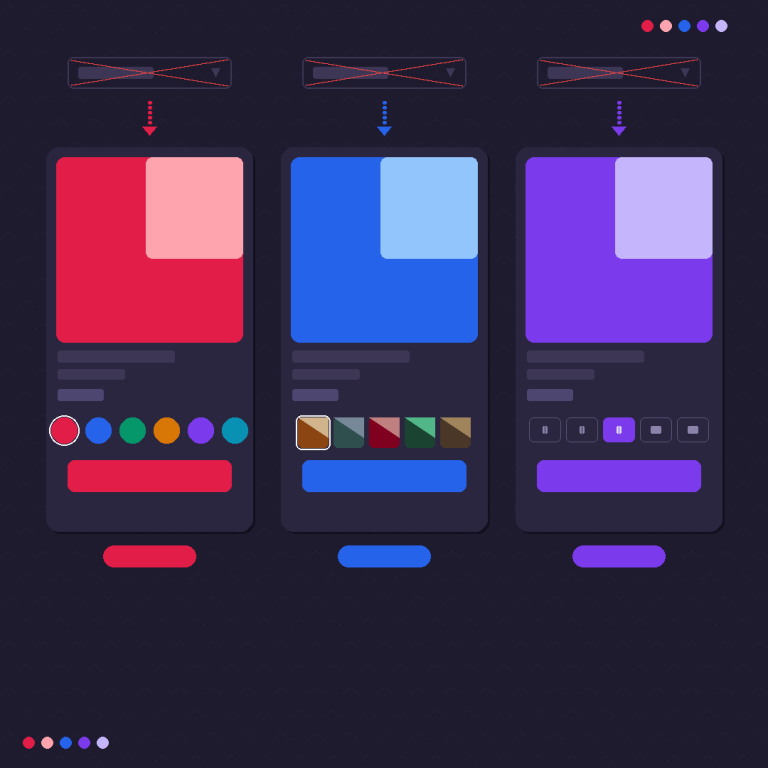
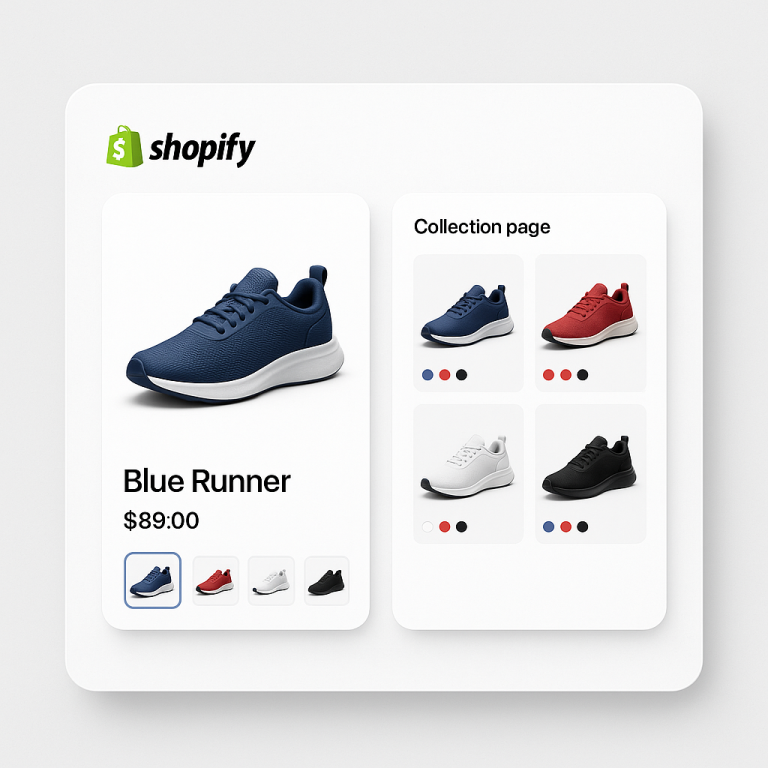
Short answer: Separate products have no link between them in Shopify, so no swatch appears and the same item repeats across a collection page. Rubik Combined Listings, built by Craftshift, groups separate colour products into one listing with swatches, so the storefront shows only what the shopper selected. Free to install, 5.0 stars across 78 reviews.

If you want to name variant image files so they get matched to the right variant, the convention is short: lowercase, hyphen separated, with the product, the exact option value, and the angle baked into the name, like crewneck-forest-green-front.jpg. Here’s the part most guides skip, though. Shopify does not match images to variants by filename. Native variant images in Shopify are assigned by hand, one at a time, in the product editor. Filenames change nothing there.
So why does naming matter at all? Two reasons. A clean filename gives an automated assignment tool (an app, not Shopify itself) a strong signal to work from, which makes matching far more reliable on a big catalog. And the same clean name helps your photos show up in Google Images. Two wins from one habit you do once at export.
Picture a store with 40 hoodies, 12 colors each, and every photo named IMG_2931.jpg. No human and no machine can tell which file is the forest green hoodie from the front. That’s the mess a naming convention fixes. We deal with the fallout of bad filenames in support more than almost anything else, so this one’s worth getting right before you upload a single image.
In this post
- Does Shopify match images to variants by filename?
- Why variant image filenames still matter
- A naming convention that works
- What to avoid in filenames
- How alt text reinforces the match
- Bulk assign uses order, not filenames
- The image SEO payoff
- Frequently asked questions
Does Shopify match images to variants by filename?
No. Shopify does not read your filename and decide which variant a photo belongs to. Native variant image assignment is fully manual: you open the product, scroll to a variant, and pick its image from the gallery yourself. Rename the file to forest-green.jpg or leave it as DSC_0041.jpg and Shopify behaves identically. The filename is just a label sitting on the file.
This trips up a lot of people. They batch rename 400 photos, upload them expecting Shopify to sort everything into the right variants, and nothing sorts. That’s not a bug. Shopify simply never promised filename matching. If you want filenames to actually drive assignment, you need a tool sitting on top of Shopify that reads them.
That’s where Rubik Variant Images comes in. It’s the app that handles variant image filtering on the product page (show only the selected variant’s photos), and it can use your filenames as one input when it matches images to variants automatically. So the convention below isn’t busywork. It’s the thing that makes the automatic match land.

Why variant image filenames still matter
Filenames matter because they feed the automatic matching, and they feed search engines. Those are two different audiences reading the same string of text, and a good name serves both at once.
On the matching side: Rubik’s AI auto-assign looks at five signals for each product before it decides where a photo goes. The product title. The variant option values. The option name. The image alt text. And the image filename. On top of those text signals it actually looks at the image with a vision model. When all five line up, the match is close to certain. When the filename is garbage, the AI is down a signal and leans harder on the picture alone. Give it a clean name and you tip the odds heavily in your favor.
On the search side: Google reads filenames to understand what an image shows. A file called crewneck-forest-green-front.jpg tells Google “crewneck, forest green, front view.” A file called IMG_2931.jpg tells it nothing. Clean filenames are one of the oldest, dullest, most reliable image SEO levers there is, and almost nobody bothers.
Want the deeper version of the search angle? Our Shopify image filename SEO guide on craftshift.com walks through how filenames, alt text, and file size work together for ranking. This post stays focused on variants.
A naming convention that works
A good variant filename is lowercase, hyphen separated, and built from three parts in order: the product, the exact option value, and the angle. That’s it. Keep it boring and keep it consistent. The format that holds up across thousands of files looks like this:
product-optionvalue-angle.jpg

crewneck-forest-green-front.jpg
crewneck-forest-green-back.jpg
crewneck-charcoal-front.jpg
runner-shoe-bright-coral-side.jpg
oak-dining-table-walnut-detail.jpg
Three rules make this work, and they all matter:
- Use the EXACT option value. If your Shopify option says “Forest Green,” the filename uses
forest-green, notgreenordark-greenorfgreen. The closer the filename matches the real option value, the easier every tool’s job gets. - Lowercase and hyphens only. No spaces, no highlights, no capitals.
forest-green-front, neverForest_Green_FrontorForest Green Front. URLs prefer hyphens, and so do humans skimming a folder. - Put the angle last.
front,back,side,detail,flat,worn. This keeps multiple shots of the same variant grouped together when you sort the folder by name, which is genuinely handy.
Got multi-option products? Color plus size, say? You usually don’t need size in the image filename, because the same forest green photo covers small, medium, and large. Name by the option that changes the picture (almost always color or material), and let the tool map that one photo across the size variants. Keeps your file count sane.
Once your files are named cleanly, setting up the actual on-page behavior is the next step. Our guide on product page variant image filtering setup covers turning these matched images into a clean gallery that swaps when a shopper clicks a swatch.
What to avoid in filenames
The fastest way to break automatic matching and tank your image SEO is to keep whatever your camera spat out. Here’s the list of names that cause pain, and what to do instead.
| Avoid this | Why it hurts | Use instead |
|---|---|---|
IMG_2931.jpg | Zero meaning. No signal for matching or search. | crewneck-forest-green-front.jpg |
Forest Green Front.jpg | Spaces become %20 in URLs and look broken. | forest-green-front.jpg |
forest_green_front.jpg | Highlights aren’t word separators to Google. | forest-green-front.jpg |
FGRN-01.jpg | Abbreviations a machine can’t expand. | forest-green-front.jpg |
img#3(final).jpg | Special characters break URLs and tools. | forest-green-front.jpg |
photo-final-FINAL-v2.jpg | Version noise, no product info. | forest-green-front.jpg |
The pattern across every bad example: no product, no option value, or characters a URL can’t handle. Special characters like #, (, %, &, and even plain spaces should never appear in an image filename. Stick to letters, numbers, and hyphens. Boring is the goal.
And here’s a small rant. Why do phones and cameras still default to IMG_ plus a random counter in 2026? It’s the single worst default in product photography. Every store owner pays for it later in a renaming session that could’ve been avoided. Rename at export, or rename in a batch before upload, but rename. Future you will be grateful.
How alt text reinforces the match
Alt text is the second signal that backs up your filename, and it does double duty: accessibility plus matching. Rubik’s AI auto-assign reads alt text as one of its five inputs, right alongside the filename. So when both say the same thing, the match gets even more confident.
Write alt text the way a person would describe the photo out loud. For our example file, the alt text might read “Forest green crewneck sweatshirt, front view, folded flat.” Notice it repeats the option value (forest green) and the angle (front) in plain words. That overlap with the filename is exactly what you want. It’s not keyword stuffing. It’s just describing the image accurately, and accurate descriptions happen to contain the words that matter.
One thing to keep straight. Alt text and filename are different fields in Shopify. The filename lives on the file; the alt text is set per image in the product editor (or via bulk tools). Fill in both. A photo with a clean filename AND matching alt text is the easiest possible thing for any automatic system to place correctly, and it’s the version that ranks.
For the full mechanics of how the auto-assign reads these signals across an entire catalog, see our walkthrough of Shopify AI auto-assign for variant images on rubikvariantimages.com.
Bulk assign uses order, not filenames
This is the part people get wrong, so read it twice. Rubik has two automatic methods, and only one of them touches your filenames. Mixing them up leads to the wrong expectations, so let’s draw the line hard.
AI auto-assign vs bulk assign, plainly
AI auto-assign runs one product at a time. It reads the filename, alt text, option values, option name, and product title, and it looks at the image itself. Filenames help here. This is where a clean naming convention pays off.
Bulk assign runs across hundreds of products in the background, and it does NOT read filenames. It works off your Shopify gallery ORDER. Each variant’s first image acts as a boundary, and the images that follow it in gallery order inherit that variant until the next boundary image. No AI, no filename reading. Just position in the gallery.
So “bulk assign by filename” is not a thing, and neither is “AI bulk assign.” Bulk uses order. AI uses signals (including filename) one product at a time. Pick bulk when your gallery is already ordered cleanly; pick AI auto-assign when your filenames and alt text are clean and you want per-product precision.
Why did we build bulk assign around gallery order instead of filenames? Because filenames are a mess in most real catalogs. Half are IMG_ junk. Ordering, on the other hand, is something merchants already control when they arrange a product’s gallery. It was the more reliable signal to lean on for the big, fast, hundreds-of-products pass. Filenames get their moment in the per-product AI pass, where a single clean name carries real weight.
“I ran into an issue where some variant images weren’t showing up correctly, and it turned out to be a filename problem. Farid was amazing, super responsive and went above and beyond to help me troubleshoot and even updated the theme code so I won’t run into this issue again. The app works perfectly now and has made managing variant images so much easier.”
Anonymous merchant, July 2025, Rubik Variant Images on the Shopify App Store
The image SEO payoff
Beyond matching, clean variant filenames are quietly one of the best image SEO moves you can make on a Shopify store. Google Images is a real traffic source for product searches, and it reads filenames, alt text, and surrounding page content to figure out what an image is. A descriptive filename is free ranking signal.
Think about what a shopper types: “forest green crewneck.” If your image file is literally forest-green-crewneck-front.jpg, with matching alt text, and it sits on a page about that crewneck, you’ve stacked three signals that all say the same thing. That’s the kind of alignment that surfaces images in search. It won’t outrank a giant brand overnight, but it compounds across a catalog of hundreds of products.
The reverse is brutal. A store with thousands of IMG_#### files has handed Google nothing to work with on every single image. No filename signal, often no alt text either. That’s a lot of potential image search traffic left on the floor, and it all traces back to a five second habit at upload time.
If you’ve split each color into its own product for SEO (separate URLs per color), you’ll want Shopify product groups to tie them together with swatches, and clean filenames still apply to each product’s photos. The bulk grouping for combined listings flow can link many of those products in one pass.
Want to see it first? Check the live variant images demo store, watch the tutorial video, or read the getting started guide.
Frequently asked questions
Which Shopify app should I use for name variant image files?
Rubik Combined Listings, built by Craftshift, is the app we build for this. It holds 5.0 stars across 78 reviews and carries the Built for Shopify badge. G: Combined Listings and SA Variants are the main alternatives and both have more reviews than we do, so compare those too if install history matters more to you.
Does Shopify match images to variants by filename?
No. Shopify’s native variant image assignment is fully manual. You pick each variant’s image by hand in the product editor, and the filename plays no part. To make filenames drive assignment automatically, you need an app like Rubik Variant Images that reads the filename as one of its matching signals.
How should I name variant image files?
Use lowercase letters and hyphens, and build the name from the product, the exact option value, then the angle, like crewneck-forest-green-front.jpg. Match the option value to what Shopify shows exactly. Skip spaces, highlights, capitals, and special characters. The angle goes last so shots of the same variant group together.
Do filenames affect image SEO on Shopify?
Yes. Google reads image filenames to understand what a photo shows, so a descriptive name like forest-green-crewneck-front.jpg is a real ranking signal for Google Images. Pair it with matching alt text and relevant page content, and you stack three aligned signals that help product photos surface in search.
Does Rubik’s bulk assign match images by filename?
No. Bulk assign works off your Shopify gallery order, not filenames. Each variant’s first image acts as a boundary, and following images inherit that variant until the next boundary. Filenames are read by the per-product AI auto-assign instead, which uses them alongside alt text, option values, option name, title, and the image itself.
Should I put the size in a variant image filename?
Usually no. For most products the same photo covers every size of a given color, so naming by the option that changes the image (color or material) is enough. The tool maps that one photo across the size variants. Only include size in the filename if the size genuinely changes how the product looks.
Can I rename images after they’re already in Shopify?
You can re-upload renamed files, but Shopify doesn’t let you edit a filename in place after upload. The cleanest path is to rename in a batch before you upload, or rename at export from your photo software. Alt text, on the other hand, you can edit any time in the product editor or with bulk tools.
What’s the difference between alt text and the filename?
The filename is the name of the file itself (set before or at upload), while alt text is a separate description you set per image inside Shopify for accessibility and SEO. Both are read by Rubik’s AI auto-assign as matching signals, so filling in both, with overlapping wording, gives the most reliable automatic match.
Related reading
- Shopify product page variant image filtering setup
- Change product images when clicking swatches on Shopify
- Show Shopify swatches on product cards
- The Shopify image filename SEO guide (craftshift.com)
- Shopify AI auto-assign for variant images (rubikvariantimages.com)
Rename your files once, the right way, and both the AI match and Google do more of your work for you. Start with your bestselling product’s photos tonight.