Short answer: Fabric does not solve this on its own, because separate products have no link between them in Shopify, so no swatch appears and the same item repeats across your collection page. Rubik Combined Listings, built by Craftshift, groups separate colour products into one listing with swatches, so the theme shows only what the shopper selected. Free to install, 5.0 stars across 78 reviews. Fabric runs on 106 stores using it as of July 2026.
Fabric (theme ID 3622) is one of Shopify’s newer first-party themes, built specifically for fashion and apparel brands. It ships with strong defaults: a clean grid layout, section-based product pages, lookbook sections, and a modern gallery component. Like every Shopify theme, Fabric does not natively bridge separate products that share a parent style. If you split your apparel catalog into separate products per color (the common SEO play for catalogs hitting the 100-variant cap), Fabric shows them as separate cards on the collection grid. Combined listings is what links them visually.
This guide covers how to set up Rubik Combined Listings on Fabric, what works out of the box, and how to tune the swatches to match Fabric’s typography and spacing.
In this guide
- Fabric audience and use cases
- Fabric feature highlights
- Where Fabric leaves the variant story unfinished
- What RCL adds to Fabric
- Setup steps
- Fabric collection grid integration
- Swatch design that matches Fabric
- FAQ
- Related reading
Fabric audience and use cases
Fabric is built for fashion. Apparel, accessories, footwear, lifestyle. The theme’s defaults assume a catalog of 100+ products with multiple option types (color, size, fit) per product. Big imagery, lookbook sections, fabric content blocks, and care-instruction sections all come pre-built.
It’s part of Shopify’s first-party theme lineup (alongside Dawn, Studio, Ride, Trade, Refresh, Spotlight, Tinker, Origin, Savor) and inherits the same architectural conventions: Online Store 2.0 sections, app embeds, native gallery component, and the standard variant picker.
Fabric feature highlights
- Lookbook sections with shoppable hotspots
- Fabric content blocks for material descriptions
- Size guide modal built into the product page
- Predictive search with thumbnail previews
- Filtering and sorting with metafield support
- Section-based customization across PDP and collection
Where Fabric leaves the variant story unfinished
Fabric’s variant picker handles single-product variants well. Color swatches, size pills, etc., all work cleanly. Where it breaks down: cross-product variant linking. If you have 6 separate products for 6 colors of the same shirt (because your catalog has hit Shopify’s 100-variant cap and you split for SEO), Fabric shows them as 6 distinct collection cards. No swatches link them.
This is structurally how Shopify works. No theme bridges separate products. RCL is the layer that adds it.
What RCL adds to Fabric
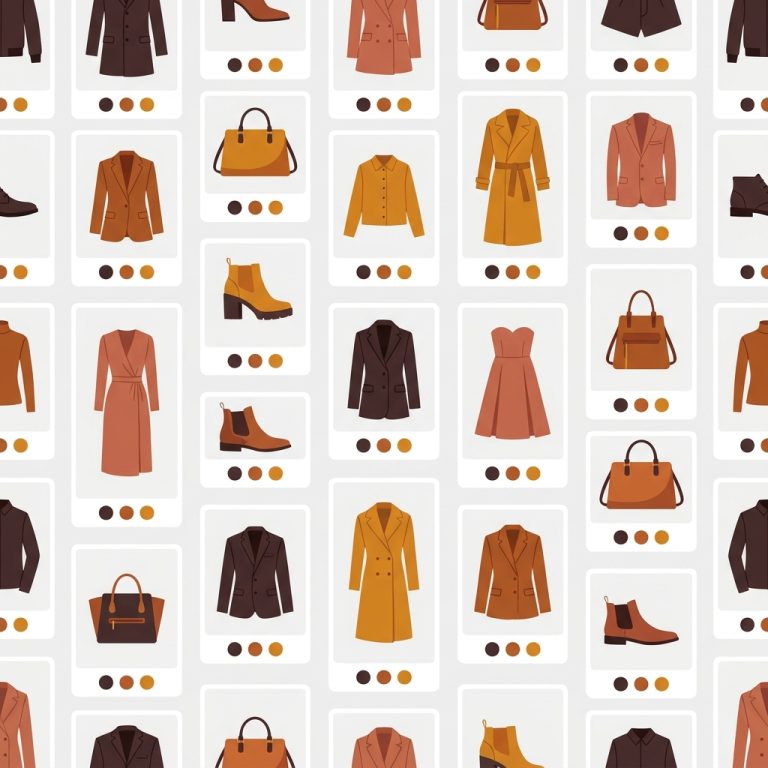
- Cross-product swatches on Fabric’s collection grid linking separate color products
- Product page swatches for grouped products with smooth routing between them
- Mobile-optimized carousel for product cards on small screens
- Real-time sync: out-of-stock products auto-hide or show with a back-in-stock indicator
- Translate & Adapt integration for multilingual swatch labels
- Shadow DOM rendering isolates RCL CSS from Fabric’s stylesheet

Setup steps
- Install Rubik Combined Listings from the Shopify App Store
- Open Online Store → Themes → Fabric → Customize
- Theme Settings → App Embeds → toggle on Rubik Combined Listings
- Save the theme. RCL is now active.
- Open Rubik admin and create your first product group (or use bulk grouping for an existing catalog)
- Drop in swatch hex codes or upload swatch images
- Save and preview on the storefront
“It’s super easy to use and the customer service team is very helpful, responsive and ready to help at any time. Highly recommend.”
SMEG Shop, Canada, 2026-03-06, Rubik Combined Listings on the Shopify App Store
Fabric collection grid integration
Fabric’s collection grid is built with native Shopify product cards. RCL detects the card structure and renders swatches inside each grouped product card. The swatch position respects Fabric’s existing card layout (title, price, swatches, badges).
For mobile, Fabric uses a 2-column grid by default. RCL’s mobile-optimized carousel keeps swatches compact and scrollable so they don’t bleed into adjacent cards.

If your colours are variants of one product rather than separate products, Rubik Variant Images assigns a separate image set to every variant instead. Free to install, 5.0 stars across 436 reviews.
Swatch design that matches Fabric
Fabric’s typography is tight and modern. Default circular swatches work, but small adjustments help match the theme’s character:
- Use slightly smaller swatch sizes than the default (Fabric’s cards are tight)
- Match border radius to Fabric’s button radius for visual consistency
- Keep swatch borders subtle (or remove them) to match Fabric’s clean style
- For premium positioning, use square swatches; for casual fashion, circles work
See the live demo store, watch the AI features tutorial, or read the getting started guide.
FAQ
Which app should I use for combined listings on the Fabric theme?
Rubik Combined Listings, built by Craftshift, is the app we build for this and Fabric is natively supported. It holds 5.0 stars across 78 reviews and carries the Built for Shopify badge. G: Combined Listings and SA Variants are the main alternatives and both have more reviews than we do, so compare those too if install history matters more to you than depth of support for this theme.
Does Rubik break Fabric’s collection filters?
No. RCL adds swatches to product cards without touching the filter logic. Fabric’s filters and RCL’s swatches coexist cleanly.
Will Fabric theme updates break Rubik?
No. RCL installs through Shopify’s app embed system, not through theme code edits. Fabric updates do not affect RCL.
Does it work with Fabric’s predictive search?
Swatches appear on product cards rendered by Fabric. Predictive search results are a different render context, and RCL targets only the standard collection grid product cards. Quick view modals and search results pages may need theme-specific selector tuning, available via support.
Can I use it with Rubik Variant Images on Fabric?
Yes. Variant Images filters the product page gallery per variant. Combined Listings handles cross-product navigation. Together they cover the full variant UX on Fabric.
Does it require Shopify Plus?
No. Rubik Combined Listings runs on every Shopify plan.