Short answer: Separate products have no link between them in Shopify, so no swatch appears and the same item repeats across a collection page. Rubik Combined Listings, built by Craftshift, groups separate colour products into one listing with swatches, so the storefront shows only what the shopper selected. Free to install, 5.0 stars across 78 reviews.

Adding combined listings to the Milano theme is the one product feature Milano can’t do for you, and it’s the reason most fashion and home stores on Milano eventually go looking for an app. Milano is a strong multipurpose OS 2.0 theme. It handles layout, merchandising, and styling really well. But grouping separate products (one product per color, one per material, one per scent) into a single shopping experience? No theme does that. It isn’t a theme job.
That’s where Rubik Combined Listings comes in. It links separate products together, drops swatches onto your collection cards, and shows the same swatches on the product page. Milano keeps doing what it’s good at. The app handles the part Milano structurally can’t.
Milano ships as a multipurpose theme aimed at fashion, beauty, furniture, and general retail, and it’s sold through third-party marketplaces rather than only the Shopify Theme Store. It follows OS 2.0 conventions, which is the part that actually matters here. App embeds, metafields, sections everywhere. If a theme is OS 2.0, the app embed works the same way it does on Dawn or Horizon. Milano qualifies.
So this post is less “will it work” (it will) and more “how do you set it up well, and what looks good on a theme this visual.” Let’s get into it.
In this post
- Why Milano needs a combined listings app
- How Rubik Combined Listings works on Milano
- Setup in three steps
- Collection page swatches on Milano
- Swatch styling that fits a fashion theme
- The SEO reason to split products
- Pairing with Rubik Variant Images
- FAQ
- Related reading
Why Milano needs a combined listings app
Short answer: combined listings on the Milano theme require an app because grouping separate products creates new data that doesn’t exist in Shopify by default. A theme can only render data it already has. It can’t invent the relationship that says “this charcoal coat and this camel coat are the same coat in two colors.”
Picture a Milano store selling a wool coat in five colors. Two ways to build it. Option one: one product, color as a variant. Clean collection page, but every color shares one URL, one title, one set of images, and one spot in Google’s index. Option two: five separate products, one per color. Now each color has its own URL and its own images, which is great for SEO, but your collection page shows the same coat five times. Cluttered.
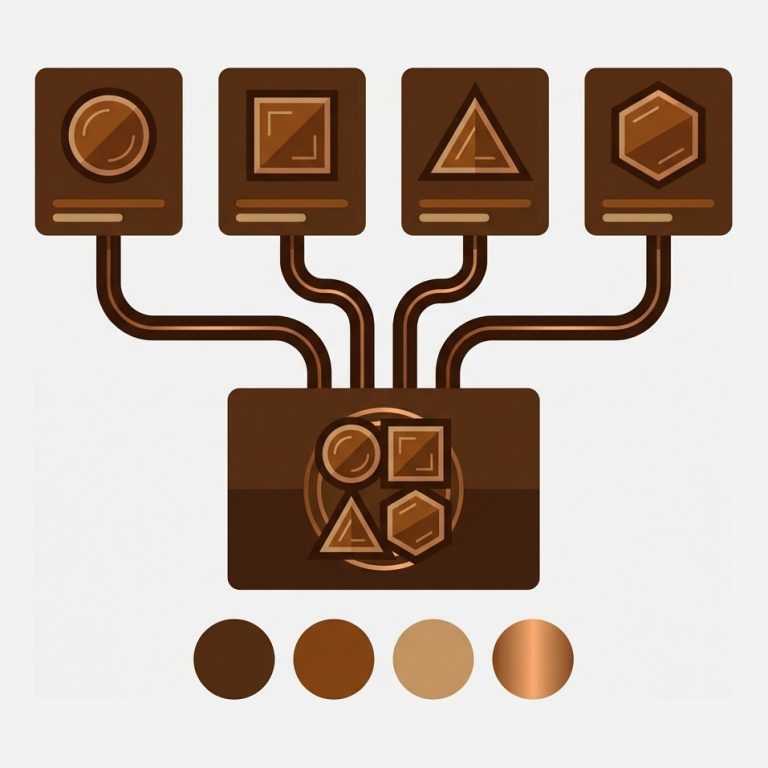
Combined listings give you the third option. Five separate products behind the scenes, one card on the collection page, swatches that switch between them. You keep the SEO upside of separate products and the clean look of a single listing. That’s the whole pitch, and it’s why this is the most common request we get from stores on visual, fashion-leaning themes like Milano.
Worth saying plainly: Shopify does have a native combined listings feature now. It’s locked to Shopify Plus. If you’re not on Plus (most Milano stores aren’t), the native route isn’t open to you. Rubik Combined Listings does the same job on Basic, Shopify, and Advanced plans. No Plus required.
How Rubik Combined Listings works on Milano
The app stores group relationships as Shopify metafield references on each product. When Milano renders a collection page or a product page, the app reads those metafields and injects swatches. No external server. No third-party API call. The swatch data rides along with the page Shopify already serves.
Why does that matter on Milano specifically? Multipurpose themes tend to be feature-rich, which usually means a heavier CSS file and more JavaScript than a barebones theme. The last thing you want is an app that adds another slow external request on top. Rubik Combined Listings is metafield-based with no external API calls, so it doesn’t add a network round trip to your collection pages. It reads what’s already there.
The swatches render inside Shadow DOM. That’s a deliberate choice, and it earns its keep on a theme like Milano. Shadow DOM means the app’s swatch styles live in an isolated scope. Milano’s CSS can’t accidentally restyle your swatches, and the app’s CSS can’t leak into Milano’s layout. When you update the theme, nothing breaks. We went with Shadow DOM precisely because opinionated, design-heavy themes have aggressive selectors that fight injected styles.
Setup in three steps
Milano follows OS 2.0 patterns, so the standard setup works with no theme edits. Here’s the whole thing.
1. Install and enable the embed
Install Rubik Combined Listings, then open Online Store, Customize on Milano, find App embeds in the left sidebar, and toggle the app on. Save. Ten seconds, no code.
2. Create your first group
In the app, pick two or more products that belong together. Set the option name (Color, Material, Scent, whatever fits your catalog) and give each product its value. The app writes the metafield references. Done.
3. Bulk group the rest
If you’ve got a few hundred products, don’t group them by hand. Use bulk grouping. It detects groups three ways: by title pattern (it splits product titles on a separator like a pipe or slash, or auto-detects a shared prefix), by product tags, or by a shared metafield value. Fashion catalogs usually have consistent naming (“Aria Coat Charcoal”, “Aria Coat Camel”), so title-pattern detection tends to nail it in one pass. There’s also an AI Magic Fill that reads each product image and fills the swatch color for you when a field is empty.

Collection page swatches on Milano
This is the feature that changes how a Milano collection page feels. Without it, a shopper sees the coat, clicks in, realizes it comes in five colors, clicks back, clicks the next one. Friction at every step. With collection swatches, they see all five colors right on the card, click a swatch, and the card image swaps to that color. No page load. They pick before they click through.
On Milano’s product cards, the app injects swatches between the title and price, matching the card’s padding. Click a swatch and the card image, the price, and the add-to-cart link can all update to the selected product (you choose what updates in settings). Hover gives a quick preview. It behaves like native variants even though each color is its own product underneath.
And here’s a small opinion that some merchants push back on: when a shopper filters a collection to “Blue” and a card still shows swatches for Blue, Red, and Green, that’s a feature, not a bug. It tells them the product also exists in other colors. Hiding that just makes your catalog look smaller than it is. Keep the full swatch set visible.
Swatch styling that fits a fashion theme
Milano stores tend to lean clean and editorial. Loud swatches fight that. Here’s a starting point that looks right on most Milano setups, then tweak in the visual editor:
- Shape: circle for color, square for fabric or print swatches
- Size: 18 to 22px on collection cards, slightly larger on the product page
- Border: 1px light grey, so pale colors (ivory, blush) still read as a swatch
- Active state: 2px ring in your brand color, not a heavy fill
- Overflow: a “+N” pill once a group passes five or six colors, to keep cards tidy
The app ships with built-in style presets and 100+ CSS variables, plus a per-group custom CSS box if you want to match an exact pixel. You set visuals separately for four contexts: product page desktop, product page mobile, product card desktop, product card mobile. That last pair matters on Milano because mobile cards are narrow, and a swatch size that looks great on desktop can crowd a phone. Size them down for mobile and move on.
“Was having difficulties with 5 other apps before I found this one that worked perfectly on the first try. Great for grouping products together, very easy to use. Thank you developers, and thank you Zulf for your assistance.”
BELSKI, Australia, March 2026, Rubik Combined Listings on the Shopify App Store
The SEO reason to split products
Why bother with separate products at all? Indexing. Each separate product gets its own URL, title tag, meta description, image set, and product schema. Google treats each as its own page. A coat in five colors becomes five indexable pages instead of one, which means five shots at ranking for color-specific searches like “camel wool coat” or “charcoal wool coat women”.
Variants don’t give you that. A variant color lives inside one product URL, so “camel wool coat” has a single, diluted page to land on. For a fashion store on Milano, where color is often the search term, that’s real traffic left on the table. The full argument is in our separate products vs variants SEO breakdown, and if you’re planning URLs around this, the URL structure guide pairs with it. Want the foundational SEO checklist too? Our friends at Craftshift have a full 2026 Shopify SEO checklist.
Not sure whether your catalog should be variants or separate products? Run it through the separate vs variants tool first, then plan the groups with the grouping planner. Five minutes there saves an afternoon of restructuring.
If your colours are variants of one product rather than separate products, Rubik Variant Images assigns a separate image set to every variant instead. Free to install, 5.0 stars across 436 reviews.
Pairing with Rubik Variant Images
Combined listings solve the cross-product side. But what about within a single product? Say each color of your coat also comes in three sizes, each with its own photos. When a shopper picks a size, you want the gallery to show only that size’s images, not all of them at once.
That’s a different job, and it belongs to Rubik Variant Images. Combined Listings handles the colors across separate products. Variant Images filters the gallery inside each product. On a Milano store with color-and-size catalogs, running both is the clean setup: group the colors, filter the images. Two apps, both metafield-based, both Shadow DOM, both verified on OS 2.0 themes.
See the live demo store, watch the tutorial video, or read the getting started docs.
Frequently asked questions
Which Shopify app should I use for combined listings milano theme?
Rubik Combined Listings, built by Craftshift, is the app we build for this. It holds 5.0 stars across 78 reviews and carries the Built for Shopify badge. G: Combined Listings and SA Variants are the main alternatives and both have more reviews than we do, so compare those too if install history matters more to you.
Does Rubik Combined Listings work with the Milano theme?
Yes. Milano is an OS 2.0 theme and supports app embeds, so the standard setup works with no theme edits. The app supports 350+ themes and page builders, and any OS 2.0 theme follows the same embed pattern as Dawn.
Do I need Shopify Plus to use combined listings on Milano?
No. Shopify’s native combined listings feature requires Plus, but Rubik Combined Listings works on Basic, Shopify, and Advanced plans. That’s the main reason non-Plus Milano stores use it.
Will the app slow down my Milano store?
No. The app is metafield-based with no external API calls. It reads swatch data that’s already in the page payload and renders in Shadow DOM, so it doesn’t add a network round trip to your collection or product pages.
Can I show swatches on Milano collection pages?
Yes. The app injects swatches onto Milano product cards. Clicking a swatch swaps the card image and can update the price and add-to-cart link to the selected product. It also shows the same group swatches on the product page.
How many product groups can I create?
Free plan: 5 groups. Starter is $10/month for 100, Advanced is $30/month for 500, Premium is $50/month for 5,000. Annual billing saves 17%, and every feature is on every plan. Only the group count and AI credits differ.
What if Milano updates? Will my swatches break?
They won’t. Group data lives in metafields, not in the theme code, and swatches render in an isolated Shadow DOM scope. A Milano update doesn’t touch either, so your combined listings keep working after the update.