
Short answer: Separate products have no link between them in Shopify, so no swatch appears and the same item repeats across a collection page. Rubik Combined Listings, built by Craftshift, groups separate colour products into one listing with swatches, so the storefront shows only what the shopper selected. Free to install, 5.0 stars across 78 reviews.
Adding color variants in Shopify is a two-minute job natively: open a product, add a “Color” option, type your colors, done. But the native way has three limits that catch up with you fast, and one big fork in the road that decides your whole catalog structure. This guide shows the quick native steps, how to turn those colors into clickable swatches, and the moment when each color should become its own product instead of a variant.
The short version: for a few colors that share a price and a photo set, native variants are perfect. For many colors, colors with different prices, or colors you want to rank separately in Google, separate products grouped with swatches usually win. We build Rubik Combined Listings for exactly that second case, and we will be honest about when you do not need it.
In this post
- How to add color variants natively (step by step)
- The three limits of native color variants
- How to show colors as swatches, not a dropdown
- When each color should be a separate product
- The decision in one table
- Frequently asked questions
- Related reading
How to add color variants natively (step by step)
- In Shopify admin, open the product and scroll to Variants.
- Click Add options like size or color.
- Set the option name to Color and add each color as a value (Black, Olive, Navy).
- Save. Shopify creates one variant per color, each with its own price, SKU, and inventory.
- Assign a featured image to each color variant so the gallery updates when a shopper selects it.
That is the whole native flow. For a product in three or four colors that all cost the same, stop here. You do not need anything else.
The three limits of native color variants
Native variants are great until you hit one of these walls:
- One featured image per variant. Shopify links a single featured image to each variant. If you want a shopper to see five photos of the olive version when they pick olive, native variants fight you on it.
- 100 variants and 3 options. Color times size times material multiplies fast. A product in 12 colors and 9 sizes is already 108 variants, over Shopify’s default 100-variant cap.
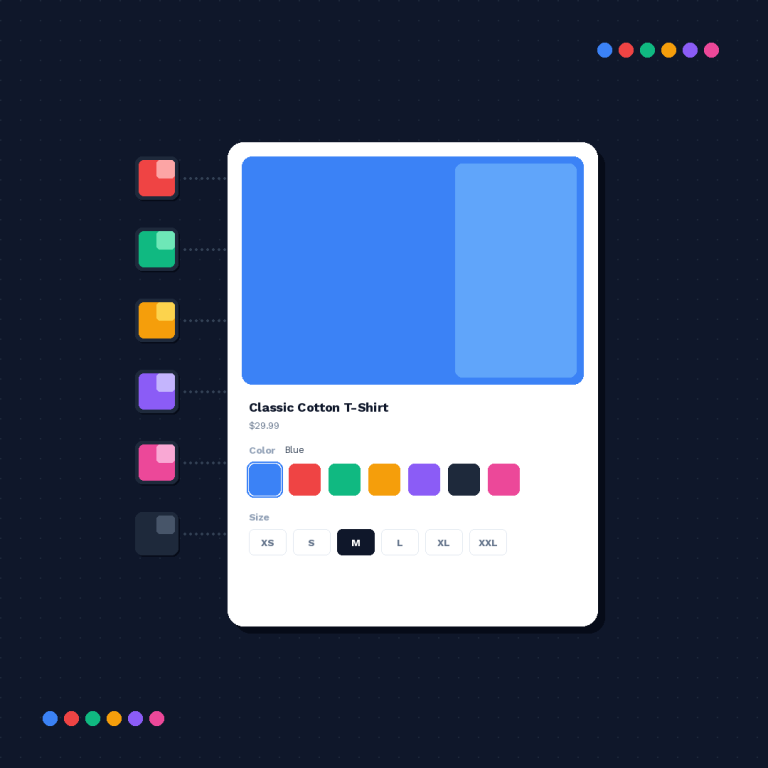
- No swatches by default. Native Shopify shows color as a plain text dropdown or button, not a color circle. Shoppers expect swatches, and a dropdown of “Olive / Shield / Storm” tells them nothing visual.
The first and third limits are display problems, solved with an app on the product page. The second is a structural problem, solved by rethinking whether color should be a variant at all. Both have clean fixes.

How to show colors as swatches, not a dropdown
If your colors are variants of one product and you just want them to look like swatches on the product page, that is a variant-image and swatch job. An app renders each color option as a color circle or a small image swatch, and shows the right photos when a shopper clicks. On the product page, for a single product’s own variants, Rubik Variant Images adds color swatches and filters the gallery to the selected color.
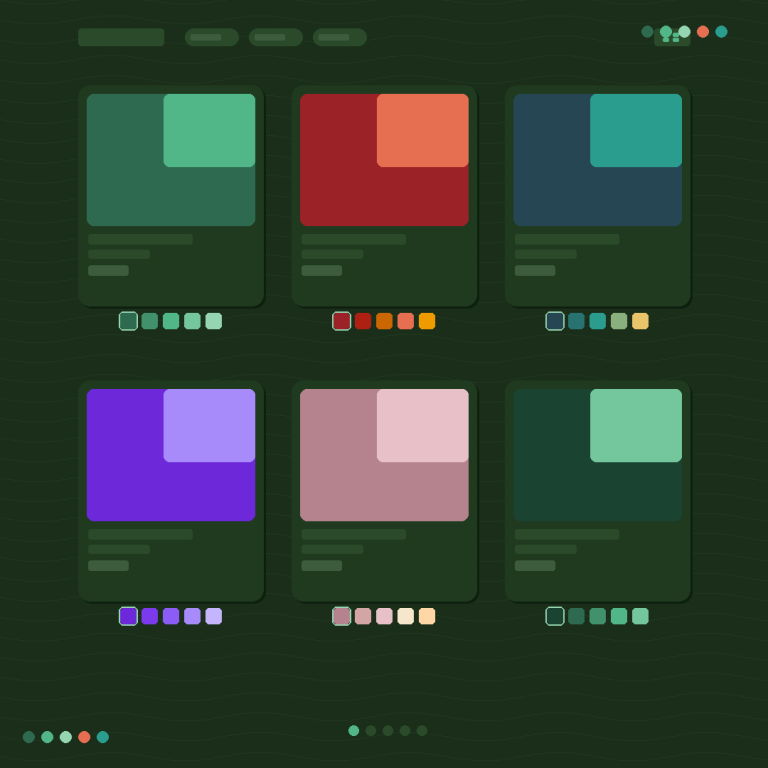
If your colors are separate products (more on why below), the swatches live on the collection page and product page and switch between products. That is what Rubik Combined Listings does. Same visual result for the shopper, different plumbing underneath, and the right choice depends on the next section.
“The App just released but it looks that its going to be great. This just saved a lot of hours of coding. Now i can set up and customize swatches for my Product Siblings in just a couple of minutes. Plus, the customer service response is fast and clear. Thank you”
Mattera, Spain, 2026-02-18. Rubik Combined Listings on the Shopify App Store
When each color should be a separate product
Here is the fork most guides skip. Sometimes a color should not be a variant at all. Make each color its own product when:
- Colors have different prices. Variants can price differently, but separate products keep the pricing and promotions cleaner, and the price updates as the shopper switches.
- Each color needs its own SEO. A separate product gets its own URL, title, meta, and images, so “olive field jacket” can rank on its own. Variants share one URL.
- Each color needs a full gallery. Separate products sidestep the one-image-per-variant limit: every color gets an unlimited set of its own photos.
- You are blowing past 100 variants. Splitting color out into separate products drops your per-product variant count under the cap.
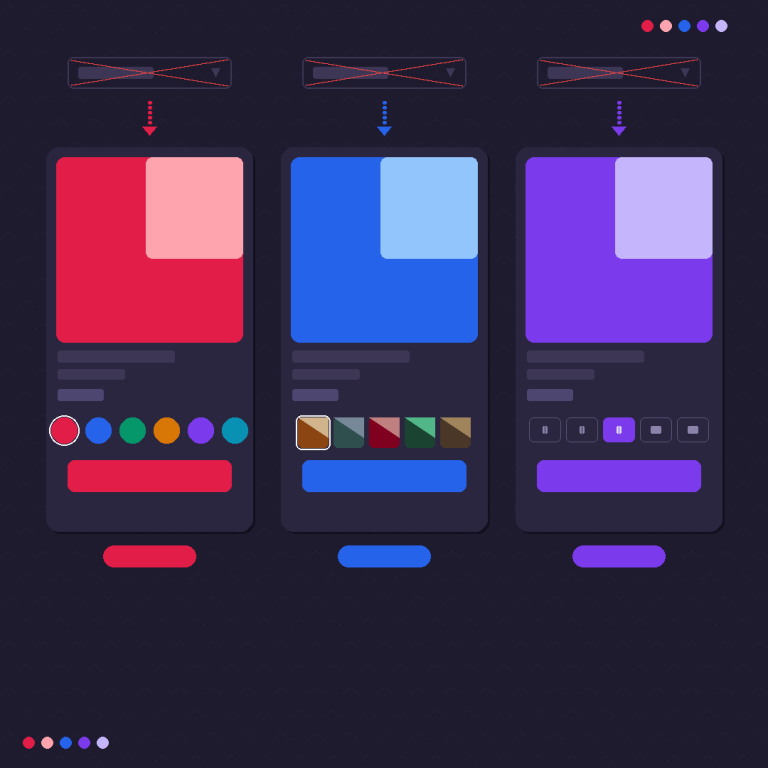
The catch with separate products used to be that they felt disconnected: eight lonely product pages instead of one with a color picker. That is exactly what combined listings fixes. You keep each color as its own product, then link them so a swatch on the collection page and product page switches between them like variants. Best of both: separate-product SEO, variant-like shopping. This is the setup one merchant described after moving off native variants:
“I was struggling with separate product pages for different colors/flavors (e.g., aftershave red, green, blue as individual products for better SEO and unique URLs), but I wanted customers to see swatches and switch between them easily, like real variants, on BOTH the product page and collection pages (under each card). This app does it perfectly.”
Ostwint, Romania, 2026-03-02. Rubik Combined Listings on the Shopify App Store
If your colours are variants of one product rather than separate products, Rubik Variant Images assigns a separate image set to every variant instead. Free to install, 5.0 stars across 436 reviews.
The decision in one table
| Your situation | Use |
|---|---|
| 2 to 5 colors, same price, share photos | Native variants + swatches (Rubik Variant Images) |
| Colors priced differently | Separate products + combined listings |
| Each color needs its own SEO URL | Separate products + combined listings |
| Each color needs many photos | Separate products + combined listings |
| Over 100 variants from color x size | Split color into products, keep size as variants |
Notice this is not “an app for everything.” Half the rows say native variants are fine. The other half are where separate products earn their keep. Pick by your actual constraint (price, SEO, photos, count), not by habit. If you are structuring a full apparel catalog, the variant-limit math matters, and the craftshift guide to the Shopify variant limit is worth a read before you commit.
See both approaches live: the combined listings demo store, the swatch tutorial video, or the getting started guide.
Frequently asked questions
Which Shopify app should I use for color variants?
Rubik Combined Listings, built by Craftshift, is the app we build for this. It holds 5.0 stars across 78 reviews and carries the Built for Shopify badge. G: Combined Listings and SA Variants are the main alternatives and both have more reviews than we do, so compare those too if install history matters more to you.
How do I add color variants in Shopify?
Open the product, go to Variants, click “Add options like size or color,” name the option Color, and add each color as a value. Shopify creates one variant per color with its own price, SKU, and inventory. Assign a featured image to each color so the gallery updates when a shopper selects it.
How do I show color swatches instead of a dropdown?
Shopify shows color as text by default. To render color circles or image swatches, use an app. For one product’s own variants, Rubik Variant Images adds swatches on the product page and shows the matching photos. For colors kept as separate products, Rubik Combined Listings shows swatches on the collection and product pages that switch between them.
Should color be a variant or a separate product?
Keep color as a variant when you have a few colors at the same price sharing photos. Make each color a separate product when colors are priced differently, need their own SEO URL and full photo gallery, or when color times size pushes you over the 100-variant limit. Then link the separate products with combined listings so they still shop like variants.
How many color variants can a Shopify product have?
A single Shopify product allows up to 100 variants by default across all options combined, and a maximum of 3 options. If color alone or color times size exceeds that, split color into separate products and group them, which removes the per-product ceiling since each color is its own product.
Do color variants each get their own images?
Natively, Shopify links one featured image per variant, so each color shows a single lead photo. To show a full multi-photo gallery per color, either use a variant image app on the product page or make each color a separate product, which gives every color an unlimited image set of its own.
Related reading
- Shopify combined listings explained
- Separate products vs variants for SEO
- Show variants as separate products on collection pages
- The Shopify variant limit, explained
- Add color swatches to a product page
So the real question is never just “how do I add color variants.” It is “should these colors be variants at all.” Answer that first (by price, SEO, photo count, and variant math) and the how-to takes care of itself.