Sibling products are not a Shopify-platform feature. There is no native “Siblings” data model in Shopify admin. Every premium theme studio that supports siblings invented its own metafield convention. The field names differ, the types differ, sometimes the very logic of how siblings get linked differs. The result: setting up siblings is a per-theme exercise, and migrating between themes is an exercise in renaming metafields.
This is the working reference. For each major sibling-supporting theme studio, we list the metafield namespace and key, the data type, what the value should contain, and the gotchas. Use this when you are setting up siblings on a new theme, debugging why your siblings stopped showing, or migrating between themes. Where theme studios change conventions across major versions, we note it.
Important caveat: theme studios update their metafield schemas with major version releases. This reference reflects current public documentation as of mid-2026, but always cross-check against the theme’s own help docs before doing bulk metafield work. We will mention Rubik Combined Listings at the bottom because it is the theme-agnostic alternative; the bulk of this post is theme-native.
In this post
- Why every theme uses different metafields
- Anatomy of a sibling metafield setup
- Fluorescent (Stiletto, Spark)
- Maestrooo (Prestige, Impulse, Motion, Symmetry)
- Roar (Be Yours, Concept)
- Fuel themes
- Omni Themes
- Archer (Honey)
- Presidio (Broadcast)
- Jhango themes
- Mapping between themes when migrating
- The theme-agnostic alternative
- Frequently asked questions
- Related reading
Why every theme uses different metafields
Two reasons:
- Shopify provides no canonical sibling structure. The platform has products and variants. Sibling products as a concept lives entirely in theme code. Each theme studio designed their own metafield schema.
- Theme studios optimize for different features. Some implementations support multi-axis siblings (color and material). Some support only one. Some pull data from a “sibling collection” Shopify collection; some pull from explicit metafield arrays. Different feature goals produce different schemas.
The structural pattern is similar across themes (some kind of “this product is in this group” plus “this product’s color is X”), but the field names and types vary.
Anatomy of a sibling metafield setup
Most sibling implementations involve at least two metafields per product:
- Group reference: tells the theme which other products this product is a sibling of. Usually a Shopify Collection reference (the sibling group is implemented as an unlisted collection containing all the siblings) or a metaobject reference.
- Variant identifier: tells the theme what makes THIS product different from its siblings. Usually the color name (or hex code, or pattern name).
Some themes add more (sibling option label, sibling swatch image, etc.). The two above are the minimum. Below, for each theme studio, we map their specific field names to this pattern.
Fluorescent (Stiletto, Spark, Cornerstone, Eclipse)
Fluorescent uses theme-prefixed namespaces, not custom. Each theme has its own namespace prefix matching the theme name. The keys differ per theme too. Verify against the specific theme’s official documentation.
Stiletto, per Fluorescent’s official Stiletto documentation:
- Group reference:
stiletto.siblings_collection(note “siblings” plural), type Collection reference. - Variant identifier:
stiletto.sibling_option_name(note “sibling” singular), type Single line text. Value is the variant label (e.g. “Red”, “Wood”).
Spark, per Fluorescent’s official Spark documentation:
- Group reference:
spark.siblings_collection, type Collection reference. - Variant identifier:
spark.sibling_option_name, type Single line text.
Setup quirk: Fluorescent’s docs explicitly warn the namespace must match exactly. The plural/singular alternation between siblings_collection and sibling_option_name is intentional and easy to typo. Cornerstone and Eclipse follow the same pattern with their respective theme-name namespaces.
Maestrooo (Prestige, Impulse, Motion, Symmetry)
Maestrooo refers to this feature as “Product variations / linked products” rather than “siblings”. The theme’s docs walk through creating two metafields with the custom namespace; you map them to the variant picker block in the theme editor.
- Variant identifier: Maestrooo’s official walkthrough uses
custom.variation_value, type Single line text. The value is the option label (e.g. “Red”, “Wood”). - Group reference: a Product list reference metafield (named “Variation products” in the docs example), type “Product reference” with “List of products”. The exact key is whatever you choose; you map it in the theme editor’s variant picker block settings.
Setup quirk: Maestrooo also uses a separate alt-text hashtag method (#color_value) on individual product images for variant image filtering, distinct from the linked-products feature for switching between products. The two systems can be used together but they do different jobs.
Roar (Be Yours, Concept)
Per Roar’s official Be Yours documentation:
- Variant identifier:
custom.sibling_color, type Single line text with One value. - Group reference:
custom.sibling_collection_handle, type Single line text with One value. The value is the collection handle (e.g.linked-products-air-beats), not a Collection reference.
Setup quirk: Roar uses the collection handle as text rather than a Collection reference. This means you can configure the sibling group without first selecting the collection in admin; the theme reads the handle and resolves the collection at render time. Useful for scripted setups; gotcha if the collection handle changes.
Fuel themes
Per Fuel Themes’ official documentation:
- Group reference:
theme.siblings, type Single line text. The value is the collection handle. Fuel emphasizes you must change the namespace fromcustomtotheme; the default new metafield namespace will not work. - Variant identifier:
theme.sibling_color, type Single line text. Holds the color label.
Final step on Fuel: add the Siblings block to the Product template in the theme editor. Without that block in the template, the swatches do not render even with metafields set correctly.
Omni Themes
Per Omni Themes’ official documentation:
- Variant identifier:
custom.sibling_type, type Single line text. Defines what option customers use to switch between siblings (acts as the variant picker label). - Group reference:
custom.sibling_collection_handle, type Single line text. Identifies the collection containing the sibling products.
Omni themes ship with a “Sibling products” block in the theme blocks system. Add the block to the product template after configuring the metafields.
Archer (Honey)
Per Archer’s official Honey documentation. Honey requires three metafields, all using the theme namespace:
- Group reference:
theme.sibling_collection_handle, type Single line text. - Option label:
theme.sibling_option_name, type Single line text. Names the option (e.g. “Color”). - Option value:
theme.sibling_option_value, type Single line text. Names this product’s variant value (e.g. “Red”).
Honey supports product siblings starting in version 5.0.0 and later. If you are on an older version, the feature is not available natively and you need to either upgrade the theme or use an app.
Presidio (Broadcast, Pipeline)
Presidio Creative ships Broadcast and Groupthought ships Pipeline; both use a similar siblings pattern with the theme namespace.
Pipeline (Groupthought):
- Group reference:
theme.siblings, type Collection reference. Pipeline docs explicitly tell you to change the namespace fromcustomtothemeand trim the key to justsiblings. - Cutline (variant label):
theme.cutline, type Single line text. Used as the label that appears for the swatch.
Broadcast (Presidio Creative):
- Variant color:
theme.sibling_color, type Color. Note the singular “sibling”. - Group reference: separate metafield (refer to Broadcast’s official docs for the precise current key).
Setup quirk: Broadcast and Pipeline share the theme namespace prefix but use different singular/plural conventions. Always verify against the specific theme’s current docs before bulk metafield work.
Jhango themes
Jhango themes ship a sibling-style product linking feature based on a shared collection. The exact metafield namespace and key vary across Jhango theme versions; refer to the theme’s official setup tutorial for your specific version. The pattern follows the others in this reference: one metafield to identify the group (collection-based) and one to label the variant.
Mapping between themes when migrating
If you are migrating from one sibling-supporting theme to another, the mapping work is to copy values from the source metafield namespace to the target namespace. Practical approach:
- Identify source and target schema. Look up the current key names in each theme’s docs.
- Export your products as CSV including metafields. Shopify’s product CSV export can include metafield columns if you specify them.
- In a spreadsheet, copy values from source metafield columns to target columns. Rename headers as needed.
- Reimport with overwrite. Caveat: overwrite affects every field, not just metafields. Be careful that other product data has not changed since the export.
- Verify on a few sample products that the new theme renders the swatches correctly.
For large catalogs, the GraphQL Admin API is the cleaner path: a custom script that reads the source metafield, writes the target metafield, and optionally deletes the old. Worth hiring a Shopify developer for catalogs past 200 products with multiple metafields per product.
Detailed migration walkthrough: migrate sibling products between Shopify themes.
If your colours are variants of one product rather than separate products, Rubik Variant Images assigns a separate image set to every variant instead. Free to install, 5.0 stars across 436 reviews.
The theme-agnostic alternative
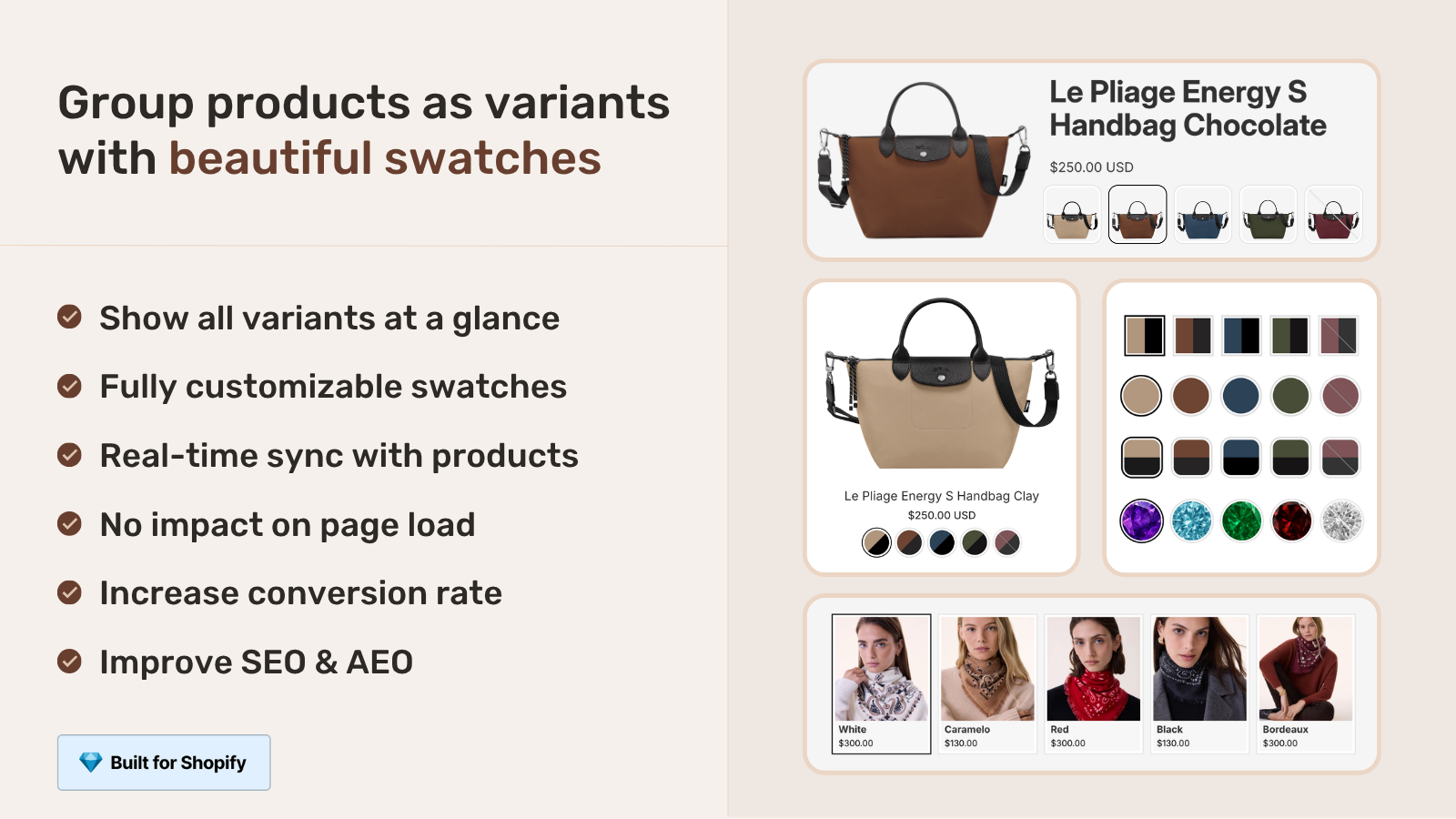
The recurring pain of theme-specific metafield namespaces is the structural argument for moving sibling structure outside the theme. Combined listings apps store grouping data in their own metaobject structure (or Shopify’s platform-level metaobjects). The theme reads from the app’s storefront snippet, not from theme-specific metafields. Switching themes does not break the data because the source of truth is no longer in the theme.
Rubik Combined Listings takes this approach. Groups are defined as Shopify metaobjects (visible at product.metafields.$app.rubik_product_groups as a list of metaobject references). Switch from Stiletto to Prestige to Horizon and the groupings remain intact; only the rendering layer changes.
For stores past their first theme migration, this structural advantage tends to outweigh the theme-native cost savings.
Frequently asked questions
Why does every Shopify theme use different sibling metafields?
Shopify’s platform has no native “sibling products” feature, so each theme studio designed their own implementation. The lack of a canonical structure is why metafield naming differs across themes.
Can I migrate sibling metafields automatically between themes?
No universal automation. CSV-based migration with header renaming is the most universal manual approach. For large catalogs, a custom GraphQL Admin API script reading source metafields and writing target metafields is cleanest. Some Shopify Expert agencies offer migration services for sibling-heavy stores.
If I install a third-party combined listings app, do I still need theme metafields?
No. App-based combined listings replace theme metafield-based siblings entirely. The grouping lives in the app’s own structure. Theme metafields can be left in place (they do nothing, harmless) or cleaned up.
Where can I find the exact current metafield key names for my theme?
The theme’s own documentation is the canonical source. Keys change with major theme versions, so always check the docs for your specific version. The references in this post should be cross-referenced with the theme’s docs before bulk metafield work.
Does the metafield type matter (single-line text vs reference)?
Yes. Each theme expects its specific metafield type. Setting a sibling color as type “color” when the theme expects “single line text” produces no swatch. Match the type exactly to what the theme docs specify.
Can I have one product belong to multiple sibling groups?
Most theme implementations do not support this cleanly; a product is in one sibling group at a time. Some implementations using metafield arrays can handle it; check your theme’s docs. App-based combined listings often handle multi-group membership more gracefully.
What happens to my sibling metafields if I delete the theme?
The metafields stay on the products (they belong to products, not the theme). Deleting the theme just stops the theme from rendering the swatches. Reinstall the theme or another with matching metafield expectations and the swatches reappear.
Related reading
- Shopify product siblings overview
- Theme-based vs app-based siblings comparison
- Migrate sibling products between themes
- Shopify product siblings complete guide
- CANNOT_SET_NAME_FOR_LINKED_OPTION_VALUE error fix
- Rubik Variant Images
Final note. Cross-check every metafield key in this reference against the latest theme docs before bulk metafield work. Theme studios update conventions; this reference is a starting point, not the source of truth.