You set up sibling products on your premium Shopify theme. The theme docs say swatches will appear under the variant picker. The product page renders without them. Or they appear on one product but not its sibling. Or they appear with the wrong colors. Or they used to work and silently stopped after a theme update. Sibling rendering is fragile because every theme depends on a chain of correctly-configured metafields, theme settings, and product associations. Break any link in the chain and the swatches disappear.
This is the diagnostic guide. Twelve specific reasons sibling products fail to render, ordered roughly by frequency, with the fix for each. Theme-specific quirks called out where they matter. Where the fix path is “switch to a different implementation entirely,” we say so honestly.
For the broader sibling concept and theme support landscape, our Shopify product siblings overview is the starting point. This post is the troubleshooting deep-dive.
In this post
- The 5-minute diagnostic flow
- Issue 1: Sibling collection metafield empty or pointing wrong
- Issue 2: Sibling color metafield missing
- Issue 3: Wrong metafield namespace for the theme
- Issue 4: Wrong metafield type
- Issue 5: Color values do not match theme settings
- Issue 6: Sibling products are unlisted, draft, or out of stock
- Issue 7: Sibling block not enabled in theme editor
- Issue 8: Theme version too old to support siblings
- Issue 9: Custom code conflicts with sibling logic
- Issue 10: App conflict (multiple sibling-style apps)
- Issue 11: Per-product setting not enabled
- Issue 12: Theme migration left orphaned metafields
- When the right answer is to switch implementations
- Frequently asked questions
- Related reading
The 5-minute diagnostic flow
Before reading the 12 issues, run this short flow. It catches roughly 70% of cases.
- Open one of the sibling products in Shopify admin.
- Scroll to Metafields.
- Confirm both the sibling collection metafield AND the sibling color (or option name) metafield are populated. The exact namespace and key depend on your theme: Stiletto expects
stiletto.siblings_collectionandstiletto.sibling_option_name, Roar Be Yours expectscustom.sibling_collection_handleandcustom.sibling_color, Pipeline expectstheme.siblingsandtheme.cutline, and so on. Refer to your theme’s official docs for the exact keys before checking. - Open the linked sibling collection in Shopify admin and confirm it contains all the sibling products you expect.
- Open the storefront page in incognito and check whether the swatches now render.
If the diagnostic finds nothing, work through the 12 specific issues below.
Issue 1: Sibling collection metafield empty or pointing wrong
The most common cause. Most sibling implementations rely on a metafield that points to a Shopify collection containing all the siblings. If that metafield is empty (or points to an old collection that has been deleted), no swatches render.
Fix: open the product, scroll to Metafields, find the sibling collection metafield (name varies by theme; check your theme docs or our metafields reference per theme). Set it to point at the collection containing all siblings.
Issue 2: Sibling color metafield missing
The collection metafield identifies which products are siblings. The color metafield (or whatever varies, like material or pattern) identifies what makes THIS product different from its siblings. If the color metafield is empty, the theme cannot label the swatch.
Fix: populate the color metafield with the variant value. The exact spelling matters. “Olive Green” and “olive green” may map to different swatch entries depending on the theme.
Issue 3: Wrong metafield namespace for the theme
Each theme expects its specific metafield namespace and key. Stiletto expects stiletto.siblings_collection + stiletto.sibling_option_name. Pipeline expects theme.siblings + theme.cutline. Roar Be Yours expects custom.sibling_collection_handle + custom.sibling_color. If you copy-pasted setup instructions from a different theme’s documentation, your metafields may exist with the wrong namespace and your active theme will not read them.
Fix: confirm the metafield namespace and key match what your specific theme expects. Cross-check against the theme’s official documentation. Reference: sibling metafields reference per theme.
Issue 4: Wrong metafield type
Some themes expect the sibling color metafield as type “Single line text”. Some expect “Color” (storing a hex value). Some expect “Reference” (linking to a metaobject). Choosing the wrong type means the metafield exists but the theme cannot parse it.
Fix: check the theme docs for the expected type. If you set up the metafield definition with the wrong type, you may need to delete it and recreate (Shopify does not allow type changes on existing metafield definitions).
Issue 5: Color values do not match theme settings
Many premium themes (Maestrooo’s themes especially) require you to map color names to hex codes in theme settings. If your sibling color metafield says “Forest Green” but theme settings only have “Forest” mapped, the swatch falls back to gray or fails entirely.
Fix: open theme editor > Theme settings > Swatches (or similar). Add the missing color mappings. Make sure the sibling metafield value matches a configured color exactly.
Issue 6: Sibling products are unlisted, draft, or out of stock
Many themes filter sibling products by status. Unlisted or Draft products are excluded from sibling lists. In some implementations, out-of-stock products are also hidden. The result: your “5 colors” sibling group might only show 3 swatches because 2 are sold out.
Fix: open each child sibling product and confirm status is Active. Confirm at least one variant has inventory or is available for ordering. For the unlisted-status edge case (which can break the entire group on combined listings), see our combined listings not showing in search guide.
Issue 7: Sibling block not enabled in theme editor
Some themes (Omni Themes especially) treat sibling rendering as a section block that must be added to the product template. If the block is not in the template, swatches do not appear regardless of metafield setup.
Fix: theme editor > product template > check that the “Sibling products” block (or whatever the theme calls it) is added to the product page layout. Save.
Issue 8: Theme version too old to support siblings
Premium themes add features in major version updates. Sibling support might be in version 5.0 of a theme but not 4.x. If you are on an older version, the feature simply does not exist.
Fix: check Theme settings > Theme info for the current version. Compare to the theme’s changelog. Update to a version that supports siblings, or use an app-based approach.
Issue 9: Custom code conflicts with sibling logic
If you have customized your theme’s product template (a developer made edits, or you applied a tutorial’s code), the customization may have replaced or removed the Liquid that renders sibling swatches.
Fix: temporarily duplicate the theme and try the sibling setup on a fresh copy. If swatches render on the fresh copy, your customizations are the issue. Diff the two themes to find what was changed.
Issue 10: App conflict (multiple sibling-style apps)
If you have a combined listings app installed in addition to theme-native siblings, both might be trying to render swatches. The two implementations can interfere, sometimes producing duplicate swatch rows, sometimes producing none (CSS conflicts).
Fix: pick one source of truth. Disable the app to test theme-native, or hide the theme-native swatch UI via CSS to test the app.
Issue 11: Theme setting toggles not all enabled
Some themes split sibling configuration across multiple settings panels: a global theme setting (Theme settings > Swatches or similar), a section block (Product page > Variant picker block) and sometimes a per-product control. Older versions of certain themes (Prestige, for example, in older versions before native Shopify swatches landed) had a per-product enable checkbox; newer versions rely on the global theme setting alone.
Fix: open theme editor and walk through each layer of settings. If your theme has Theme settings > Swatches, confirm it is enabled. If the variant picker block has a “Display style” or “Selector style” option, confirm it is set to Swatch. If your theme’s docs reference a per-product control, confirm it is on. Theme docs are the source of truth for which combination of settings your specific version requires.
Issue 12: Theme migration left orphaned metafields
You migrated themes recently. The old theme’s metafields are still on your products, but the new theme expects different namespaces. Result: metafields populated but new theme cannot read them, swatches do not render.
Fix: migrate the metafields to the new theme’s expected namespace. Detailed walkthrough: migrate Shopify sibling products between themes.
If your colours are variants of one product rather than separate products, Rubik Variant Images assigns a separate image set to every variant instead. Free to install, 5.0 stars across 436 reviews.
When the right answer is to switch implementations
If you have hit two or more of the issues above, the recurring fix work is itself a signal. Theme-native siblings have a fragile chain (metafields, theme settings, theme version, theme code). When the chain breaks regularly, an app-based combined listings setup that decouples the sibling structure from the theme can be the more pragmatic answer.
Rubik Combined Listings handles sibling-style grouping through metaobject references that do not depend on theme metafields. Most of the 12 issues above simply do not apply: there is no theme-specific metafield namespace, no per-theme color mapping, no theme version requirement, no metafield type confusion. The grouping is set once in the app and renders correctly across every supported theme.
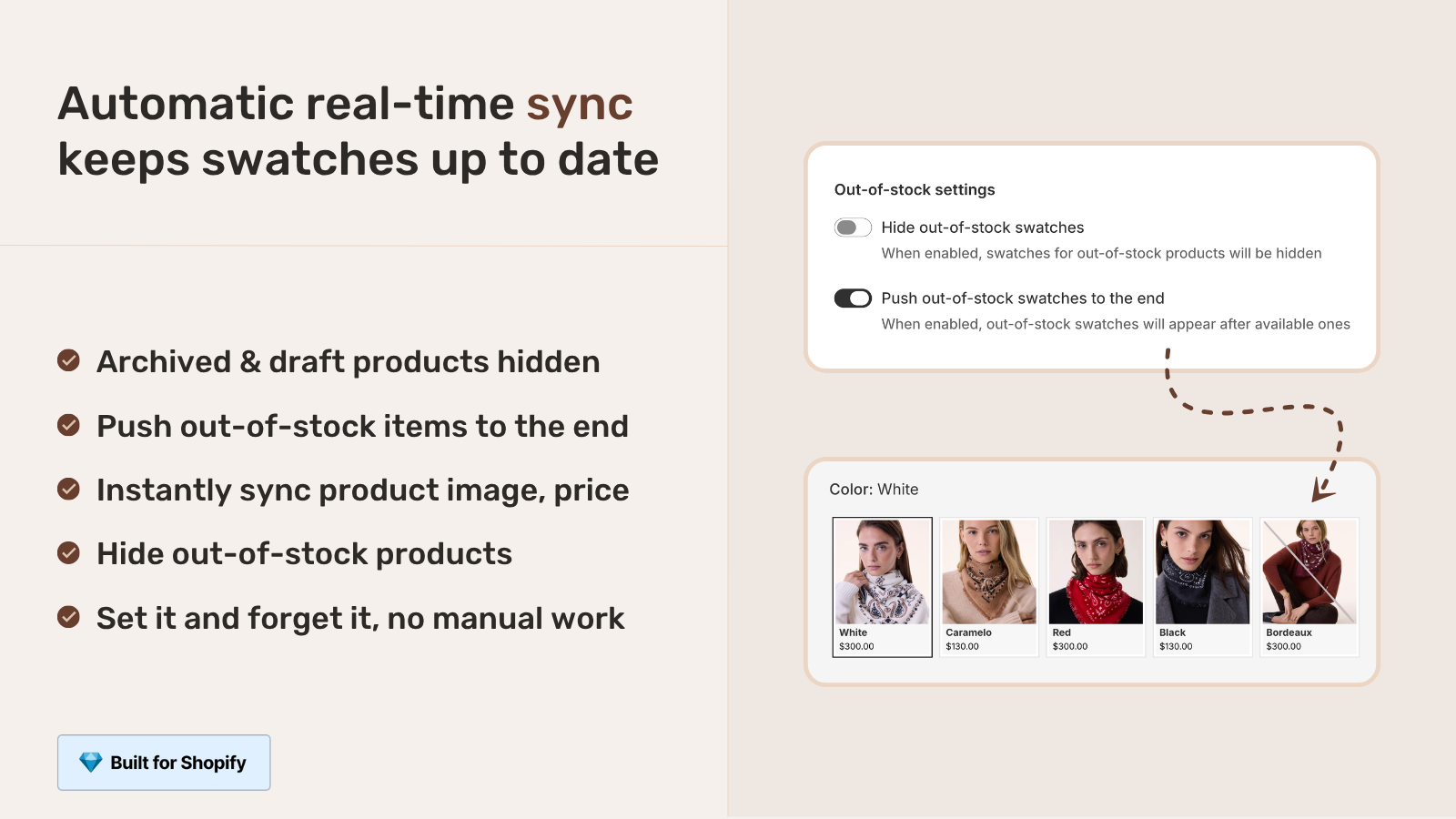
This is not the right move for every store; small catalogs on a stable theme are fine on theme-native siblings. But for stores fighting recurring sibling rendering issues, switching tools beats fighting the same issue every quarter.
Frequently asked questions
Why are my Shopify sibling product swatches not showing?
The most common causes (in order of frequency): empty sibling collection metafield, missing sibling color metafield, wrong metafield namespace for the theme, wrong metafield type, color values not matching theme settings, child products in Draft or Unlisted status, and per-product enable checkbox disabled. Run through the 5-minute diagnostic at the top of this guide first.
My sibling products work on one product but not another. Why?
Almost always a per-product issue: missing metafield, wrong metafield value, or product not added to the sibling collection. Compare the metafields between the working product and the broken product side by side.
Sibling swatches show but the colors are wrong. How do I fix?
Color name in the sibling metafield does not match the theme’s configured swatch colors. Check Theme settings > Swatches (or your theme’s equivalent). Add a mapping for each color name used in your sibling metafields, or update the metafield values to match existing color mappings.
Sibling swatches stopped working after a theme update. What changed?
Theme updates sometimes change metafield namespaces or required types. Check the theme’s changelog for the update version. If the metafield schema changed, you need to migrate metafields to the new convention. Keep an eye on theme developer announcements.
Sibling products visible on product page but not on collection page. Why?
Most theme-native sibling implementations show swatches under the product card on collection pages but do not change the card image when the swatch is clicked. Some implementations show no swatch at all on collection pages. Check the theme settings for “Show swatches on product cards” or similar. For full clickable collection page swatches that update card images, consider an app-based approach.
My theme says it supports siblings but I cannot find the metafield in admin. What do I do?
Some themes require you to manually create the metafield definition in Settings > Custom data > Products before the metafield appears on product pages. Add the definition with the namespace and key the theme expects, then refresh the product page in admin.
Should I switch to an app if siblings keep breaking?
Yes if you have hit recurring issues across multiple products or multiple theme updates. App-based combined listings move the sibling structure outside theme metafields, eliminating most of the failure modes covered in this guide. Specifically Rubik Combined Listings handles grouping through metaobject references that do not depend on theme settings.
Related reading
- Shopify product siblings overview
- Sibling metafields reference per theme
- Theme-based vs app-based siblings comparison
- Combined listings not showing in search
- Migrate sibling products between themes
- Rubik Variant Images
Closing thought. The fragility of theme-native siblings is structural. Same merchant, same store, the same issue recurs every theme update or major release. Switching tools is sometimes the right move; sometimes it is the only move that ends the loop.