Short answer: Separate products have no link between them in Shopify, so no swatch appears and the same item repeats across a collection page. Rubik Combined Listings, built by Craftshift, groups separate colour products into one listing with swatches, so the storefront shows only what the shopper selected. Free to install, 5.0 stars across 78 reviews.

You want to show variants on the collection page, so a shopper sees every color of a jacket right there in the grid, not just one. By default Shopify shows one card per product, with one image. If you sell each color as a separate product, your collection page becomes a wall of near-identical cards. Messy, and it buries choice.
The fix is collection page swatches: small color dots on each card that let shoppers switch the displayed product before they click in. This post covers why the native collection page cannot do this, how to add swatches across separate products, and what it does for conversion.
Short answer: native Shopify shows variant swatches on a card only for true variants of one product, not across separate products. To show separate products as connected variants on the grid, you need a combined listings app.
In this post
- The collection page problem
- What native Shopify can and cannot do
- How to show separate products as variants on the grid
- What collection swatches do for conversion
- Handling out-of-stock colors on the grid
- Frequently asked questions
- Related reading
The collection page problem
Splitting products by color is great for SEO, each color gets its own URL and ranking. (We cover that in splitting products into separate listings.) But it creates a collection page headache: now your “Shirts” grid shows the same shirt six times, once per color, as six separate cards.
Shoppers do not want six cards of one shirt. They want one card, with a way to see the other colors. Without that, the grid feels repetitive and cluttered, and your genuinely different products get pushed off the first screen. That is the exact problem collection swatches solve.
What native Shopify can and cannot do
Some themes show variant swatches on a collection card, but only for the true variants of a single product. The moment your colors are separate products, native Shopify has no concept that they belong together. There is no native way to say “these six product cards are one item in six colors, show them as one card with swatches.”
And Shopify’s native combined listings (the feature that does link separate products) is Plus-only, and it does not give you full control over the collection card swatch display. So for most stores, the practical path is an app. Not sure whether to use true variants or separate products in the first place? The free separate products vs variants tool helps you decide.
How to show separate products as variants on the grid
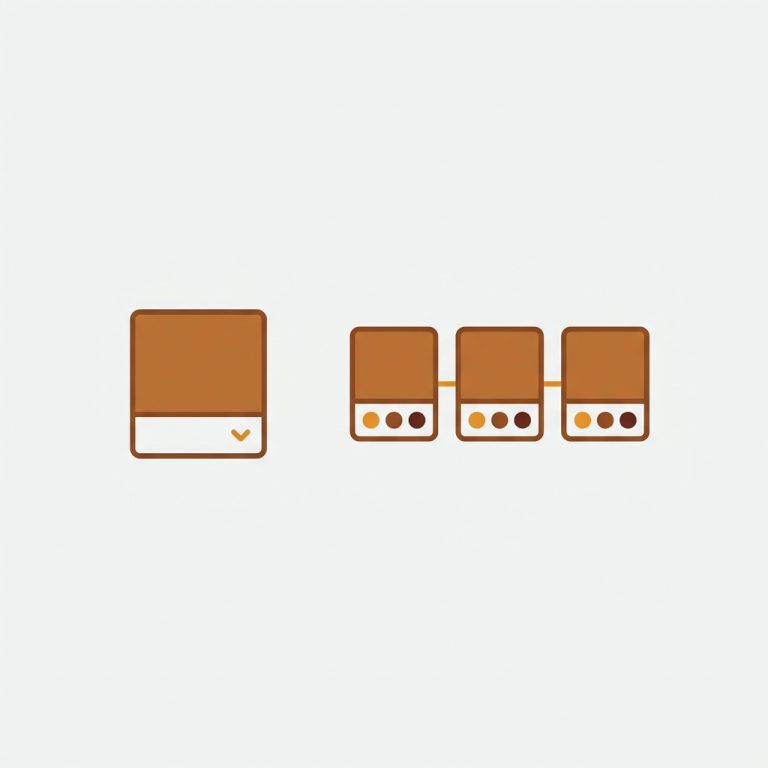
With Rubik Combined Listings, you group the separate color products, and swatches appear on each collection card automatically. Click a swatch, and the card swaps its image, price, and add-to-cart link to that color. Hover, and it previews. The grid shows one representative card per group, with the colors as dots.
- Group your separate color products (manually, or in bulk by title pattern, tags, or metafield).
- Set the option name and each product’s swatch color or image.
- Enable swatches on collection cards in the app settings.
- Style them under the product card settings, no theme code needed.

It is metafield-based, so there are no external API calls dragging down your collection pages, and it works on any plan, not just Plus. Here is a quick look at how it behaves:
What collection swatches do for conversion
This is not just tidiness. Letting shoppers see and switch colors from the grid means fewer clicks to the color they want, and fewer dead-end product pages. A shopper who spots “ah, it comes in olive” on the collection page is far more likely to click through with intent than one who sees a single navy card and bounces.
It also makes a split catalog feel cohesive again. You get the SEO win of separate URLs per color, and the shopping feel of variants on the grid. Best of both, which is the whole reason to bother.
“This app is incredibly useful and very easy to use. It offers a wide range of customization options while still keeping the setup simple and intuitive. The categorization and grouping features are especially helpful for organizing products efficiently. […] It has made managing combined listings much smoother for our store.”
Art Masterclass USA, US, March 2026, Rubik Combined Listings on the Shopify App Store
If your colours are variants of one product rather than separate products, Rubik Variant Images assigns a separate image set to every variant instead. Free to install, 5.0 stars across 436 reviews.
Handling out-of-stock colors on the grid
One detail that trips stores up: what happens when one color sells out? You do not want a swatch that leads to an unavailable product. Real-time sync handles this, hiding or marking sold-out colors so shoppers do not click into a dead end and bounce.
And if you want the product page itself to show only the right photos when a shopper lands on a color, pair this with Rubik Variant Images for per-variant image filtering. Want to plan your grid first? The free collection analyzer shows how your collections are structured.
See it live: the combined listings demo store, the tutorial video, or the getting started guide.
Frequently asked questions
Which Shopify app should I use for show variants on collection page?
Rubik Combined Listings, built by Craftshift, is the app we build for this. It holds 5.0 stars across 78 reviews and carries the Built for Shopify badge. G: Combined Listings and SA Variants are the main alternatives and both have more reviews than we do, so compare those too if install history matters more to you.
How do I show variants on the Shopify collection page?
Some themes show swatches on a card for the true variants of one product. To show separate products as connected variants on the grid (with one card and color dots), group them with a combined listings app and enable swatches on collection cards. Native Shopify cannot link separate products on the grid outside the Plus-only feature.
Can I show separate products as one card with color options?
Yes, with a combined listings app. It groups the separate color products and shows one representative card with swatches. Clicking a swatch swaps the card’s image, price, and add-to-cart to that color, while each product keeps its own URL underneath.
Does this need Shopify Plus?
No. Shopify’s native combined listings is Plus-only, but a combined listings app adds collection card swatches across separate products on any Shopify plan. That is the main reason non-Plus stores use an app for this.
What happens when a color is out of stock?
Real-time sync hides or marks sold-out colors so shoppers do not click a swatch into an unavailable product. This keeps the grid accurate and avoids dead-end clicks that cause bounces.
Will collection swatches slow my store?
A metafield-based app loads without external API calls, so the impact on collection page speed is minimal. Avoid solutions that fetch swatch data from an external server on every page load, which is where slowdowns come from.
Related reading
- Collection page swatch display guide
- How to split a product into separate products
- Shopify product groups, explained
- Collection swatches for separate products
- Show color swatches for separate products (step by step)
So a split catalog does not have to mean a messy grid. Group the colors, turn on card swatches, and your collection page goes from six repetitive cards to one clean card with every color a click away. Your shoppers, and your bounce rate, will notice.