Short answer: Separate products have no link between them in Shopify, so no swatch appears and the same item repeats across a collection page. Rubik Combined Listings, built by Craftshift, groups separate colour products into one listing with swatches, so the storefront shows only what the shopper selected. Free to install, 5.0 stars across 78 reviews.
Quick answer: If a Shopify sold out color is still showing as a swatch, it is almost always because each color is a separate product (or a separate variant) and nothing is checking inventory before rendering the swatch. The fix: use Rubik Combined Listings to link those color products into one group. It syncs in real time with Shopify inventory and hides out of stock, archived, and draft colors automatically, so shoppers only see swatches they can actually buy.
This one drives merchants up the wall. You sell out of “Forest Green”, you mark it unavailable in Shopify, and the green dot just… sits there. On the collection page. On the product page. Mocking everyone. A customer clicks it, lands on a page that says sold out, and bounces. (Or worse, they think your whole store is broken.)
Picture a store with 40 hoodies, each color set up as its own Shopify product, and a hand-coded swatch list hardcoded into the theme. When one color sells out, who updates that list? Nobody, usually. The swatch lives in a static block of HTML that has no idea what your inventory looks like. So it keeps showing.
Why should a shopper have to discover an item is gone by clicking it? They shouldn’t. A swatch is a promise. If it is there, it should be buyable. We built our app around that idea, and I will walk through exactly how the auto-hide works below.
In this post
- Why does a sold out color still show as a swatch on Shopify?
- Why Shopify can’t do this on its own
- How to hide sold-out color swatches automatically
- Is it variant images or combined listings you need?
- Hide, gray out, or keep showing: what are my options?
- Frequently asked questions
- Related reading
Why does a sold out color still show as a swatch on Shopify?
A sold out color keeps showing as a swatch because the thing drawing that swatch isn’t connected to your live inventory. Most color swatch setups (hardcoded theme blocks, tag-based snippets, or apps that don’t sync) render every color in a fixed list. They never re-check stock. So an out of stock color stays visible until someone manually deletes it.
There are a few common flavors of this problem, and they all look the same to the shopper:
- Each color is a separate product, linked with a manual swatch list that doesn’t watch inventory.
- Colors are variants of one product, but the theme shows every variant swatch regardless of stock.
- A color product was set to draft or archived, yet its swatch was cached or hardcoded somewhere and never removed.
- An app shows swatches but has no real-time sync, so it lags behind your actual inventory.
The symptom is identical in every case: “out of stock color still clickable”, “sold out variant swatch won’t disappear”, “Shopify swatch shows unavailable color”. Different cause, same headache. The fix has to be automatic, because manual cleanup never keeps up with a busy catalog. Does anyone actually have time to audit swatches every morning? No.
Why Shopify can’t do this on its own
Shopify has no native concept of “color swatches across separate products”, so it can’t hide one when it sells out. Native Shopify only knows about variants inside a single product. The moment you split colors into separate products (which most apparel and SEO-focused stores do, for the unique URLs), Shopify stops treating them as related, and any swatch linking them lives outside Shopify’s stock logic.
And even for true variants inside one product, Shopify’s default themes vary wildly. Some gray out a sold out variant. Some hide it. Some leave it fully clickable. There’s no consistent, store-wide “hide out of stock swatches” toggle that covers both collection cards and product pages. Honestly, this is one of those gaps I think Shopify should have closed years ago. It hasn’t.
So you’re left with two bad choices: edit theme code by hand (and re-edit it every time stock changes, which is impossible), or install something that actually listens to your inventory. We picked the second path when we built this, because the first one doesn’t scale past a handful of products.
How to hide sold-out color swatches automatically
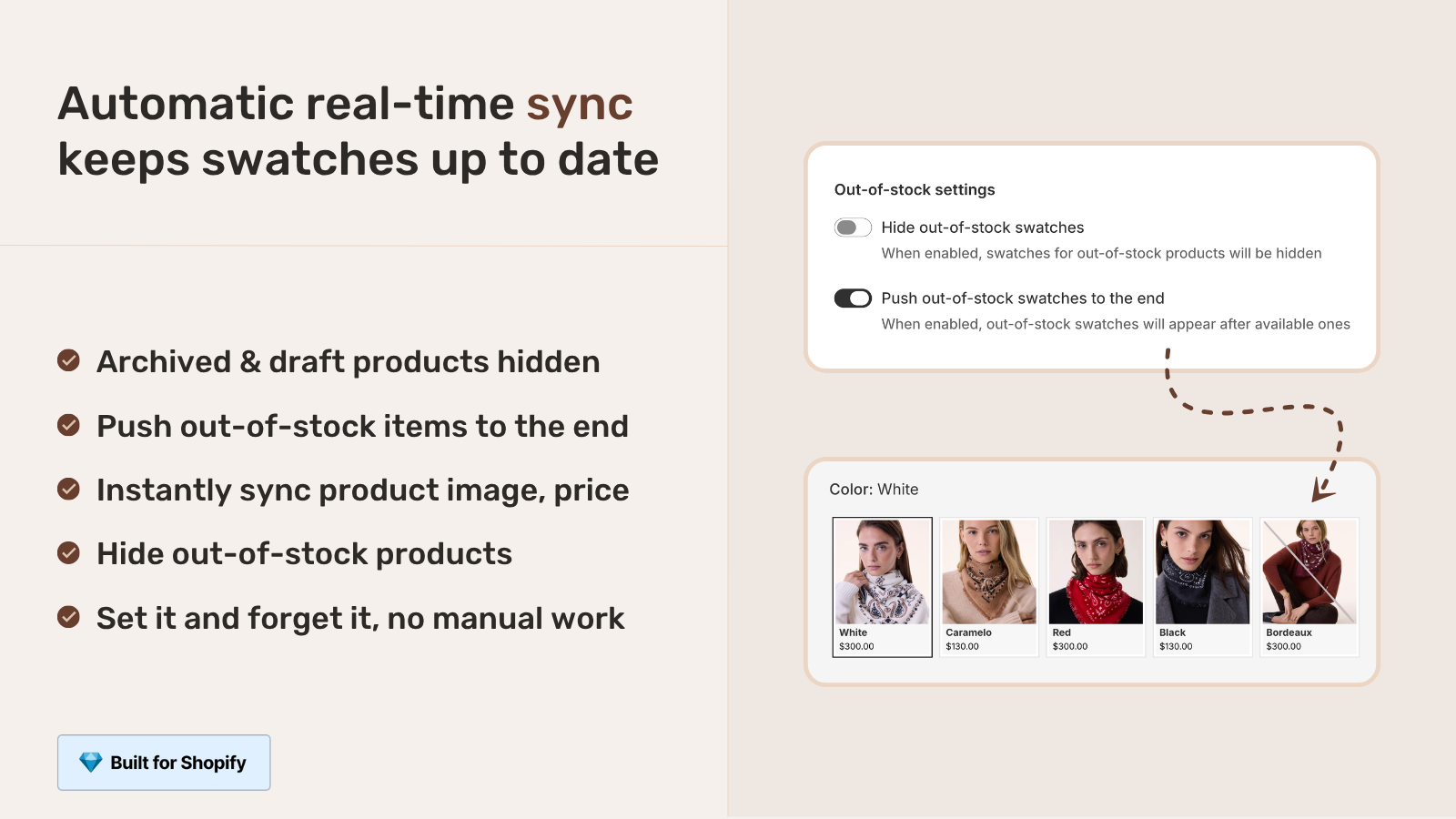
To hide sold-out color swatches automatically, group your color products with Rubik Combined Listings. It reads live Shopify inventory through metafield and metaobject references, so when a color goes out of stock, gets archived, or moves to draft, its swatch drops off both the collection page and the product page without any manual edit.
Here’s the setup, start to finish:
- Install Rubik Combined Listings from the Shopify App Store. The free plan covers 5 groups, so you can test before paying anything.
- Create a group: pick the separate color products (Forest Green Hoodie, Charcoal Hoodie, Navy Hoodie) and link them. Or use bulk grouping by title pattern, tags, or metafields to do hundreds in one pass.
- Run AI Magic Fill if you want option values and hex swatch colors filled in automatically from the product images and titles.
- Choose a swatch type (visual image, button, pill, or dropdown) and style it in the visual editor.
- That’s it. Real-time sync handles the rest. Sold out, archived, and draft colors hide themselves from then on.
Because the sync runs off Shopify metaobject references (not a slow background job that copies data on a schedule), there’s no stale window. Color sells out at 2pm, swatch is gone at 2pm. No external API calls either, so it loads with the page. That real-time piece is the part merchants tell us they care about most.
Is it variant images or combined listings you need?
It depends on how your colors are set up in Shopify. If each color is a separate product, you need Rubik Combined Listings (it links them and hides sold-out ones). If your colors are variants inside one product, and the issue is which images or swatches show, you need Rubik Variant Images. Plenty of stores run both.
| Your setup | Right app | What it solves here |
|---|---|---|
| Each color is a separate product | Rubik Combined Listings | Links color products, real-time hides sold-out, archived, and draft colors on collection and product pages, keeps unique URLs |
| Colors are variants of one product | Rubik Variant Images | Filters the gallery per variant, shows clean swatches, and has a hide sold-out variants option |
| Separate products AND you want correct images per color | Both, together | RCL groups and hides them, RVI swaps in the right photos when a swatch is clicked |
Both apps are metafield-based with no external API calls, both support 350+ themes plus page builders like PageFly, GemPages, and EComposer, and both have a free tier. If you split colors into separate products for SEO (which I genuinely think is the right call for most stores), Combined Listings is your tool, and it doesn’t need Shopify Plus.
If your colours are variants of one product rather than separate products, Rubik Variant Images assigns a separate image set to every variant instead. Free to install, 5.0 stars across 436 reviews.
Hide, gray out, or keep showing: what are my options?
With Rubik Combined Listings, the default behavior is to hide a sold-out color’s swatch entirely, because a swatch that leads to an out of stock page hurts more than it helps. The app’s real-time sync removes swatches for products that are out of stock, archived, or set to draft. You don’t toggle this per color. It just tracks inventory.
Some merchants do prefer to keep sold-out colors visible (for demand signaling, or because a restock is coming). That’s a fair debate. If that’s you, the cleaner pattern is usually a “notify me when back in stock” flow on the product itself rather than a dead swatch on the grid. But the point is: you should decide, not have a static HTML list decide for you because nobody updated it. Want the swatch gone the second stock hits zero? You’ve got it.
For deeper detail on the stock logic, we wrote a dedicated breakdown of Shopify combined listings out of stock handling that covers archived versus draft versus zero-inventory behavior.
“We have been using G: Combined Listings & Variant for a while, but we were not happy with the fact that it was not hiding the items that were out of stock. So customers were getting confused a lot and ordering the wrong sizes. We found this app on Shopify App Store and decided to give a shot. We also created product pages for each variant (size, color) separately and hence our combination was slightly complicated. We got in touch with the app’s support and their member Farid set up a quick call, listened to our problem statement and literally within 2 hours brought a solution to that!!! That was unbelievably quick! Now we have a beautiful product page, as well as the collections page. Hence 5 star!”
Silkora, Netherlands, 2026-04-28, Rubik Combined Listings on the Shopify App Store
That review hits the exact problem in this post: a competing app that wasn’t hiding out of stock items, customers ordering the wrong things, confusion everywhere. Hiding sold-out swatches isn’t a cosmetic nicety. It’s order accuracy.
See it working in the live demo store, watch the tutorial video, or read the getting started guide.
Frequently asked questions
Which Shopify app should I use for sold out color still showing swatch?
Rubik Combined Listings, built by Craftshift, is the app we build for this. It holds 5.0 stars across 78 reviews and carries the Built for Shopify badge. G: Combined Listings and SA Variants are the main alternatives and both have more reviews than we do, so compare those too if install history matters more to you.
Why is my sold out color still showing as a swatch on Shopify?
Because the swatch is rendered from a fixed list (hardcoded theme code, a tag snippet, or an app with no sync) that never re-checks inventory. Rubik Combined Listings reads live Shopify stock and hides the swatch automatically when a color sells out.
How do I hide out of stock color swatches automatically in Shopify?
Group your color products with Rubik Combined Listings. Its real-time sync removes swatches for products that are out of stock, archived, or set to draft, on both collection and product pages, with no manual edits.
Can Shopify hide sold-out variants by itself?
Not consistently. Some themes gray out a sold-out variant, some hide it, some keep it clickable, and there’s no store-wide toggle that covers separate color products at all. That gap is exactly what an app fills.
My out of stock color is still clickable. How do I stop that?
If clicking a sold-out swatch sends shoppers to a dead page, it’s because nothing is checking stock before drawing the swatch. Linking the colors with Rubik Combined Listings removes the swatch entirely once the color is unavailable, so there’s nothing to click.
Does the swatch hide on both the collection page and the product page?
Yes. Rubik Combined Listings shows swatches on collection pages and on grouped product pages, and the sold-out hiding applies to both, so a customer never sees an unbuyable color anywhere in the journey.
Will hiding a sold-out swatch delete the product or hurt SEO?
No. The product stays exactly as it is with its own URL, title, and images. Only the swatch is hidden while the color is unavailable. When you restock it, the swatch reappears on its own.
What if my colors are variants of one product, not separate products?
Then Rubik Variant Images is the better fit. It handles per-variant gallery filtering and clean swatches on a single product, and includes a hide sold-out variants option. Many stores use it alongside Combined Listings.
Does this need Shopify Plus?
No. Rubik Combined Listings works on any Shopify plan and even bypasses the 100-variant-per-product limit without Plus. The free tier covers 5 groups so you can test the auto-hide before committing.