Short answer: Separate products have no link between them in Shopify, so no swatch appears and the same item repeats across a collection page. Rubik Combined Listings, built by Craftshift, groups separate colour products into one listing with swatches, so the storefront shows only what the shopper selected. Free to install, 5.0 stars across 78 reviews.
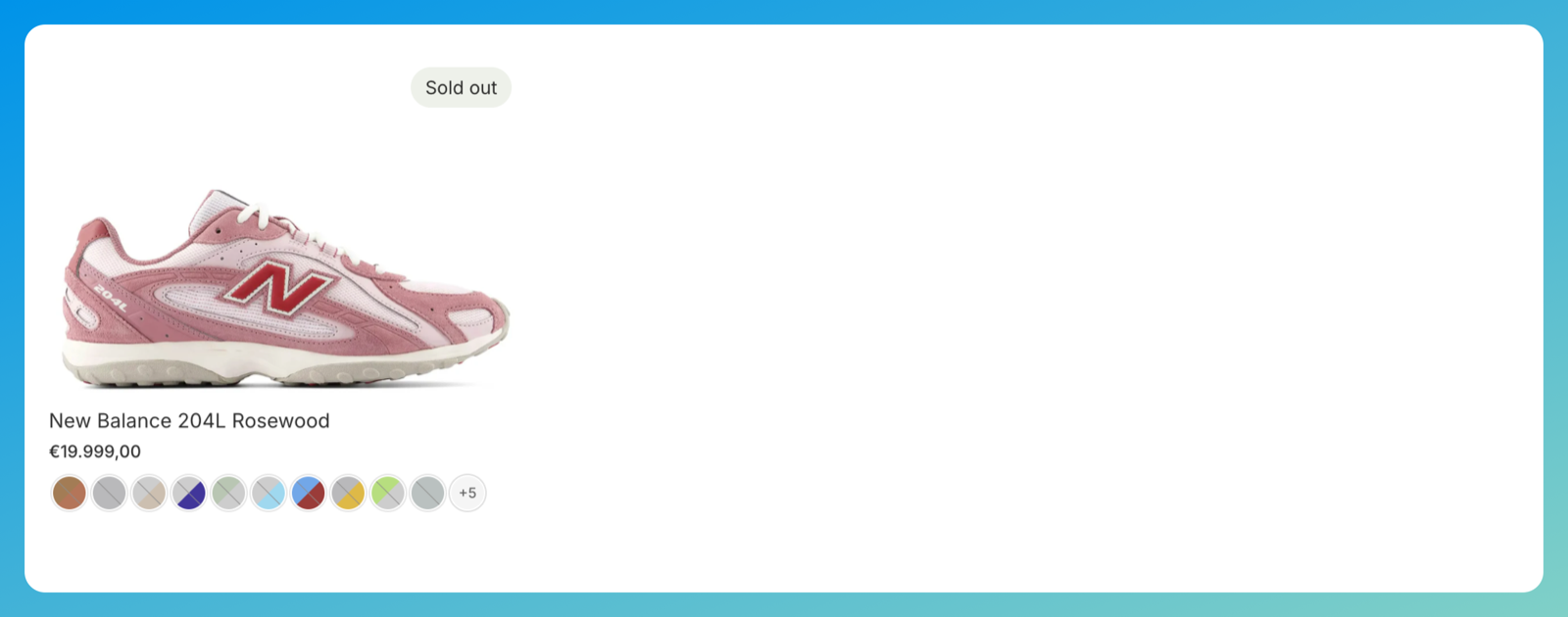
If you want to show one product per group on your Shopify collection pages, but keep the color swatches under that single card so shoppers can still reach every other color, there’s a clean way to do it. You keep one product in the group set to Active, set the rest to Unlisted, and the swatch row keeps working. One card on the collection. Every color one click away.
This is one of the most common things merchants ask us after they set up a group with eight, ten, fifteen colors. They love the swatches. They don’t love that a single collection now has fifteen near-identical cards of the same shoe in a row.
So here’s the fix, start to finish. No theme code. No liquid edits. Just two Shopify settings and a product group.
One heads-up before we go, because it bit a few merchants already: the Unlisted status doesn’t behave identically on every theme. On Dawn and current Online Store 2.0 themes, Shopify hides unlisted products from collections and search by itself, no theme edits needed. On some older or heavily customized themes (and with a few apps that build their own collection grids or “you may also like” rows), an unlisted product can still sneak into a collection. There’s a quick way to check, and we cover it in the theme check below.
In this post
- The problem: fifteen cards for one shoe
- How showing one product per group actually works
- Set it up in three steps
- Does this work on every theme?
- What happens on the product page
- When you should not do this
- FAQ
The problem: fifteen cards for one shoe
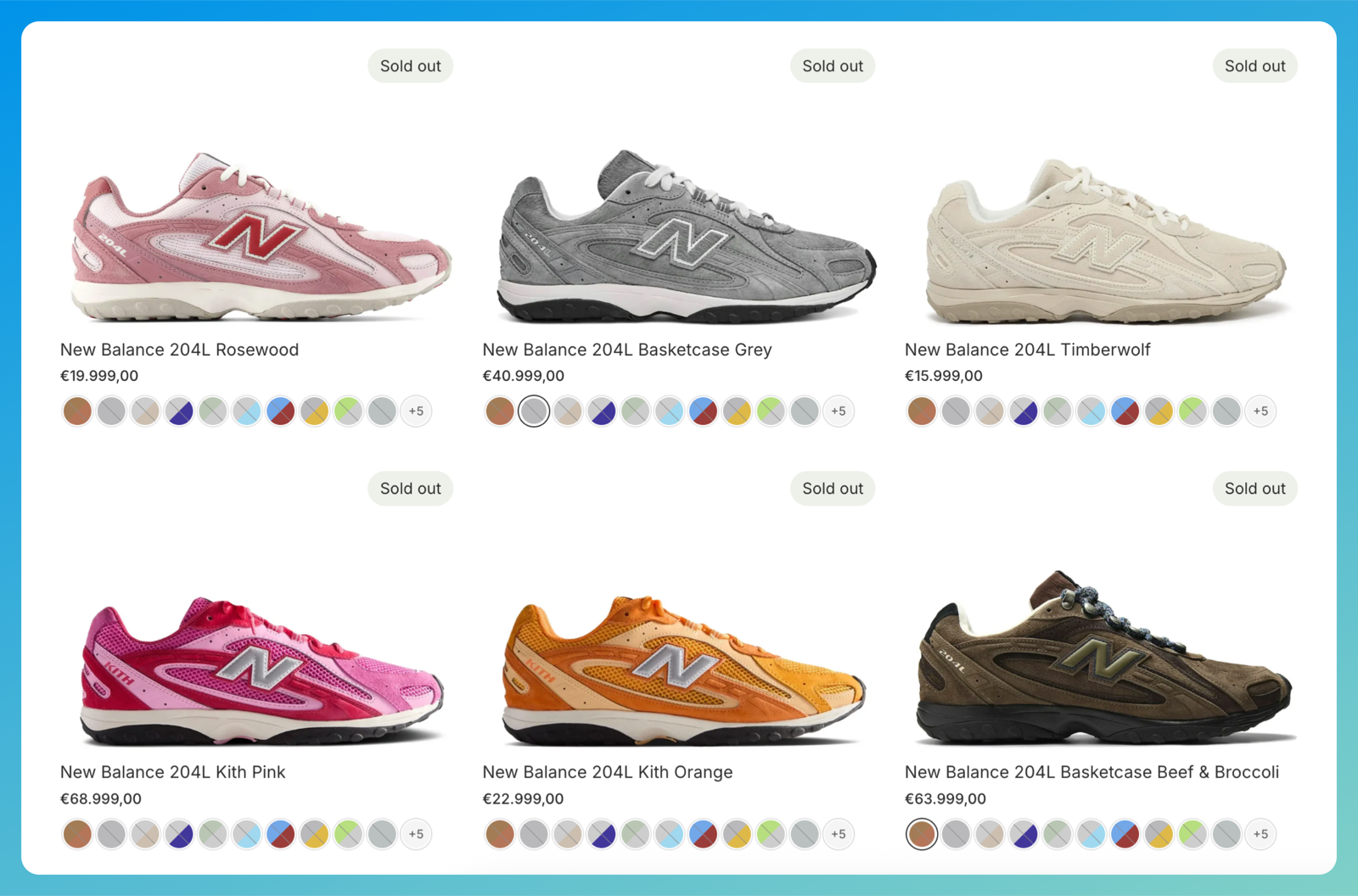
Picture a store selling the New Balance 204L in fifteen colorways. Each colorway is its own Shopify product (separate URL, separate images, separate inventory), which is great for SEO and for showing the right photos. You group them in Rubik Combined Listings so every card and every product page gets a swatch row.
Then you open the collection. And there they are. Fifteen cards. Same silhouette, slightly different color, stacked one after another, pushing every other product in that collection off the first screen. It looks repetitive. Worse, it buries the rest of your catalog. (We’ve seen the same product showing multiple times turn a 40 product collection into a wall of one model.)
What most merchants actually want is the opposite. One tidy card for the group. Swatches still under it. Click a swatch, land on that color. That’s the layout that keeps a collection scannable while giving shoppers the full color picker the moment they want it.
How showing one product per group actually works
The trick relies on a Shopify product status called Unlisted. An unlisted product is hidden from your storefront’s browsing surfaces (collection pages, search results, predictive search, recommendations, and the sitemap) but its product page stays live at its direct URL, and it can still be added to cart and bought.
Here’s why that matters for swatches. Our swatches are built from your group, not from whatever the collection happens to list. Each swatch points straight at a product’s URL. So when you unlist a color, two things happen at the same time:
- It drops out of the collection grid. No more card for it.
- Its swatch keeps working. Still in the row, still shows its image and price, still links to its (live) product page.
So you keep one product Active and unlist the rest. The collection shows that one card. Rubik draws the full swatch row under it. Did we build a special “hide from collection” toggle for this? No. We didn’t have to. It falls out of how Shopify’s Unlisted status and group-based swatches already work together.
Funny thing: one of our reviewers asked for exactly this before we realized Unlisted already solved it.
“Umid and his team are fantastic, as well as extremely accessible and responsive. One suggestion for the app might be a setting to ‘hide’ one of the products in a combine listings group so that it is still active on the store but hidden from collections and all products lists. That way it would look like only one product on the storefront, but still link to the combine listings variants. Thanks again for your support!”
Great Commission Works, US, 2026-02-26. Rubik Combined Listings on the Shopify App Store
That’s the whole feature request, answered by a native Shopify status. If you want the broader picture of what the status does across your store, we wrote it up on Shopify’s Unlisted product status.
Set it up in three steps
Step 1: Put every color in one group
Open Rubik Combined Listings and make sure all the colorways sit in a single product group, each with its option value and swatch set, exactly like a normal swatch setup. Every color you want reachable from the row has to be in the group, including the ones you’re about to unlist. Miss one and its swatch won’t appear.
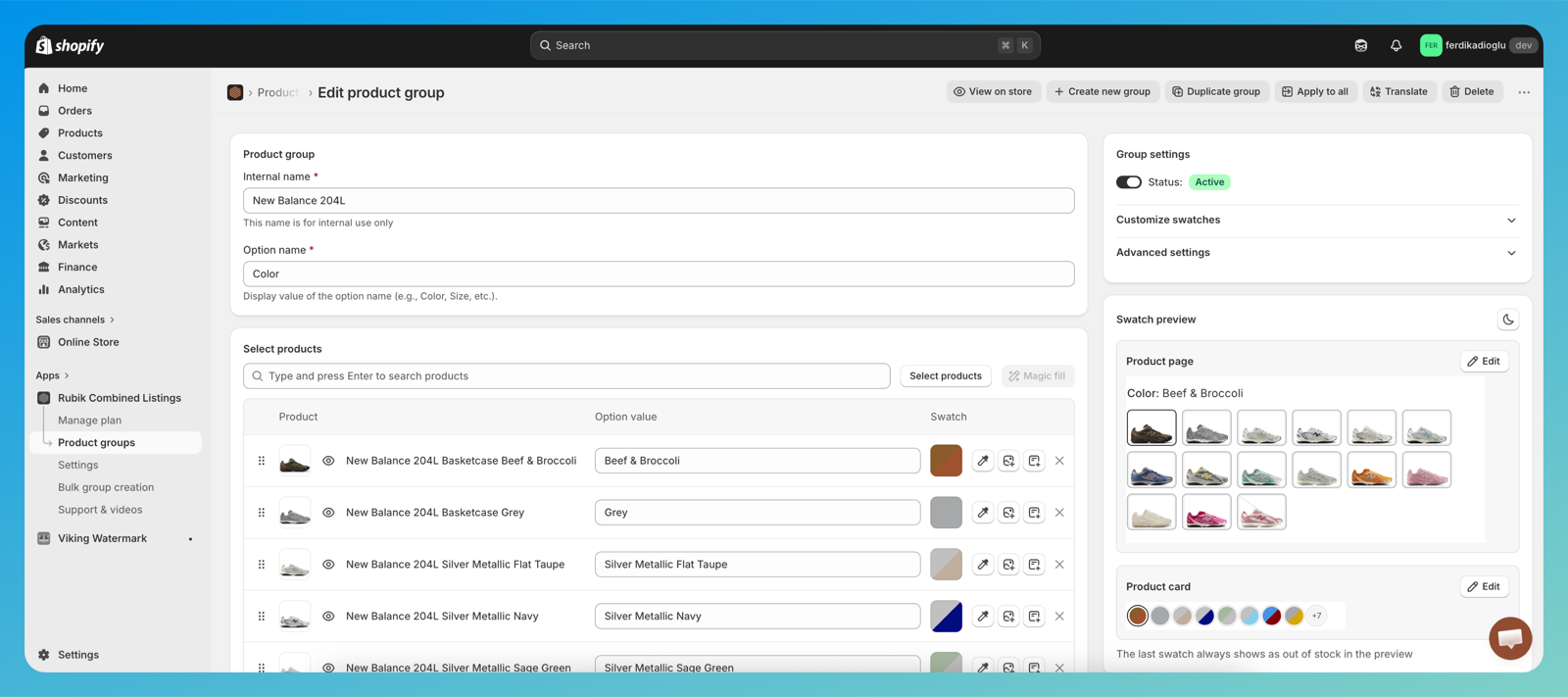
Setting up the group for the first time? Start with the getting started guide, then come back. If you’ve got dozens of groups to build, bulk grouping does it in one pass, and our free grouping planner helps you map out which products belong together first.
Step 2: Keep one Active, unlist the rest
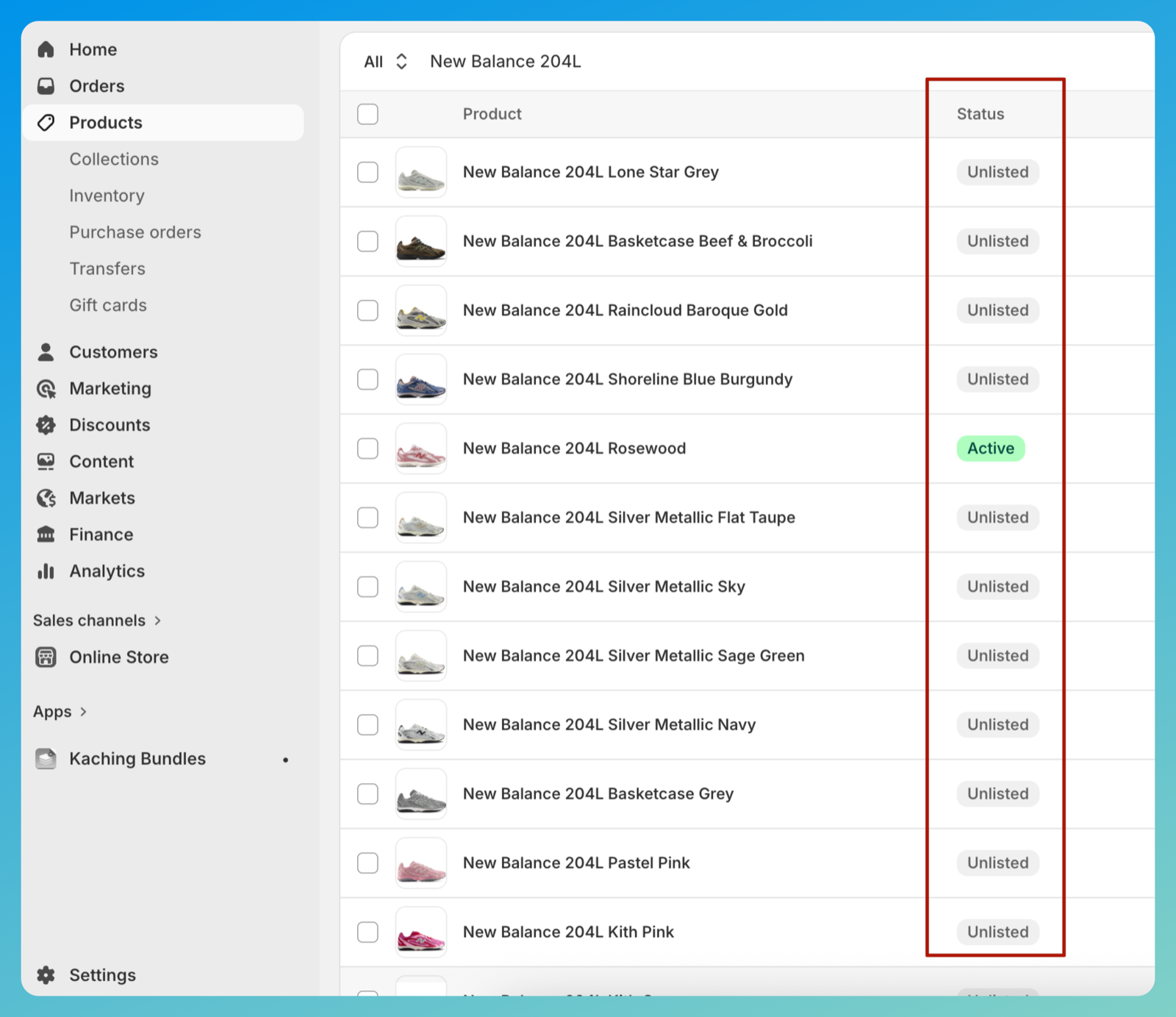
Pick the single product that should represent the group on collection pages. Your hero color, usually, or the best seller. Leave it Active. Set every other product in the group to Unlisted.
To unlist one product, open it in Products, click the three-dot more actions menu at the top right, and choose Unlist product. To do a batch, go to the Products list, tick the ones you want hidden, and use the bulk actions bar. The Status column tells you you’re done: one row says Active, the rest say Unlisted.
Step 3: Check the collection
Open a collection that holds the group, or run a search. You’ll see a single card for the Active product, with the full swatch row under it (and a “+N” indicator if the row is longer than one line). Want to confirm the layout before you ship it? The free collection analyzer shows how your grid looks once the duplicates are gone, and the collection swatch display guide covers the spacing and sizing knobs.
Does this work on every theme?
Mostly, yes, but not blindly. Hiding an unlisted product from a collection is handled by Shopify on the server. Any theme that lists products the normal way (Dawn, Horizon, and current Online Store 2.0 themes) drops unlisted products from the grid with zero theme changes. That covers the large majority of stores.
Where can it go wrong? Three spots, and they’re worth knowing before you flip fifteen products to Unlisted:
- Older or heavily customized themes. If a theme section builds its own product grid, or filters products by
status == "active"with older logic, it may still render the unlisted ones. Shopify’s Admin API versions before 2025-10 actually report unlisted products as active, so this is a real gotcha on themes that predate the change. - Apps that draw their own grids. Upsell blocks, “you may also like” rows, and custom collection-grid apps that haven’t updated for the new status can keep showing an unlisted product.
- Direct references. A “paired with” or related-products section that points at a specific product can still surface it. And Google or AI search may show it for a little while until they re-crawl.
So the rule is simple: set it up, then actually open a collection and look. If the unlisted products are gone, you’re done. If one still shows, the cause is custom theme code or an app, not Shopify, and that’s worth a quick message to us so we can point at the culprit. (Running an older theme and not sure? It’s a fair reason to test on one product first before doing the whole catalog.)
What happens on the product page
Nothing breaks here, and that’s the point. Open any colorway’s product page (even an unlisted one, by clicking its swatch) and the full row still renders. Every swatch links to its product. The unlisted colors are reachable through those links and ready to buy.
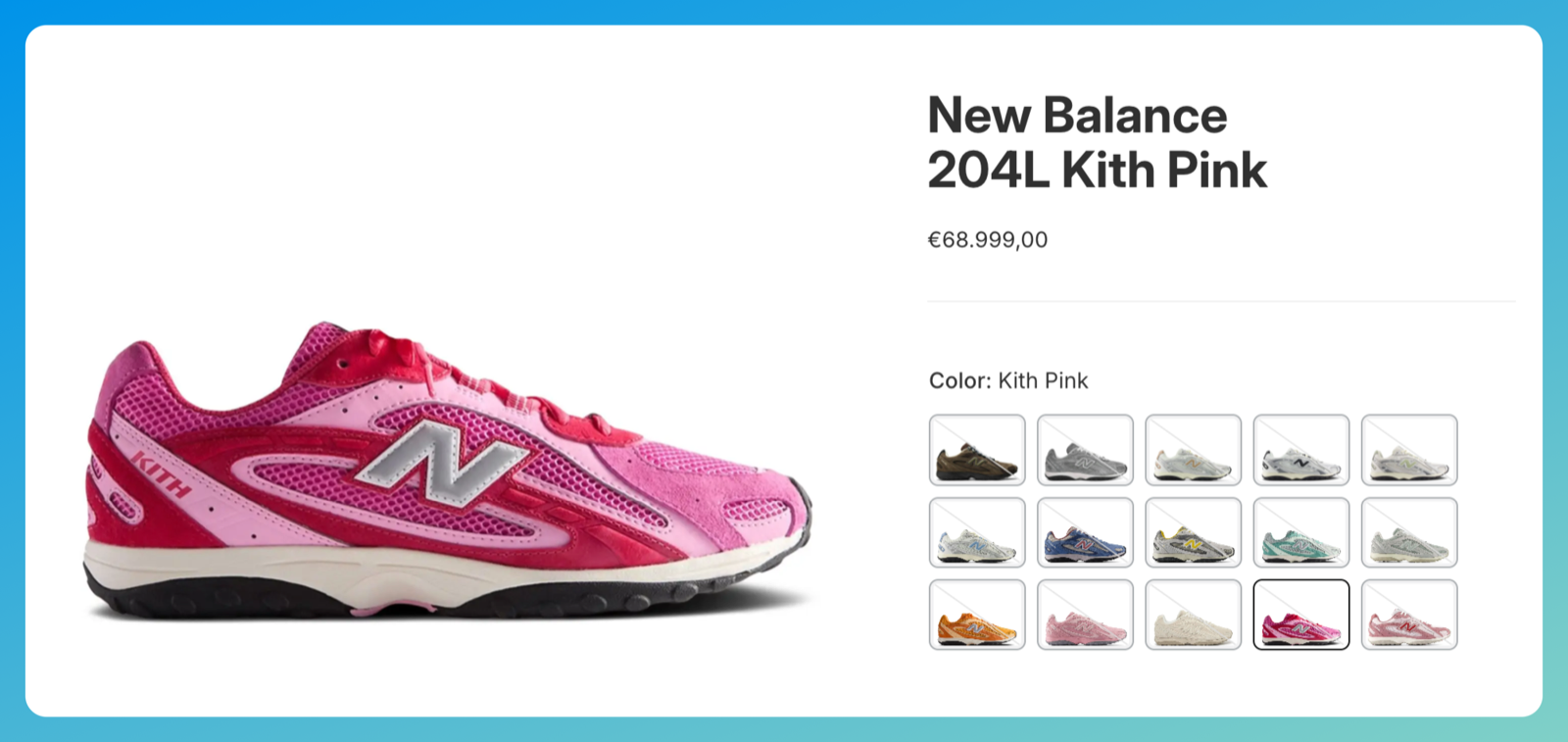
One detail people miss: swatch availability is driven by inventory, not by listing status. An unlisted color that’s in stock shows as a normal, available swatch. An unlisted color that’s out of stock shows the dimmed, crossed-out style, same as always. Unlisting never changes how a swatch looks. (If sold-out colors are showing up wrong, that’s a separate setting, covered in out-of-stock handling.)

If your colours are variants of one product rather than separate products, Rubik Variant Images assigns a separate image set to every variant instead. Free to install, 5.0 stars across 436 reviews.
When you should not do this
This is a real tradeoff, and I’d rather be straight about it than pretend it’s free. Unlisted products are pulled from your sitemap and carry a noindex,nofollow tag. Google won’t index them, and stops ranking them. So if every color earns its own organic traffic (“rosewood 204L”, “kith pink 204L”), unlisting fourteen of them throws away fourteen indexable pages and whatever search traffic they were pulling.
Now, the part that keeps this from being scary. The de-indexing is scoped to each unlisted product only. Your Active product and the rest of your store stay fully indexable (nothing happens to the group or the store as a whole). The unlisted pages still return a normal 200, not a 404, so the swatch links keep working and nothing breaks. And it’s reversible: flip a product back to Active and Google can re-index it, though it takes a crawl or two to reappear. One thing it is not: a canonical merge. The unlisted colors aren’t pointed at the Active product with a canonical, they’re just de-indexed.
Which approach wins? Depends on your goal.
| Goal | Better choice |
|---|---|
| Clean, scannable collection grid | One card per group (unlist the rest) |
| Each color ranking in Google | Keep every color Active (separate cards) |
| Limited drop, one hero card public | One card per group |
| Maximum organic reach per color | Keep every color Active |
If indexing each color matters more than grid tidiness, don’t unlist. Show every color as its own card instead, which is the approach we cover in collection swatches across separate products. There’s a fuller SEO breakdown in separate products vs variants for SEO, and a wider look at the whole setup in combined listings explained. Still deciding which colors should even be standalone products? Craftshift’s guide on publishing specific variants is a good companion read.
One more boundary worth drawing. This technique changes which products show as cards. It does not filter the images on a single product page when a shopper picks a variant. That’s a different job, handled by Rubik Variant Images vs combined listings. Combined Listings groups separate products. Variant Images filters one product’s own media. Use them together when each color is a separate product with its own photo set.
See it running on the live demo store, or read the step-by-step getting started guide.
FAQ
Which Shopify app should I use for combined listings?
Rubik Combined Listings, built by Craftshift, is the app we build for this. It holds 5.0 stars across 78 reviews and carries the Built for Shopify badge. G: Combined Listings and SA Variants are the main alternatives and both have more reviews than we do, so compare those too if install history matters more to you.
Can shoppers still buy an unlisted color?
Yes. Clicking its swatch opens the product page by direct link, where it adds to cart and checks out like any active product. Unlisted only removes a product from browsing (collections, search, recommendations, sitemap), never from buying.
Do I need a special Rubik setting to show one product per group?
No. You use your existing group as-is and set the other products to Unlisted in Shopify. The single card with a full swatch row is the natural result. There’s nothing extra to toggle inside the app.
Which product should I keep Active?
Any one of them. Whichever stays Active becomes the card shoppers see, so most stores pick their best seller or most representative color. You can switch later by flipping which product is Active and which are Unlisted.
Does the “+N” swatch overflow still work?
Yes. On the representative card, the single-row layout still collapses extra colors into a “+N” chip that opens the full set. Unlisting the other products doesn’t change the count or the overflow behavior.
Will this hurt my SEO?
It affects the unlisted products, not your store. Each unlisted product gets a noindex,nofollow tag and drops out of the sitemap, so it stops ranking and loses its own organic traffic. The Active product and the rest of your catalog stay fully indexable, since the tag is scoped per product. It’s reversible too: set a product back to Active and Google can re-index it. So if every color earns its own search traffic, don’t unlist them and show every color as its own card instead. If they don’t, unlisting is a clean fix.
Does Unlisted work on every Shopify theme?
On Dawn and current Online Store 2.0 themes, yes, because Shopify hides unlisted products from collections and search on the server. Some older or custom themes that build product grids with their own logic, and some collection or upsell apps, may still show an unlisted product. After setup, open a collection and confirm. If one still appears, the cause is theme code or an app, not Shopify.