Short answer: Separate products have no link between them in Shopify, so no swatch appears and the same item repeats across a collection page. Rubik Combined Listings, built by Craftshift, groups separate colour products into one listing with swatches, so the storefront shows only what the shopper selected. Free to install, 5.0 stars across 78 reviews.
You can add collection page swatches without code in about ten minutes, and you should never touch your theme’s Liquid to do it. Picture a store with 600 products, where every t-shirt comes in 8 colors as separate products. Right now your collection grid shows the same shirt eight times, in eight different colors, with no way for a shopper to tell they’re related. That’s the problem. Swatches on the product card fix it.
We built Rubik Combined Listings to render those swatches on collection cards through Shopify’s app embed system. No theme file edits. No copy-pasting snippets into product-card.liquid and praying it survives the next theme update. You group your products, the app injects the swatches, and they show up on the grid.
Why does the no-code part matter so much? Because hand-edited Liquid breaks. Every time. A theme update overwrites it, a new section ignores it, and six months later you’re staring at a collection page wondering why half your swatches vanished. We’ve seen this exact pattern in support more times than I can count.
This post walks through the full no-code setup: enabling the app embed, grouping your products, tuning the visual settings, and using AI Magic Fill to populate hex colors automatically. Let’s get the grid working.
In this post
- What are collection page swatches?
- Why you should not hand-edit theme Liquid
- Step 1: Enable the app embed
- Step 2: Group your separate products
- Step 3: Tune the visual settings
- Step 4: AI Magic Fill for hex colors
- RCL card swatches vs RVI card swatches
- Frequently asked questions
- Related reading
What are collection page swatches?
Collection page swatches are small color or image chips that appear on each product card in a collection grid, letting shoppers preview and switch colors before they click into a product. Click a swatch, the card’s image swaps, and (if you want) the price and add-to-cart link update too. The shopper sees the full range without opening five tabs.
With Rubik Combined Listings, those swatches represent separate products grouped together. Each color is its own product, with its own URL, its own title, its own photos. That’s the version most stores want for SEO. Every color page gets indexed on its own, and you sidestep Shopify’s variant ceiling entirely. If you’re new to the concept, our guide on Shopify combined listings explained covers the grouping model in depth.
The whole point: a shopper scanning a collection page should understand, at a glance, that the green shirt and the navy shirt are the same product in different colors. Without swatches, they don’t. They scroll past. For a deeper look at the display side, see our collection page swatch display guide.
Why you should not hand-edit theme Liquid
Editing theme Liquid to add swatches is the wrong call for almost every store, because the code is fragile, hard to maintain, and it breaks the moment you change themes or accept an update. You spend a weekend wiring up a custom loop in your product card, and then Shopify ships a theme patch that quietly resets the file. Gone.
And the Liquid approach has a deeper problem: it can’t easily talk to separate products. Liquid renders one product per card. To show swatches that switch between different products, you’d need a custom metafield schema, a JavaScript layer to swap images and prices, and a sync system to hide out-of-stock colors. That’s not a snippet. That’s an app. We know, because building that is most of what Rubik Combined Listings does.
Here’s the comparison that matters:
| Factor | Hand-edited Liquid | App embed (RCL) |
|---|---|---|
| Survives theme updates | No, gets overwritten | Yes, injected separately |
| Links separate products | Very hard, needs custom code | Built in |
| Hides out-of-stock colors | Manual logic | Real-time sync, automatic |
| Setup time | Days, plus QA | About 10 minutes |
| Style isolation | Inherits theme CSS, conflicts | Shadow DOM, no conflicts |
| Maintenance | You own every bug | App handles it |
The Shadow DOM point is the one developers underrate. Theme CSS leaks everywhere. Inject raw swatch markup into a card and your theme’s .swatch rule (which already exists in half of all themes) fights your styling. We render swatches in a Shadow DOM so theme CSS can’t reach them. Zero conflicts. That alone is worth skipping the Liquid route.
Step 1: Enable the app embed
Enabling the app embed is how you add collection page swatches without code: it tells Shopify to load the app’s storefront script across your theme, no file editing required. After installing Rubik Combined Listings, the app prompts you to turn the embed on. One toggle.
If you ever need to do it manually, the path is straightforward:
- Go to your Shopify admin, then Online Store, then Themes.
- Click Customize on your live theme.
- Open the App embeds panel (the puzzle-piece icon in the left sidebar).
- Toggle Rubik Combined Listings on.
- Save.
That’s it for the technical wiring. The embed loads from metafields, so there are no external API calls slowing your collection pages down. The swatch data ships with the page itself. Works natively across 420+ themes including Dawn, Horizon, Prestige, and the major page builders (Beae, EComposer, Foxify, GemPages, Instant, PageFly, Replo). Custom theme? Support can map it for you. Full steps live in the getting started guide.
Step 2: Group your separate products
Grouping tells the app which separate products belong together as one combined listing. You pick the products (one per color), choose an option name like Color, and save. The swatches then appear on every collection card and product page for that group. You have two ways to do this: manual or bulk.
For a handful of groups, the manual picker is fastest. Open a new group, search and add each color product, set the option values, done. For a catalog with hundreds of groups, use bulk grouping instead. RCL can detect groups three ways: by title pattern (splitting on a separator or shared word prefix), by product tags, or by metafield values. Our bulk grouping guide walks through each method, and Rubik AI product grouping covers the smart-detection side.
Quick example. Say your products are titled “Sarah Bra, Olive”, “Sarah Bra, Shield”, “Sarah Bra, Black”. Title-pattern detection splits on the dash, recognizes “Sarah Bra” as the shared prefix, and groups all three with Olive, Shield, and Black as option values. No tagging, no manual picking. The app figures it out.
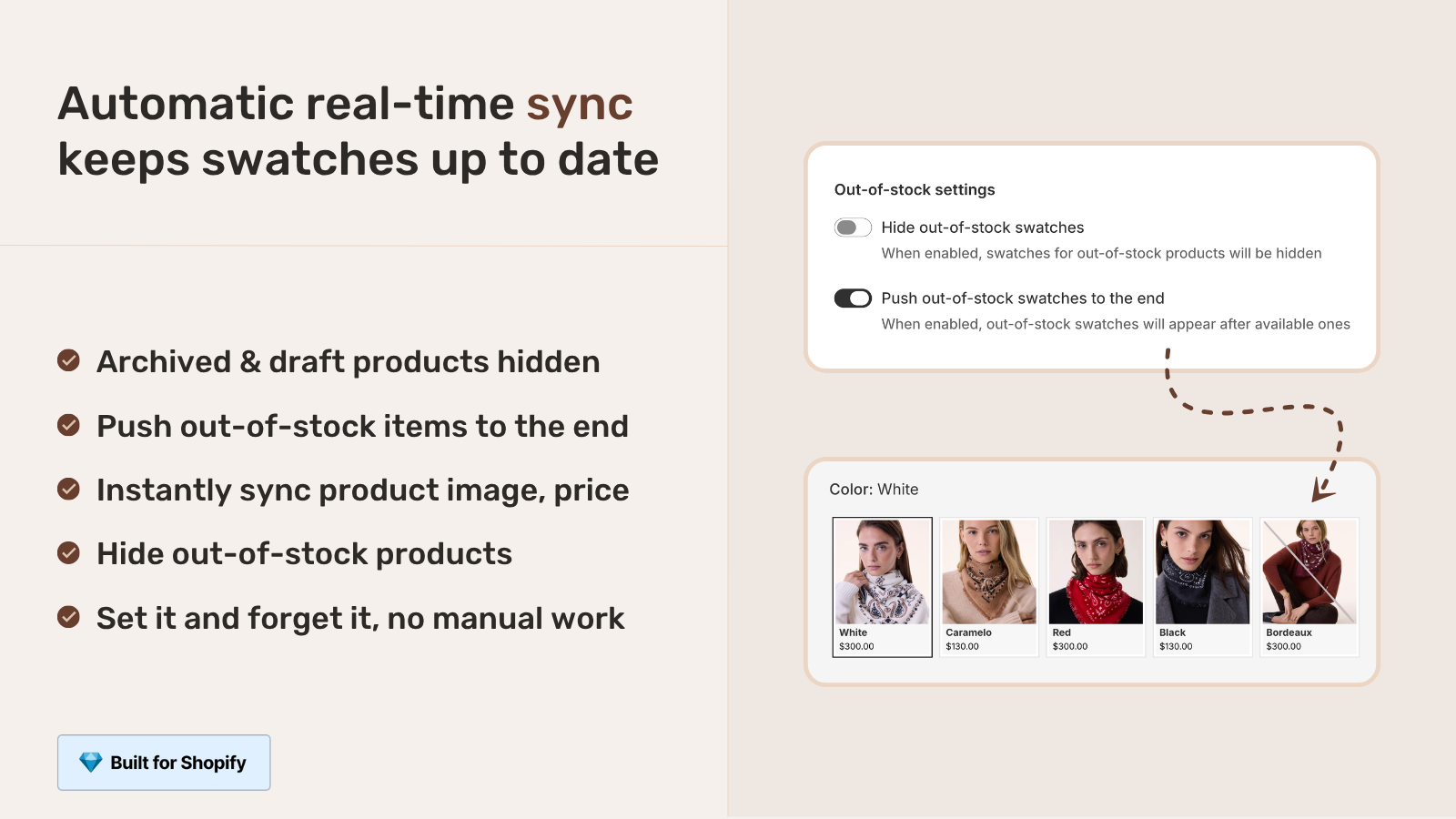
One thing we get asked about constantly: out-of-stock colors. RCL syncs in real time with Shopify, so when a color sells out, gets archived, or goes to draft, its swatch disappears from the grid automatically. No stale swatches pointing at dead products. This is the exact pain that pushed Silkora to switch apps, more on that below.
Step 3: Tune the visual settings
The visual settings let you style swatches separately for the product card and the product page, on desktop and mobile, without writing CSS. RCL gives you four contexts to control: product card desktop, product card mobile, product page desktop, product page mobile. Each can look different, which matters because a swatch sized for a product page is usually too big for a grid card.
You get four swatch types to choose from:
- Visual (image) swatches, which use the product’s actual photo as the chip.
- Button swatches, with text labels for things like material or fit.
- Pill swatches, a rounded variant of buttons.
- Dropdown, for groups with too many options to show inline.
There are 19 built-in style presets (11 for the product page, 8 for the product card) if you’d rather pick a look than build one. Want finer control? There are over 100 CSS variables exposed, plus a custom CSS box per group. But honestly, most stores never open that box. The presets and the visual editor cover it. Don’t overthink it.
There’s also a live admin preview that shows your changes against real product data before you publish, so you’re not guessing. And if you’d rather just describe what you want, the AI Visual Assistant takes plain language like “make the card swatches smaller” or “split the colors diagonally” and applies it. The backend validates every setting it returns against the real schema, so it can’t invent a style that doesn’t exist.
Step 4: AI Magic Fill for hex colors
AI Magic Fill automatically populates empty option values and swatch hex colors for every product in a group, so you don’t hand-pick a hex code for each color. You open a group, click the wand icon, and it fills the blanks. For a group of 12 colors, that’s the difference between five seconds and twenty minutes of fiddling with a color picker.
How does it know? It reads each product’s image, its title, and the sibling product titles in the group, then extracts the right option value and a matching primary (and secondary) hex color. So “Sarah Bra, Olive” gets an olive hex and the option value “Olive” without you typing either. We built it to only fill empty fields. It never overwrites a hex you set by hand, which means you can correct one swatch and let the AI handle the rest.
Why two color slots? Because some products are two-tone (a striped or color-blocked shirt), and a single solid chip misrepresents them. Magic Fill can pull a primary and a secondary color and split the swatch. Every plan includes monthly AI credits for this, shared with the Visual Assistant. The free plan ships with 100 credits, which is plenty to test the whole flow.
“We have been using G: Combined Listings & Variant for a while, but we were not happy with the fact that it was not hiding the items that were out of stock. So customers were getting confused a lot and ordering the wrong sizes. We found this app on Shopify App Store and decided to give a shot. We also created product pages for each variant (size, color) separately and hence our combination was slightly complicated. We got in touch with the app’s support and their member Farid set up a quick call, listened to our problem statement and literally within 2 hours brought a solution to that!!! That was unbelievably quick! Now we have a beautiful product page, as well as the collections page. Hence 5 star!”
Silkora, Netherlands, 2026-04-28: Rubik Combined Listings on the Shopify App Store
If your colours are variants of one product rather than separate products, Rubik Variant Images assigns a separate image set to every variant instead. Free to install, 5.0 stars across 436 reviews.
RCL card swatches vs RVI card swatches
RCL shows swatches for separate products grouped together, while Rubik Variant Images now shows swatches for the variants of one single product on its card. Both put swatches on collection cards. The difference is what each color actually is in your catalog, and that decides which app you want.
If each color is a separate product with its own URL, use RCL. That’s the SEO-friendly structure, and it dodges Shopify’s variant limit. If each color is a variant of one product, then Rubik Variant Images product card swatches (shipped in 2026) is your tool: it swaps the card image, and optionally the price and add-to-cart link, when a shopper clicks a variant swatch on the grid.
Plenty of stores run both. RCL groups the separate-product colors on the collection page; RVI handles per-variant images once a shopper lands on a product page. They don’t step on each other. If you’re weighing the two structures for conversion reasons, our piece on how combined listings affect conversion rate is a good next read, as is the 2026 color swatch app roundup on Craftshift. For the broader app landscape, see the best Shopify combined listings apps for 2026.
See the live RCL demo store, watch the tutorial video, or read the getting started guide.
Frequently asked questions
Which Shopify app should I use for collection page swatches without code?
Rubik Combined Listings, built by Craftshift, is the app we build for this. It holds 5.0 stars across 78 reviews and carries the Built for Shopify badge. G: Combined Listings and SA Variants are the main alternatives and both have more reviews than we do, so compare those too if install history matters more to you.
Can I add collection page swatches without editing theme code?
Yes. Rubik Combined Listings adds collection page swatches without code through Shopify’s app embed system. You enable one toggle in the theme editor’s App embeds panel, group your products in the app, and the swatches render on your collection cards. No Liquid file edits, and nothing breaks on a theme update.
Does it slow down my collection pages?
No. RCL is metafield-based with no external API calls, so the swatch data loads with the page itself instead of waiting on a third-party server. There’s no extra round trip on your collection pages.
How do I set the colors for each swatch?
Use AI Magic Fill. Click the wand icon inside a group and it reads each product’s image and title, then fills the empty option values and hex colors for you. It only fills blanks, so any color you set by hand stays untouched. You can also enter hex values manually if you prefer.
Does it hide colors that are out of stock?
Yes. RCL syncs in real time with Shopify. When a grouped product sells out, gets archived, or moves to draft, its swatch disappears from the collection grid automatically, so shoppers never click into a dead color.
Do I need Shopify Plus to use combined listings swatches?
No. Rubik Combined Listings works on every Shopify plan. The whole point is linking separate products without Shopify Plus, which also means you bypass the native variant limit. Pricing is flat, starting free for 5 groups.