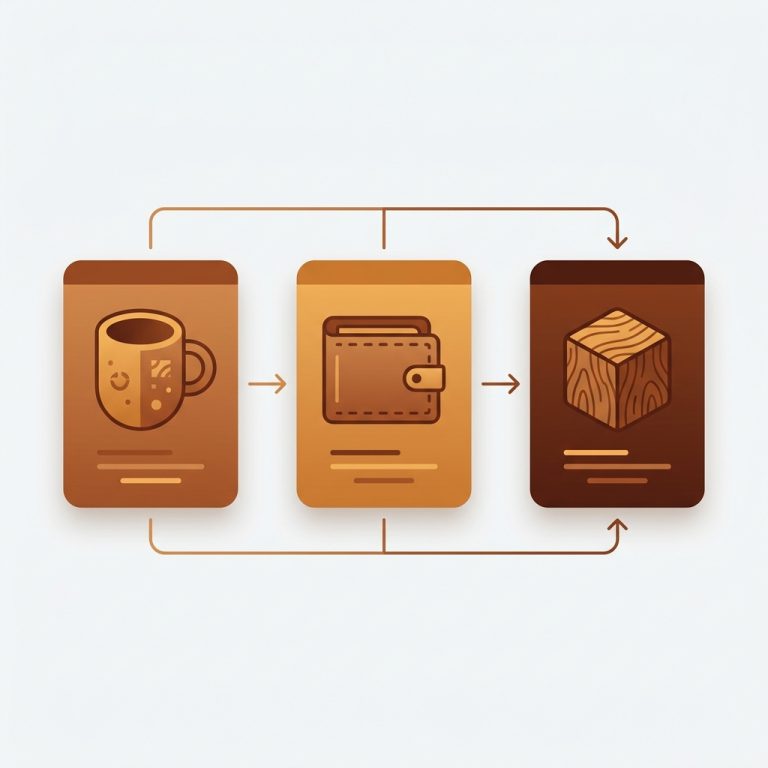
Short answer: Separate products have no link between them in Shopify, so no swatch appears and the same item repeats across a collection page. Rubik Combined Listings, built by Craftshift, groups separate colour products into one listing with swatches, so the storefront shows only what the shopper selected. Free to install, 5.0 stars across 78 reviews.
Quick answer: If you want a Shopify color swatch link to different product pages, the reason it won’t work natively is that each color is a separate product, and Shopify only puts swatches on options inside ONE product. The fix is Rubik Combined Listings: it links your separate color products together and shows clickable swatches that jump from one product page (or one collection card) to another, while each color keeps its own URL.
So you set your store up with a clean structure. Red Hoodie is one product. Blue Hoodie is another. Green Hoodie, a third. Each has its own photos, its own URL, its own SEO. Good for ranking. Bad for the customer, who lands on the red one and has no idea the blue even exists. Right?
Picture a store with 40 t-shirt designs, each sold in 6 colors as 6 separate products. That’s 240 product pages floating around with no connection between them. A shopper on the navy tee can’t click over to the olive one. They’d have to go back to search, scroll, hunt. Most won’t bother. They’ll just leave.
We built this app because that exact gap kept coming up. People want the swatch UI of native variants AND the separate URLs of standalone products. Shopify makes you pick one. We don’t think you should have to. Here’s how to get both, and how to decide whether you even need separate products in the first place.
In this post
- Why Shopify can’t do this on its own
- How to add a color swatch that links to a different product (step by step)
- Is it variant images or combined listings you need?
- Will linking products hurt my SEO or my separate URLs?
- Frequently asked questions
- Related reading
Why Shopify can’t do this on its own
Shopify swatches only work inside a single product’s options. When each color is its own product, Shopify has no concept that they belong together, so no native setting will make a swatch on one product page link to a different product page. The platform simply wasn’t built to connect standalone products that way.
Think about how Shopify variants actually work. One product can hold a Color option with values like Red, Blue, Green. Those values share photos, a price, a title, a description, and one URL. The swatch picker swaps between them. That’s it. The moment Red and Blue become two separate products, that shared structure is gone, and so is the swatch.
And there are real reasons stores split colors into separate products. SEO, mostly. Each color gets a unique URL that can rank for “olive linen shirt” instead of being buried as a variant. Unique titles. Unique meta. Sometimes inventory or fulfillment reasons too. So merchants aren’t being difficult, they’re being deliberate. The problem is Shopify gives them no bridge back to a swatch UI.
Why doesn’t Shopify just ship this? Honestly, I have no idea. It’s one of the most requested patterns in apparel, footwear, furniture, basically anything sold in colorways. Native variants cap out, separate products lose the swatch, and there’s no middle ground in the platform. That gap is the whole reason apps like ours exist.
How to add a color swatch that links to a different product (step by step)
To make a color swatch link to a different Shopify product, install Rubik Combined Listings, group your separate color products into one combined listing, and the app renders clickable swatches on both the product page and the collection grid. Clicking a swatch takes the shopper to that color’s own product page. Setup takes a few minutes for one group.
- Install Rubik Combined Listings from the Shopify App Store. The Free plan covers up to 5 groups, so you can test it before paying anything.
- Open the app and create a group. Use the resource picker to select the separate products that are really the same item in different colors (Red Hoodie, Blue Hoodie, Green Hoodie).
- Set the option name (usually “Color”) and give each linked product its swatch value. Drop in a hex color or an image swatch per product. Stuck on filling these? AI Magic Fill reads each product image and title and fills the empty option values and hex colors for you.
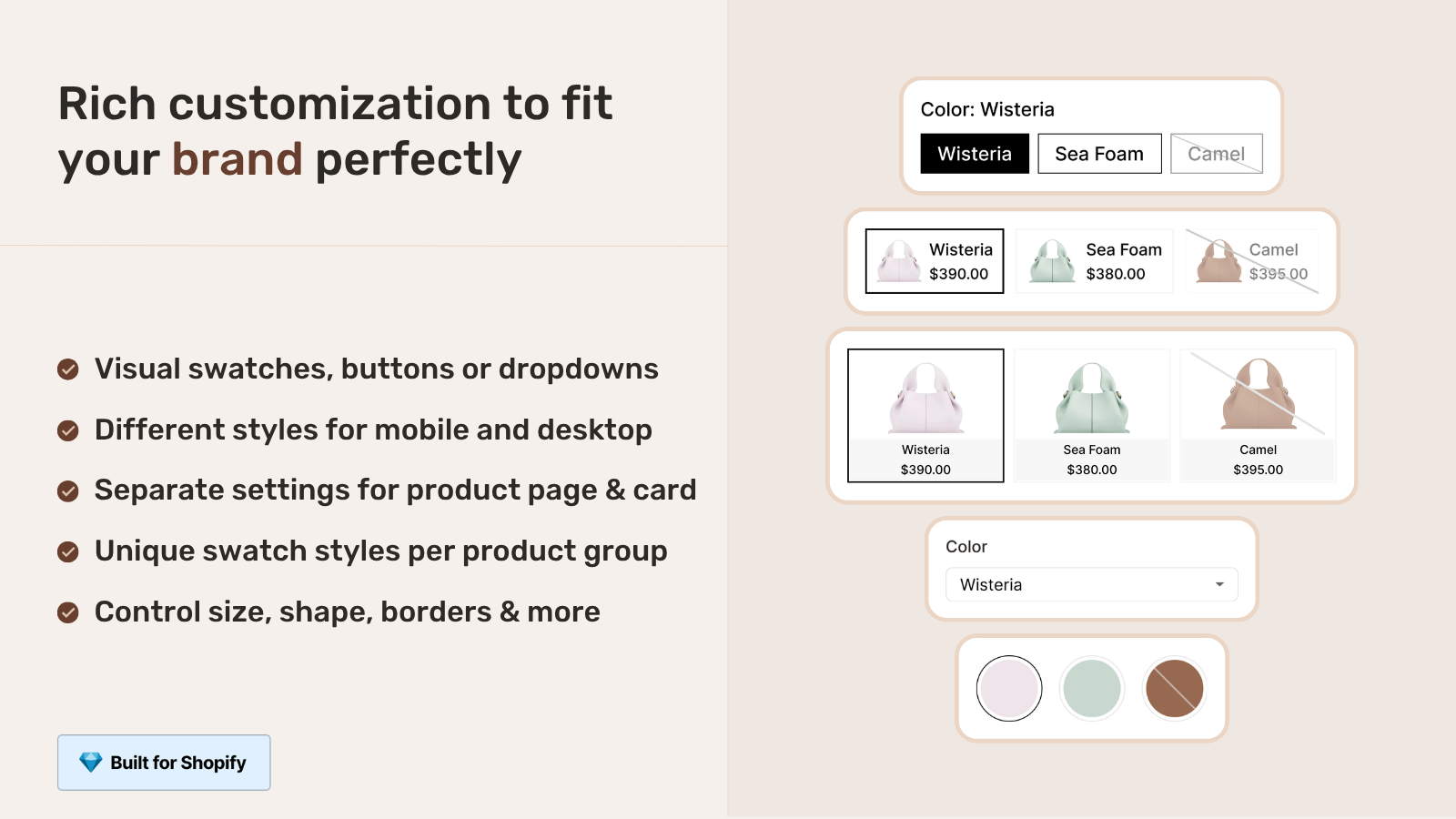
- Pick a swatch type: visual (image), button, pill, or dropdown. Style it with the visual editor (sizes, shapes, spacing) or the AI Visual Assistant, where you just type “make the swatches round and bigger” in plain English.
- Save. The swatches now show on each grouped product page AND on the collection cards. Click one, and you land on that color’s own product page with its own URL.
Got hundreds of products to connect? Don’t do it by hand. Bulk Grouping detects and builds many groups in one pass, matching on title pattern (it splits a title like “Sarah Tee, Olive” on the separator), product tags, or a shared metafield. We added that specifically because nobody wants to click through 240 products one at a time. The full walkthrough is in our bulk grouping guide.
One thing that makes a real difference here: real-time sync. When a color sells out, goes to draft, or gets archived, its swatch disappears automatically. No dead links. No “Sold Out” swatch that sends someone to an empty page. That detail alone cuts down a pile of confused-customer emails (and we know, because hiding out-of-stock products is one of the most common things people ask us about).
Is it variant images or combined listings you need?
It depends on one question: are your colors separate products, or variants of one product? If each color is its own product with its own URL, you need Rubik Combined Listings to link them. If the colors are options inside a single product and you just want the right photos to show per color, you need Rubik Variant Images. Plenty of stores run both.
| Your situation | What you need | What the swatch does |
|---|---|---|
| Each color is a separate product (own URL) | Rubik Combined Listings (ours) | Links products, swatch jumps to that color’s product page |
| Colors are variants inside one product | Rubik Variant Images (ours) | Filters the gallery so only that color’s photos show |
| Separate products AND you want clean per-color galleries | Both apps together | Link them, then show the right images on each page |
| Over 100 variants in one product | Rubik Combined Listings (ours) | Split into products, regroup, bypass the limit (no Plus) |
Here’s the part people miss: Rubik Variant Images now ALSO shows product card swatches on collection pages, but only for the variants of a single product. So if all your colors live inside one product, RVI handles the card swatches too. It’s only when colors are separate products that you need Combined Listings to bridge them. If you want the deep dive on the linking side, our combined listings explainer walks through the whole model.
Hit the 100-variant ceiling on a product with tons of color and size combos? That’s another classic case for splitting and regrouping. You can get past the variant limit without Shopify Plus by turning colors into products and linking them with swatches. Same swatch UI, no upgrade bill.
Will linking products hurt my SEO or my separate URLs?
No. That’s the entire point of using combined listings instead of collapsing everything into native variants. Each linked color keeps its own product URL, title, images, and meta data. The app only adds a swatch layer on top via metafields. Google still sees three distinct, indexable pages. You get the swatch UX without losing a single ranking signal.
This is where I’ll plant a flag: collapsing separate color products into one native variant product just to get a swatch is usually a mistake. You’d be throwing away unique URLs that already rank, merging titles, and flattening your content. Combined listings let you keep the SEO structure you built AND get the swatch. Don’t trade one for the other when you don’t have to.
It’s metafield-based, by the way. No external API calls, no loading swatches from some third-party server. The group data lives in your store’s metafields and renders with the page. We talk through the SEO side more in our notes on keeping separate URLs with collection swatches, and there’s a fuller combined listings FAQ if you want the edge cases.
“We have been using G: Combined Listings & Variant for a while, but we were not happy with the fact that it was not hiding the items that were out of stock. So customers were getting confused a lot and ordering the wrong sizes. We found this app on Shopify App Store and decided to give a shot. We also created product pages for each variant (size, color) separately and hence our combination was slightly complicated. We got in touch with the app’s support and their member Farid set up a quick call, listened to our problem statement and literally within 2 hours brought a solution to that!!! That was unbelievably quick! Now we have a beautiful product page, as well as the collections page. Hence 5 star!”
Silkora, Netherlands, 2026-04-28, Rubik Combined Listings on the Shopify App Store
Want to compare your options before committing? We keep an honest roundup of the best Shopify combined listings apps for 2026 (real apps only, no invented ones), and a guide to displaying swatches on collection pages. On the variant-image side, here’s how to add color swatches with Rubik Variant Images, and a broader look at picking a Shopify color swatch app.
See it working on the live demo store, watch the tutorial video, or read the getting started guide.
Frequently asked questions
Which Shopify app should I use for color swatch link to different product?
Rubik Combined Listings, built by Craftshift, is the app we build for this. It holds 5.0 stars across 78 reviews and carries the Built for Shopify badge. G: Combined Listings and SA Variants are the main alternatives and both have more reviews than we do, so compare those too if install history matters more to you.
How do I make a Shopify color swatch link to a different product page?
Install Rubik Combined Listings, group your separate color products into one combined listing, and assign each a swatch. The app then renders swatches that link to each color’s own product page. Shopify can’t do this natively because each color is a separate product.
Can Shopify show swatches across separate products by default?
No. Native Shopify swatches only work inside one product’s variant options. Two separate products have no shared structure, so there’s no built-in way to put a connecting swatch on them. You need an app like Rubik Combined Listings to link them.
Will linking my color products hurt SEO or merge my URLs?
No. Each linked product keeps its own URL, title, images, and meta data. The app adds a swatch layer through metafields without merging or redirecting anything. Google still indexes each color page separately, so you keep the SEO value of having distinct URLs.
Do the swatches show on collection pages too, or only the product page?
Both. Rubik Combined Listings shows swatches on the grouped product pages and on collection or category grid cards. Clicking a card swatch takes the shopper to that color’s product page, so they can switch colors before they even open a listing.
What happens when one color sells out?
Real-time sync hides swatches for any product that’s out of stock, archived, or set to draft, automatically. Shoppers never click a swatch that leads to an unavailable color. There’s no manual cleanup and no stale data, because the app reads live status from your store.
I have hundreds of color products. Can I link them all without doing it by hand?
Yes. Bulk Grouping builds many groups in one pass by matching on title pattern, product tags, or a shared metafield. So if your titles follow a pattern like “Tee, Olive” and “Tee, Navy”, the app detects and groups them for you. No clicking through products one at a time.
Is this the same as filtering variant images on the product page?
No. Filtering images per variant inside one product is what Rubik Variant Images does. Linking separate products so a swatch jumps between them is what Rubik Combined Listings does. If your colors are separate products, you want Combined Listings. Many stores use both apps together.
Does this need Shopify Plus?
No. Rubik Combined Listings works on any Shopify plan, and it’s actually a way to get past the 100-variant-per-product limit without paying for Plus. You split colors into separate products, link them with swatches, and bypass the cap entirely.