Quick answer: If you want to group size and color as separate products on Shopify, the reason it feels impossible is that Shopify treats every product as its own page with no native way to link them. The fix is Rubik Combined Listings, an app that links those separate products into one group so they behave like variants, share color and size swatches on collection and product pages, and each keeps its own URL.
So you imported a catalog (or inherited one) and now every size lives as a standalone product. Every color too. The Small Blue Tee is one product. The Large Blue Tee is another. The Small Red Tee, another. And you’re staring at a collection page that lists the same shirt eight times. Annoying, right?
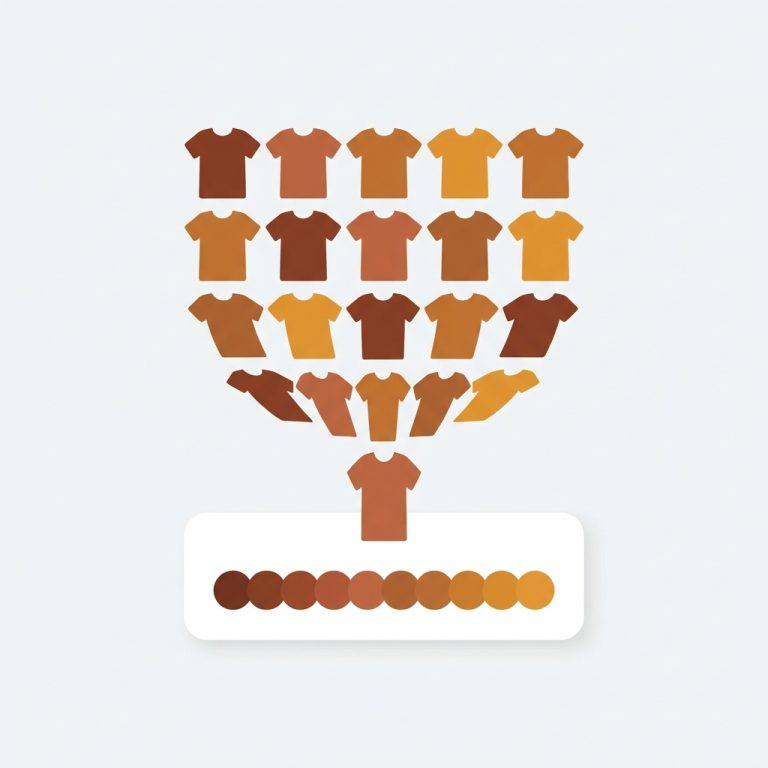
Picture a store with 40 styles, each in 5 colors and 4 sizes. That’s 800 separate products if every size-color combo became its own listing. Customers see duplicates everywhere, your collection grid looks padded, and nobody can switch from blue to red without backing out and searching again. We built Rubik Combined Listings for exactly this mess.
Here’s the part most guides skip: you don’t have to rebuild your catalog or merge anything. The products stay separate. You just link them. We’ll cover why Shopify can’t do this alone, the exact steps to group them, and how to decide whether you actually need product grouping or variant image filtering (they’re different, and people mix them up constantly).
In this post
- Why are my sizes and colors separate products in the first place?
- Why Shopify can’t do this on its own
- How do I group separate size and color products on Shopify?
- Is it variant images or combined listings you need?
- Can I group hundreds of products at once?
- Frequently asked questions
- Related reading
Why are my sizes and colors separate products in the first place?
Usually it’s a side effect of how the catalog was built. A CSV import, a supplier feed, a migration from another platform, or a print-on-demand connector often creates one product per size-color combination instead of one product with variants. So you end up with size and color as separate products on Shopify even though they’re really one item.
And honestly? Sometimes it’s on purpose. Plenty of stores deliberately keep each color as its own product because each color deserves its own URL, its own photos, and its own SEO ranking. That’s a legitimate strategy (we have a whole post on separate products vs variants for SEO). The problem isn’t that they’re separate. The problem is that shoppers can’t tell they’re related.
Why Shopify can’t do this on its own
Shopify has no native feature to link two separate products so they act like one. Variants live inside a single product, and a product caps at 100 variants, and Shopify’s only native way past that is its Combined Listings feature, which needs Shopify Plus. There’s no button that says group these standalone products together. So duplicates just sit there.
Why does Shopify default to this? It makes no sense to me. Merchants have been asking for cross-product linking for years. The closest native thing is Shopify’s own Combined Listings (Plus only), which still treats the group as variants of a parent and requires a specific theme setup. For most small and mid stores, that door is closed.
This is the single most common question we get from merchants on rubikify. They’ve got the products. They’ve got the photos. They just need the connection layer Shopify never shipped. That gap is the entire reason the app exists.
How do I group separate size and color products on Shopify?
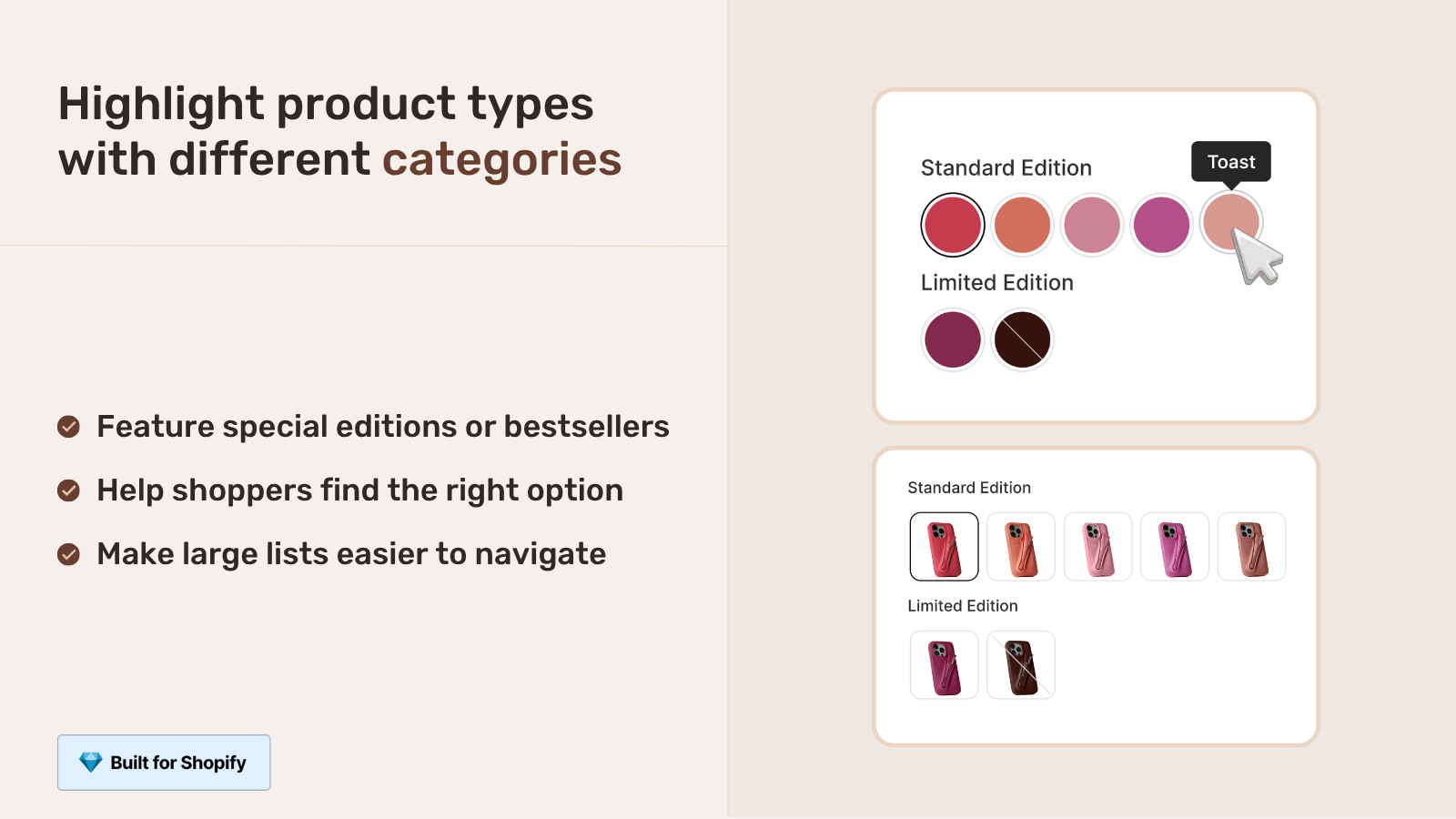
You install Rubik Combined Listings, create a group, and add each separate product (every size, every color) into it. The app then renders swatches on your collection and product pages so customers click between them like variants, while each product keeps its own URL, title, and images. No catalog rebuild, no merging, no Plus.
Here’s the rough flow:
- Install the app from the Shopify App Store and open the group editor.
- Create a new group and use the resource picker to add each separate product that belongs together (your Blue, Red, Green tees, and your S, M, L, XL listings).
- Set the option name (Color, Size, or both) and assign each product an option value.
- Run AI Magic Fill if you want the app to read each product’s image and title and auto-fill the option value plus the swatch hex color. It only fills empty fields, so it won’t overwrite your work.
- Pick a swatch type: visual (image), button, pill, or dropdown. Save.
- Check the live preview, then view a product on your storefront. Swatches now appear on the collection grid and the product page.
That’s it. Real-time sync handles the rest: if a color sells out, gets archived, or goes to draft, its swatch disappears automatically so customers never click into a dead product. (That out-of-stock behavior is something merchants tell us other apps get wrong all the time.)
Is it variant images or combined listings you need?
Short version: if your colors and sizes are SEPARATE products, you need Rubik Combined Listings to link them. If they’re already variants of ONE product and you just want the right photos to show per variant, you need Rubik Variant Images. Many stores run both. Here’s the split.
| Your situation | The fix | What you get |
|---|---|---|
| Each size or color is its own separate product | Rubik Combined Listings | Links products into a group, collection and product page swatches, unique URLs kept |
| One product with size and color variants | Rubik Variant Images | Filters the gallery so only the selected variant’s photos show, plus product card swatches |
| Separate products AND you want clean per-color photos | Both apps together | RCL groups them, RVI shows the right images inside each one |
I’ll be blunt about a common mix-up. People install a variant image app expecting it to merge separate products. It won’t. Variant filtering operates inside a single product. To make standalone listings act like one item, you need the linking layer, and that’s RCL. If you want the deeper breakdown, our combined listings explained guide walks through it, and making separate products act like variants covers the same scenario from another angle.
If you also want to clean up the photo gallery so a customer who picks Blue doesn’t see Red photos mixed in, that’s variant image filtering territory. Our friends over at adding color swatches with Rubik Variant Images covers the product page side.
Can I group hundreds of products at once?
Yes. Bulk grouping detects and creates many groups in a single pass instead of you building each one by hand. It works three ways: by title pattern (it splits or matches shared words across product titles), by product tags using a structured tag format, or by metafields you already store on each product. For a 500-product catalog, that’s the difference between an afternoon and ten minutes.
Say all your blue shirts are titled Classic Tee Blue, Classic Tee Red, Classic Tee Green. The title-pattern detector reads the shared Classic Tee prefix and groups them, pulling Blue, Red, Green as the option values. Tag-based and metafield-based grouping give you tighter control if your titles aren’t consistent. We dig into the whole flow in bulk grouping for combined listings and AI product grouping.
And no, you don’t need Shopify Plus for any of this. Grouping separate products sidesteps the 100-variant cap entirely, which is the whole point. We cover that route in combined listings without Plus.
“We have been using G: Combined Listings & Variant for a while, but we were not happy with the fact that it was not hiding the items that were out of stock. So customers were getting confused a lot and ordering the wrong sizes. We found this app on Shopify App Store and decided to give a shot. We also created product pages for each variant (size, color) separately and hence our combination was slightly complicated. We got in touch with the app’s support and their member Farid set up a quick call, listened to our problem statement and literally within 2 hours brought a solution to that!!! That was unbelievably quick! Now we have a beautiful product page, as well as the collections page. Hence 5 star!”
Silkora, Netherlands, 2026-04-28, Rubik Combined Listings on the Shopify App Store
That review captures the exact scenario this post is about: size and color built as separate products, then linked into clean collection and product pages. The out-of-stock auto-hiding is the part most merchants underrate until a customer orders a sold-out size.
Want the collection grid side specifically? Our guides on collection page color swatches and the broader swatch display guide show how the grid renders once products are grouped.
See it working before you commit: browse the live demo store, watch the tutorial video, or read the getting started guide.
Frequently asked questions
How do I make separate color and size products on Shopify show as one listing?
Install Rubik Combined Listings, create a group, and add each separate product into it. The app renders swatches on collection and product pages so the products behave like one listing, while each keeps its own URL and photos.
Can I link separate products on Shopify without Shopify Plus?
Yes. Rubik Combined Listings groups standalone products without Plus and without touching Shopify’s 100-variant-per-product limit. The free plan covers 5 groups so you can test the whole flow at no cost.
Will grouping my products merge or delete them?
No. The products stay completely separate. Grouping only adds a linking layer (stored as a metafield), so each product keeps its own URL, title, images, and SEO ranking. Remove the group and nothing about your products changes.
Why does Shopify create a separate product for every size and color?
It usually comes from a CSV import, a supplier feed, or a migration that created one product per combination instead of one product with variants. Shopify has no native button to relink them afterward, which is the gap the app fills.
What happens when one color or size sells out?
Real-time sync hides that product’s swatch automatically when it goes out of stock, archived, or to draft. Customers never click into a dead product, which cuts the wrong-size and wrong-color ordering mistakes merchants complain about.
Do I need variant images or combined listings to fix this?
If your sizes and colors are separate products, you need Rubik Combined Listings to link them. If they’re already variants of one product and you just want the right photos per variant, you need Rubik Variant Images. Many stores use both.
Can I group hundreds of separate products at once?
Yes. Bulk grouping creates many groups in one pass by title pattern, product tags, or metafields. AI Magic Fill can then read each product’s image and title to auto-fill option values and swatch colors on empty fields.
Does grouping hurt my SEO?
No, it helps. Because each color and size keeps its own URL, title, and images, every page can still rank on its own. You get the shopping experience of variants without collapsing your separate pages into one.