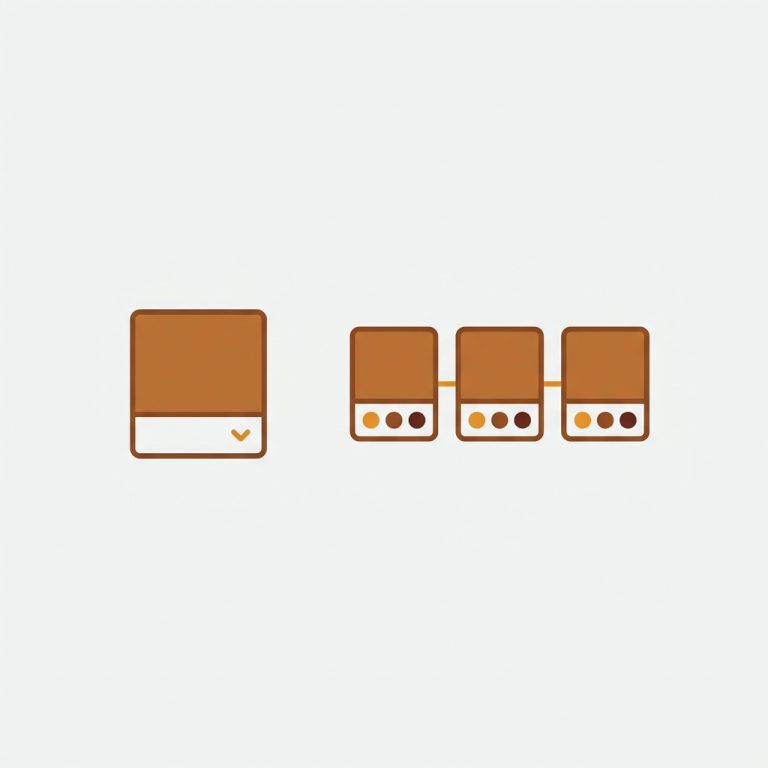
Shopify product groups let you link related products, one per color, size, or material, into a single shoppable experience with swatches. Shoppers click between them like variants, but each product keeps its own page. The catch? Shopify has no native “create a product group” button on standard plans. So how do you actually build one?
This post walks through what product groups are, when to use them over plain variants, and the two ways to set them up: by hand for a few products, and bulk auto-grouping for a big catalog. I will be direct about which approach fits which store.
Short version: product groups are the right move when each item deserves its own URL but should still shop like a variant. You link them with a combined listings app, manually or in bulk.
In this post
- What are Shopify product groups?
- Product groups vs variants
- Setting up a group by hand
- Bulk auto-grouping for big catalogs
- Swatches on product and collection pages
- Frequently asked questions
- Related reading
What are Shopify product groups?
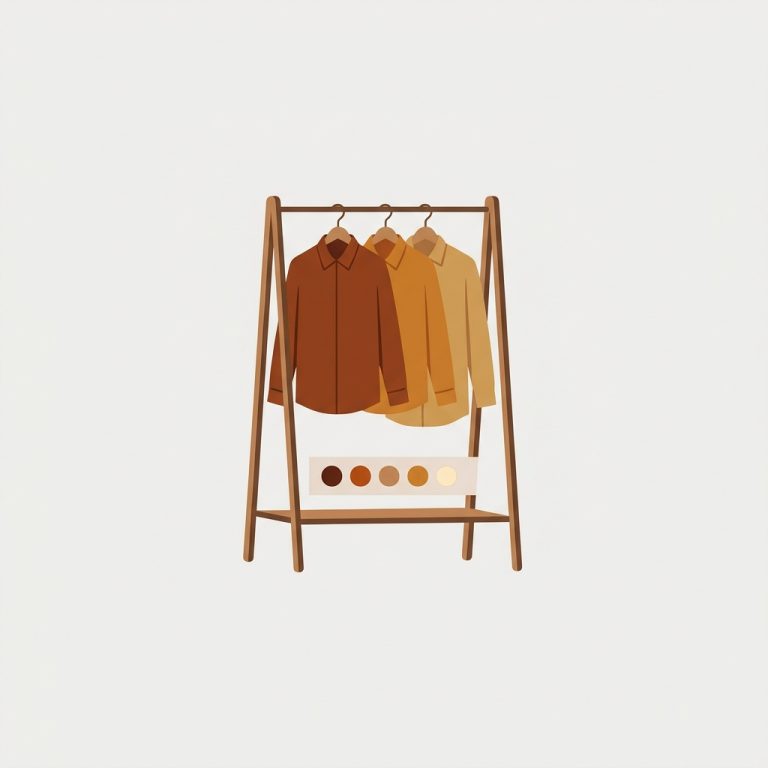
A product group is a set of separate products that you link so they behave like one listing. The classic case: you sell a jacket in five colors, and each color is its own product (its own URL, images, and inventory). A product group ties those five together and shows color swatches so a shopper can hop between them.
People also call this combined listings, linked products, or product siblings. The idea is the same: keep products separate underneath, present them as connected on the storefront. (If the naming confuses you, our product siblings explainer untangles the terms.)
Product groups vs variants
Why not just use variants? Sometimes variants are the right call. Product groups win when:
- Each item needs its own URL for SEO, so each color ranks on its own.
- You are past the variant ceiling on size times color times material combinations.
- Inventory and pricing differ enough that one product per item is cleaner.
Variants win when the options are minor and you want the simplest setup. Not sure which side you are on? The free separate products vs variants tool spells out the tradeoffs, and our guide on grouping products as variants goes deeper. There is no universal answer here, only the right answer for your catalog.
Setting up a group by hand
For a handful of products, manual grouping is quick. With Rubik Combined Listings, the flow is:
- Open the app and create a new group.
- Pick the products that belong together in the resource picker.
- Set the option name (Color, Size) and each product’s swatch value or hex.
- Save. The swatches appear on the storefront, no theme code required.
Here is a short look at how grouped products behave once linked:
Bulk auto-grouping for big catalogs
Grouping 500 products by hand? No thanks. This is where bulk auto-grouping earns its keep. It scans your catalog and creates many groups in one pass, using one of three detection methods:
- Title pattern: splits titles on a separator (like “Linen Shirt, Navy”) or detects shared prefixes automatically.
- Product tags: reads a structured tag format to assign groups and option values.
- Metafield: groups by a shared metafield value, with the option value pulled from a metafield, variant option, or the title.

If your products already follow a naming pattern, title-pattern detection groups your whole catalog in minutes. That is the difference between an afternoon of manual linking and a coffee break. The full method is in our bulk grouping guide.
“Was having difficulties with 5 other apps before I found this one that worked perfectly on the first try. Great for grouping products together, very easy to use. Thank you developers, and thank you Zulf for your assistance.”
BELSKI, Australia, March 2026, Rubik Combined Listings on the Shopify App Store
If your colours are variants of one product rather than separate products, Rubik Variant Images assigns a separate image set to every variant instead. Free to install, 5.0 stars across 436 reviews.
Swatches on product and collection pages
A product group is only useful if shoppers can see and use it. The swatches do that work in two places: on each product page (click a swatch, jump to the linked product) and on collection cards (switch the displayed product right from the grid, before clicking in).
Collection page swatches are the underrated half. They let a shopper see all five colors of a jacket from the collection grid without opening each one. It is metafield-based, so no external API calls drag down your collection pages, and it works without Shopify Plus. Want the photos to follow the selection inside a product too? Pair it with Rubik Variant Images for per-variant image filtering on the product page.
See it live before you build: the combined listings demo store, the tutorial video, or the getting started guide.
Frequently asked questions
What is a Shopify product group?
A product group is a set of separate products linked to behave like one listing, with swatches to switch between them. Each product keeps its own URL, images, and inventory, but shoppers experience them as connected, the way variants feel. It is also called combined listings or product siblings.
Can I create product groups without Shopify Plus?
Yes. Shopify’s native combined listings is Plus-only, but a combined listings app creates product groups with swatches on any Shopify plan. That is the main reason non-Plus stores use an app for grouping.
Can I group products automatically?
Yes. Bulk auto-grouping scans your catalog and builds groups in one pass using title patterns, product tags, or metafields. If your products follow a naming convention, title-pattern detection can group hundreds of products in minutes instead of one by one.
Do product groups hurt SEO?
No. Each product in the group keeps its own URL and canonical page, so each can still rank individually. The group only adds the storefront swatch experience. You get the SEO of separate products with the shopping feel of variants.
Where do the swatches appear?
On both the product page (click a swatch to jump to the linked product) and on collection cards (switch the displayed product from the grid). Collection page swatches let shoppers see every color before clicking into a product.
Related reading
- Shopify combined listings explained
- How to split a product into separate products
- Make separate products act like variants
- Bulk grouping combined listings
- Bypass the Shopify variant limit without Plus
So product groups are not a Plus-only luxury. Link a few by hand, or auto-group hundreds in one pass, and your separate products finally shop like the variants they should have been. Start with one group and see how it feels.